EducationSoftwareStrategy.com
StrategyCommunity

Knowledge Base

Product

Community

Knowledge Base

TopicsBrowse ArticlesDeveloper Zone

Product

Download SoftwareProduct DocumentationSecurity Hub

Education

Tutorial VideosSolution GalleryEducation courses

Community

GuidelinesGrandmastersEvents
x_social-icon_white.svglinkedin_social-icon_white.svg
Strategy logoCommunity

© Strategy Inc. All Rights Reserved.

LegalTerms of UsePrivacy Policy
  1. Home
  2. Topics

KB40500: "Export aborted because fatal lint errors were found." Error Occurs when Exporting a Signed Application Package in Eclipse for the MicroStrategyMobile SDK Project 9.2.1m and 9.3.1


Community Admin

• Strategy


An application package file (APK) is the file format used to distribute and install application software onto Google's Android operating system. When developers try to create the APK used to distribute and install MicroStrategy Mobile's Android application, Lint errors may occur during the export of the signed APK file.

SYMPTOM:
An application package file (APK) is the file format used to distribute and install application software onto Google's Android operating system.  When developers try to create the APK used to distribute and install Strategy Mobile's Android application, Lint errors may occur during the export of the signed APK file.
 
STEPS TO REPRODUCE:

  • Right click on StrategyMobile > Android Tools > Export Signed Application Package

ka04W000000Od0iQAC_0EM440000002Gfk.png
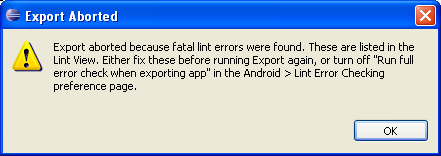
  • The following error should appear:

ka04W000000Od0iQAC_0EM440000002GgD.png
  • Sample Code/Error
    Export aborted beccause fatal lint errors were found.  These are listed in the Lint View.  Either fix these before running Export again, or turn off "Run full error check when exporting app" in the Android > Lint Error Checking preferences page.

     
  • Multiple errors will appear in the Lint Warnings log.  Some warnings you may see are in the screenshot below:

ka04W000000Od0iQAC_0EM440000002Gg6.png

CAUSE:
The Android SDK used to compile the APK is not the same Android SDK used when testing the build prior to release of the StrategyMobile project.  This is a known issue with Strategy Mobile (Android) SDK 9.2.1m and 9.3.1.
 
ACTION:
Contact Strategy Technical Support for an update on the status of this issue.
 
WORKAROUND:
To work around this issue, the Lint errors returned can be configured in Eclipse to return as warnings instead of errors so the APK file can be created successfully.  The following are steps on how to configure the Lint errors in Eclipse:

  • In Eclipse, go to Window > Preferences
  • Navigate through the hierarchy on the left hand side of the Preferences window to Android > Lint Error Checking
  • In the Issues section, navigate to Correctness:Messages. Note that MissingTranslation, StringFormatInvalid, and StringFormatMatches have either a fatal or error severity:

ka04W000000Od0iQAC_0EM440000002Gfi.png
  • To change the severity, highlight each error ID and use the Severity drop down menu to modify it to Warning.  Do this for each error ID that needs to be changed.

ka04W000000Od0iQAC_0EM440000002GgE.png
  • Now the error ID will appear as warnings:

ka04W000000Od0iQAC_0EM440000002Gfj.png
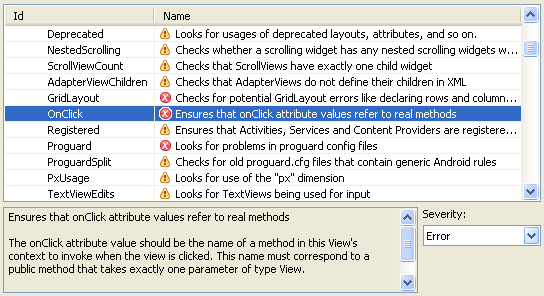
  • Another error ID that needs to be modified is under the Correctness section - OnClick:

ka04W000000Od0iQAC_0EM440000002Gfl.png
  • Change the severity for the OnClick error ID to Warning:

ka04W000000Od0iQAC_0EM440000002Gfr.png
  • Click OK.  The following confirmation message will appear asking to apply the new changes:

ka04W000000Od0iQAC_0EM440000002GgF.png
  • Sample Code/Error
    The list of enabled checks has changed.  Would you like to run lint now to update the results?

     
  • The Lint errors that appeared as errors will now appear as warnings in the Lint Warnings window in Eclipse.
  • Try to export a signed APK file via Android Tools in Eclipse on the StrategyMobile project to successfully create the APK used to deploy and install Strategy Mobile on to the supported Android devices.


ADDITIONAL INFORMATION:
 
The Strategy SDK allows you to customize the standard Strategy Web interface, and extend and integrate the Strategy business intelligence functionality into other applications. However, before changing the way Strategy Web products look or behave, it is helpful to understand how the application is built. For more information regarding the Strategy Web architecture or the process of customizing Strategy Web, please refer to Strategy Developer Zone (https://resource.microstrategy.com/msdz/).
 
To access the Strategy Developer Zone, you must have access to the Strategy Knowledge Base, you must have purchased the Strategy SDK, and you must be current on your Strategy maintenance agreement. If you are a US-based business and believe that you satisfy all three of these conditions but you do not have access to the Strategy Developer Zone, please contact Strategy Technical Support at support@microstrategy.com or at (703) 848-8700. If you are an international business, please contact Strategy Technical Support at the appropriate email address or phone number found at http://www.microstrategy.com/Support/ContactUs.asp.
 
 
CUSTOMIZATION WARNING:
 
This customization is provided as a convenience to Strategy users and is only directly applicable to the version stated. While this code may apply to other releases directly, Strategy Technical Support makes no guarantees that the code provided will apply to any future or previous builds. In the event of a code change in future builds, Strategy Technical Support makes no guarantee that an updated version of this particular customization will be provided. In the event of a code change in future builds, Strategy may not be able to provide additional code on this matter even though this customization is provided at this time for this specific build. For enhancements to this customization or to incorporate similar functionality into other versions, contact your Account Executive to inquire about Strategy Consulting assistance.


Comment

0 comments

Details

Knowledge Article

Published:

June 23, 2017

Last Updated:

June 23, 2017