EducationSoftwareStrategy.com
StrategyCommunity

Knowledge Base

Product

Community

Knowledge Base

TopicsBrowse ArticlesDeveloper Zone

Product

Download SoftwareProduct DocumentationSecurity Hub

Education

Tutorial VideosSolution GalleryEducation courses

Community

GuidelinesGrandmastersEvents
x_social-icon_white.svglinkedin_social-icon_white.svg
Strategy logoCommunity

© Strategy Inc. All Rights Reserved.

LegalTerms of UsePrivacy Policy
  1. Home
  2. Topics

KB405775: When an image is referenced using relative paths in a dashboard, when the dashboard is exported to PDF users see that the image displays as a red X in MicroStrategy Web 9.x and 10.x


Community Admin

• Strategy


A user creates a dashboard containing an image and opts to reference the image file using a relative path.  when referencing the image using '../images/name_of_image' the image will appear in web but not when exported to pdf in MicorStrategy 9.x and 10.x

SYMPTOM:
A user creates a dashboard containing an image and opts to reference the image file using a relative path.  when referencing the image using '../images/name_of_image' the image will appear in web but not when exported to pdf in MicorStrategy 9.x and 10.x
Relative path:
A partial path is relative to the working directory of the user or application, so that a full absolute path does not need to be provided. For example, Images\myimage.jpg. In order for the image to be displayed properly, it must be copied in all of the following folders:

  • Program Files\MicroStrategy\Desktop (for a document in Desktop)
  • Documents and Settings\Username\Local Settings\Temp (for a document exported to Excel 2000 from Desktop or a document in Strategy Office)
  • Program Files\MicroStrategy\Intelligence Server (for a document exported to PDF from Strategy Web)
  • Program Files\MicroStrategy\Web ASPx (for documents in Strategy Web) or Web JSP (for documents in Strategy Web Universal)

Even after placing the image file in the correct locations outlined above and referencing the image in the form of '../images/image_name', the user still sees the red X representing a broken image when exporting the dashboard to PDF.
STEPS TO REPRODUCE:
Use the following steps to reproduce this behavior in the Strategy Tutorial project:

  • Create a simple dashboard in Strategy Web and insert an image.
  • Reference the image in the form of '../images/image_name' as shown below. Notice that the image displays with no issue in Strategy Web.
     
ka04W000000ObtbQAC_0EM4400000028Bj.jpeg
  • Export the dashboard to PDF and notice that the image displays as a broken red X.
     
ka04W000000ObtbQAC_0EM4400000028BY.jpeg

 
CAUSE:
This issue is caused by the way the image is referenced when defining the path.  In the above example using two dots in the path reference ("../") fails when exporting to PDF.  Because the export to PDF pulls the image from the Intelligence Server, the image has to be referenced in a way that makes it accessible to both the Web Server and Intelligence Server. 
ACTION:
In this example, using a single dot in the reference path allows the Intelligence Server and Web Server to access the image file.  This may not necessarily work for customer environments, but the steps below will still apply:
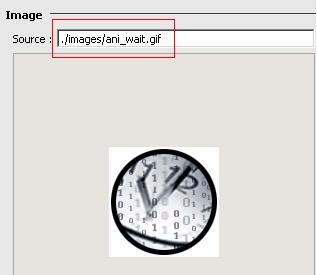
  • Right click the image on the dashboard in Strategy Web in design or editable mode and select Properties and Formatting > Image.
  • Change the reference to the image to appear similar to the following './images/image_name'.  Be sure to Apply and Save the change. See the example in the screenshot below:
     
ka04W000000ObtbQAC_0EM4400000028Bl.jpeg
  • Exporting the dashboard to PDF should also result in the image properly displayed:
ka04W000000ObtbQAC_0EM4400000028Bi.jpeg


KB405775 KB405775


Comment

0 comments

Details

Knowledge Article

Published:

April 17, 2017

Last Updated:

November 13, 2018