Summary:
Starting with Strategy 10.4 Android app, users can setup alert-based subscriptions to ensure that users automatically receive notifications on an Android device with Strategy Mobile when a metric on a report meets specific threshold conditions. You can create an alert-based subscription using the
Alerts Editor in Web. For information on creating alert-based subscriptions, see the Strategy Web Help. These alerts are “pushed” to Strategy Mobile for Android by Intelligence Server.
Creating an Android Device for Mobile:
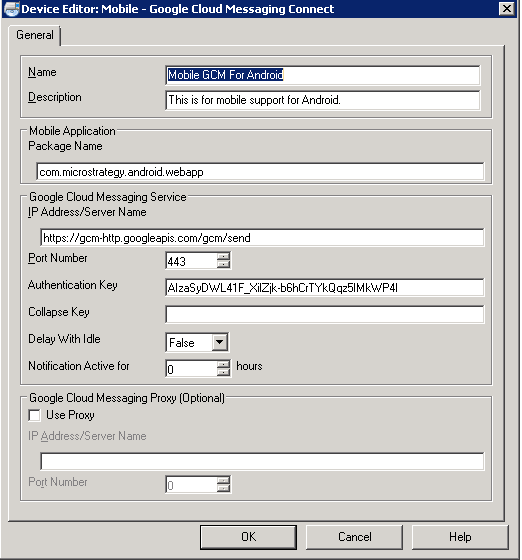
For customized app, sepcify the below fields based on Google Cloud Message service.
* Package name: Type the Application ID for your Strategy Android Mobile Application.
* Google Cloud Messaging Service:
** IP Address / Server Name: Type the name or IP address of the GCMS used to send the push notifications.
** Port Number: Type the port that the GCMS uses to receive push requests.
** Authorization Key: This key can be obtained from Google Developer Console for customized app. If using Firebase Cloud Messaging(FCM) instead of Google Cloud Messaging, the autorization key corresponds to the Server key.
Note: Google plans to deprecate and remove Google Cloud Messaging (GCM) APIs on or after April 11, 2019, Learn more at https://developers.google.com/cloud-messaging/faq.
Once an Android device is created, it appears in the list of existing devices when you create an address for a Strategy user or a contact. You select an Android device and assign it to the address you are creating. When a user subscribes to a report to be delivered to this address, the report is delivered to the Android device specified in that address, using the delivery settings specified in the associated Android device.
Creating Alert Subscription for Android Device:
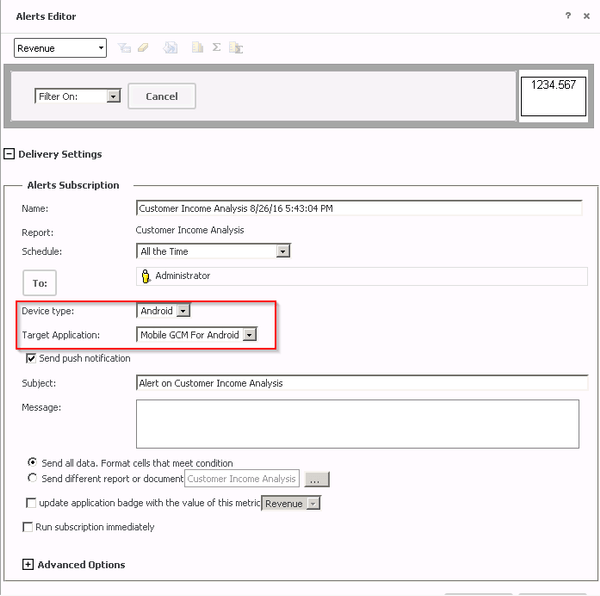
1) After you execute a report, right mouse click on the metric and select Alerts --> Mobile Notification which opens Alerts Editor.
2) Change device type to Android and Target appication with the above created Android device as shown in screenshot.
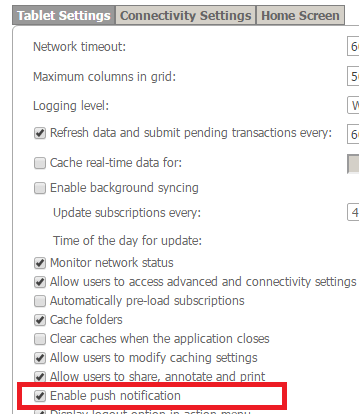
3. Create a configuration for the application. In Android Settings tab of the
configuration, make sure that you select the Enable Push Notification check box.
KB409044
