EducationSoftwareStrategy.com
StrategyCommunity

Knowledge Base

Product

Community

Knowledge Base

TopicsBrowse ArticlesDeveloper Zone

Product

Download SoftwareProduct DocumentationSecurity Hub

Education

Tutorial VideosSolution GalleryEducation courses

Community

GuidelinesGrandmastersEvents
x_social-icon_white.svglinkedin_social-icon_white.svg
Strategy logoCommunity

© Strategy Inc. All Rights Reserved.

LegalTerms of UsePrivacy Policy
  1. Home
  2. Topics

KB40928: Text "NaN" is displayed as data value in stacked bar graph when running a Report Services document in Flash mode in MicroStrategy Web 9.4.1


Community Admin

• Strategy


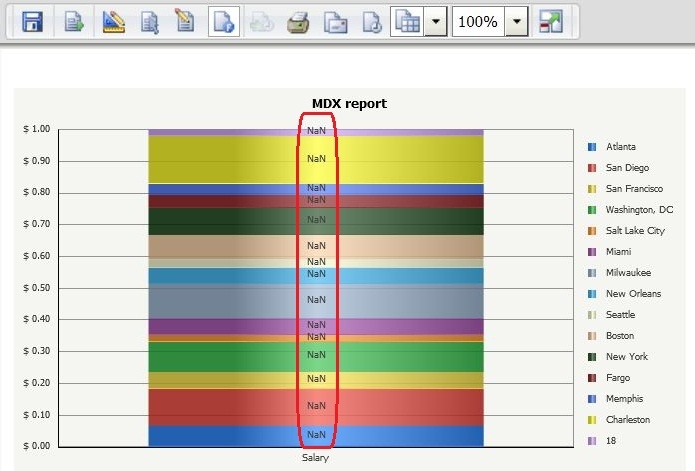
Text "NaN" is displayed as data value in stacked bar graph when running a Report Services document in Flash mode in MicroStrategy Web 9.4.1

SYMPTOM:
In Strategy Web 9.4.1, Text "NaN" is displayed as data value in stacked bar graph when running a Report Services document in Flash mode, as shown below:
 

ka04W000000OgzUQAS_0EM44000000272r.jpeg


STEPS TO REPRODUCE:
 
Follow the steps below to reproduce the issue with Strategy Tutorial project: 
 

  1. In Strategy Developer,  create a new DB instance for a MDX source, e.g. SAP BW 2004S.
  2. Import a MDX cube from menu>Schema>MDX Cube Catalog, as show below:
ka04W000000OgzUQAS_0EM440000002734.png


  • Create a new MDX Sources report against the MDX cube imported at step 2. Add an attribute in the row and a metric in the column, such as attribute Call Center and metric Salary.
  • In Strategy Web, create a Report Services document using the report created at step 3 as dataset. Drag and drop the dataset into document and change it to graph view with Vertical bar graph type.
  • Right click the graph and select graph options, change the Vertical Bar Options layout to "Percent" in Preferences window, as shown below:
ka04W000000OgzUQAS_0EM44000000272n.jpeg


  • Go to Series tab in Preferences window, set Label Format as "Value" and Date Values as "Absolute Values", as shown below:
ka04W000000OgzUQAS_0EM440000002732.jpeg


  • Go to Series>Labels and Values>Number Formatting tab, set the number formatting to be "Currency" with 2 decimal places, as shown below:
ka04W000000OgzUQAS_0EM44000000272p.jpeg


  • Run the document in Interactive mode in Strategy Web, note that all data values are displayed correctly, as shown below:
ka04W000000OgzUQAS_0EM44000000272l.jpeg


CAUSE:
This is a known issue in Strategy Web 9.4.1. 
 
 
ACTION:
This issue has been addressed in Strategy Web 10.x. Upgrade to take advantage of the fix.


Comment

0 comments

Details

Knowledge Article

Published:

June 6, 2017

Last Updated:

June 6, 2017