EducationSoftwareStrategy.com
StrategyCommunity

Knowledge Base

Product

Community

Knowledge Base

TopicsBrowse ArticlesDeveloper Zone

Product

Download SoftwareProduct DocumentationSecurity Hub

Education

Tutorial VideosSolution GalleryEducation courses

Community

GuidelinesGrandmastersEvents
x_social-icon_white.svglinkedin_social-icon_white.svg
Strategy logoCommunity

© Strategy Inc. All Rights Reserved.

LegalTerms of UsePrivacy Policy
  1. Home
  2. Topics

KB40939: The number in double byte character changes to single byte character in New Attribute Form Expression editor when drag and drop any table column from available columns to the form expression in MicroStrategy Developer 9.4.1 and 10.x


Stefan Zepeda

Salesforce Solutions Architect • Strategy


The number in double byte character changes to single byte character in New Attribute Form Expression editor when drag and drop any table column from available columns to the form expression in MicroStrategy Developer 9.4.1 and 10.x

SYMPTOM
In Strategy Developer 9.4.1 and 10.x, the number in double byte character changes to single byte character in New Attribute Form Expression editor when drag and drop any table column from available columns to the form expression.
 
STEPS TO REPRODUCE
Follow the steps below to reproduce the issue with Strategy Tutorial project:
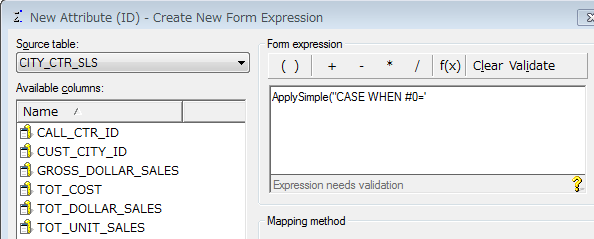
 

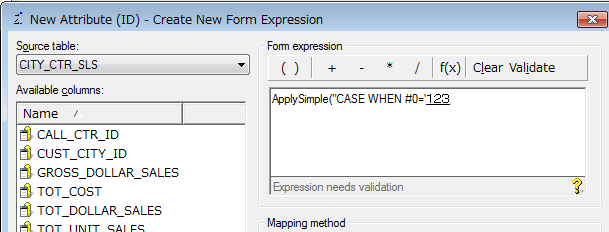
  • In Strategy Developer, create a new attribute. In New Form Expression editor, input the following text:  

    Sample Code/Error

    ApplySimple("CASE WHEN #0='


ka02R000000kb50QAA_0EM440000002D9V.png
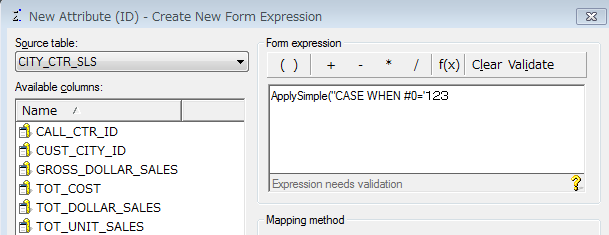
  •  Continue to input double byte number '123' in double-byte character language input mode (e.g. Chinese, Japanese or Korean), as shown below:
     
ka02R000000kb50QAA_0EM440000002D9Z.png
  • Switch the language input mode back to English, note that '123' is still displayed as double byte characters, as shown below:
ka02R000000kb50QAA_0EM440000002D9d.png
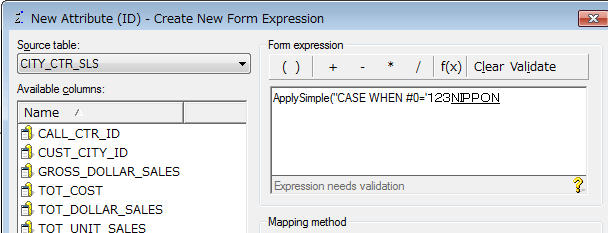
  • Continue to input double byte character 'NIPPON' in double-byte character language input mode (e.g. Chinese, Japanese or Korean), as shown below:
ka02R000000kb50QAA_0EM440000002D9u.png
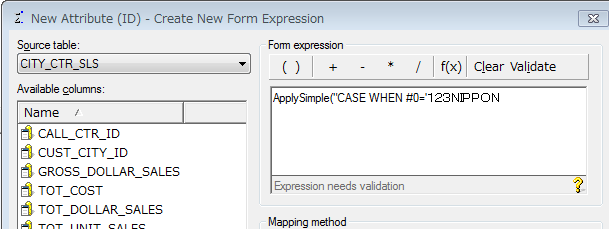
  • Switch the language input mode back to English, note that 'NIPPON'  is still displayed as double byte characters, as shown below:
ka02R000000kb50QAA_0EM440000002D9e.png
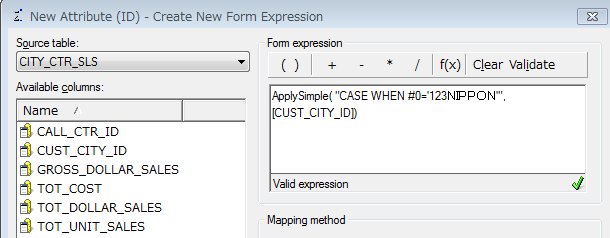
  • Drag and drop any table column from available columns to the form expression after ",", note that double byte characters '123' changes to single byte characters '123', as shown below:
     
ka02R000000kb50QAA_0EM440000002D9b.png

CAUSE
This is a known issue with Strategy Developer 9.4.1 and 10.x
 
 
WORKAROUND
Copy the expression from a text editor such as Notepad, then paste it into Form expression textbox of an attribute editor.
 
 
KB40939


Comment

0 comments

Details

Knowledge Article

Published:

June 2, 2017

Last Updated:

August 17, 2018