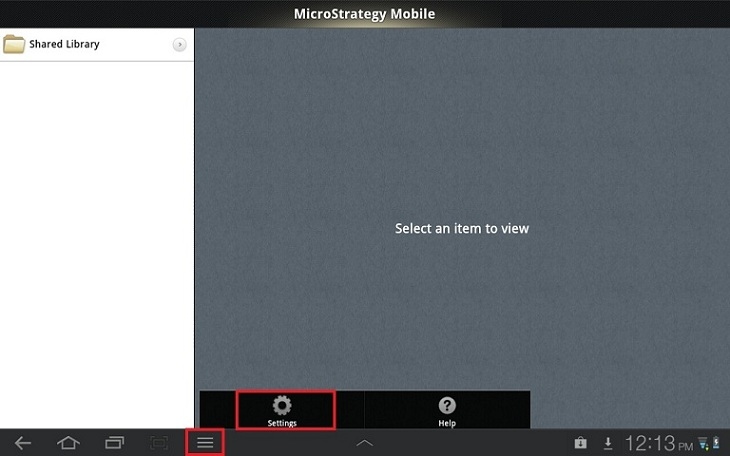
Once the Strategy Mobile Application is accessed on an Android Client, users can configure the mobile server and projects manually. To do so, tap on the

icon to access the Settings menu item, as shown below.
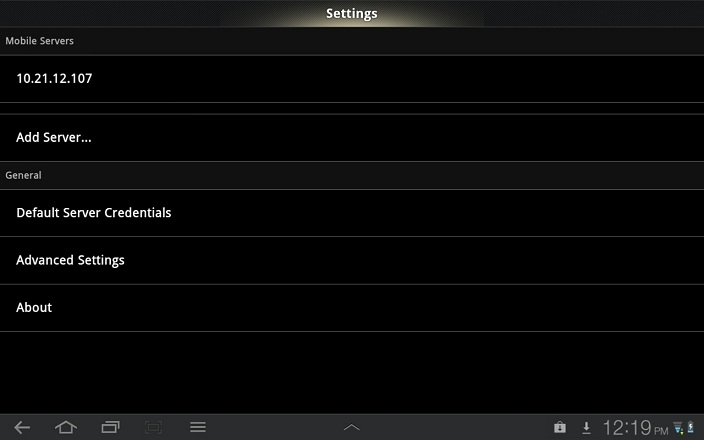
Once the Settings menu item is tapped, users will see the following screen, from which the mobile server, default server credentials, and advanced settings can be configured.
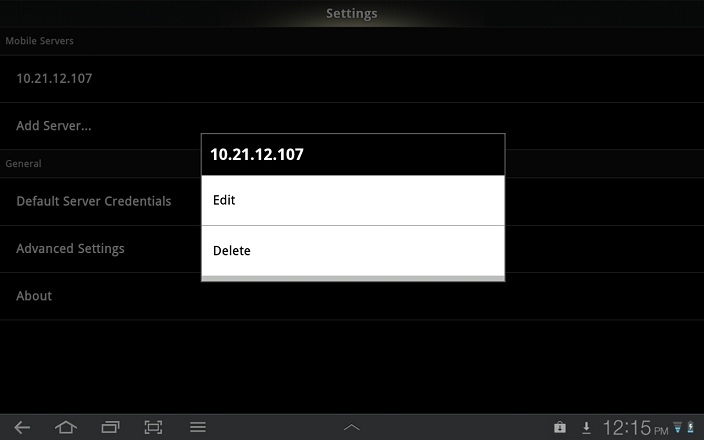
To add a new server, tap on the "Add Server..." item. To edit an existing server configuration, tap on appropriate server displayed in the list. Users can also tap and hold an existing server configuration to see options to either edit or delete the configuration, as shown below.
When editting or creating a new mobile server configuration, users will see the following screen, which will allow them to input the required information.
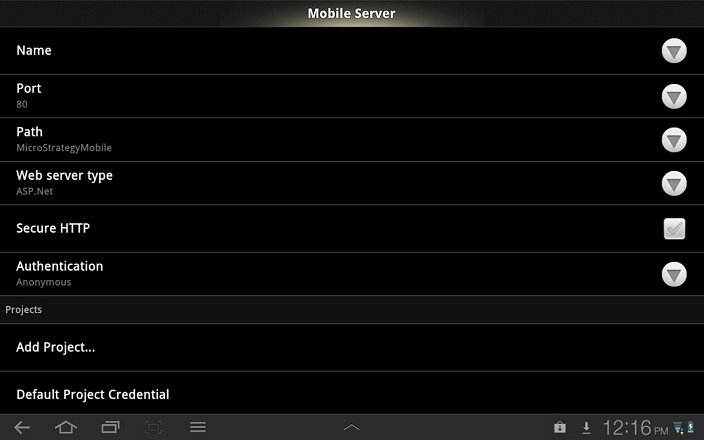
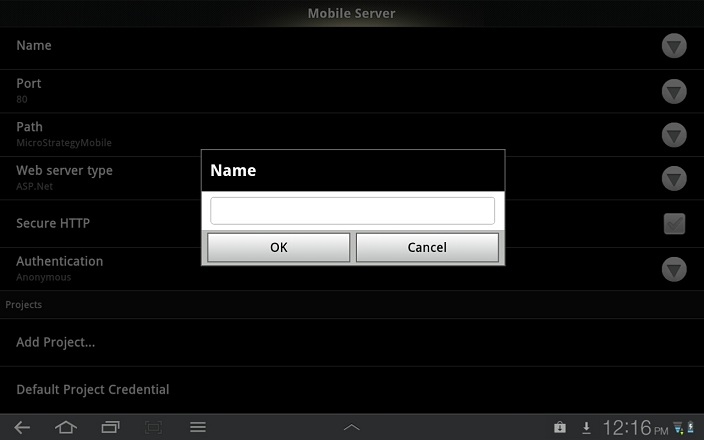
To enter mobile server information, tap on the field to bring up a text prompt. In the example below, the user has tapped on the "Name" field to enter the name of the mobile server.
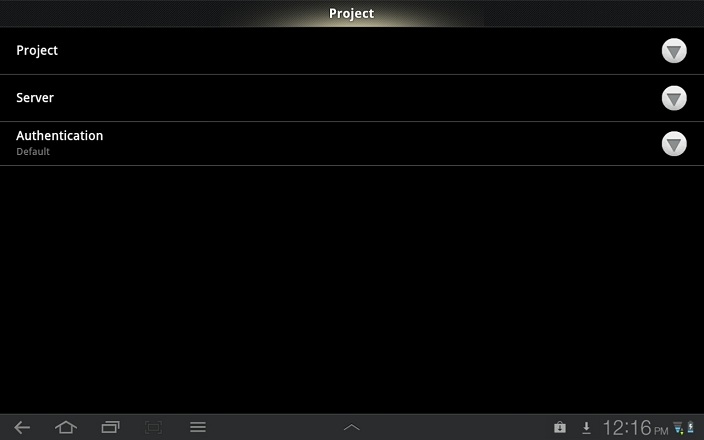
From this same screen, the Strategy Intelligence Server and project can be configured by tapping on the "Add Project..." option. Previously configured projects can also be editted by tapping on the desired project. The project configuration screen is shown below.
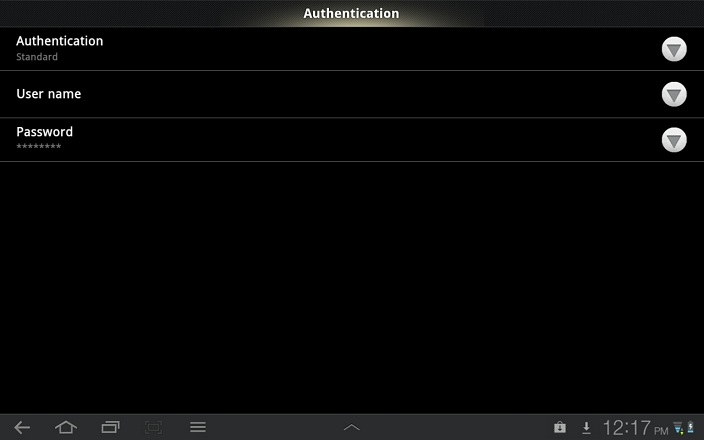
From the projects configuration screen, the authentication mode can be configured. When tapping on the "Authentication" item, the following screen will appear. Tap on the downward arrows to choose the authentication mode and to enter credentials.
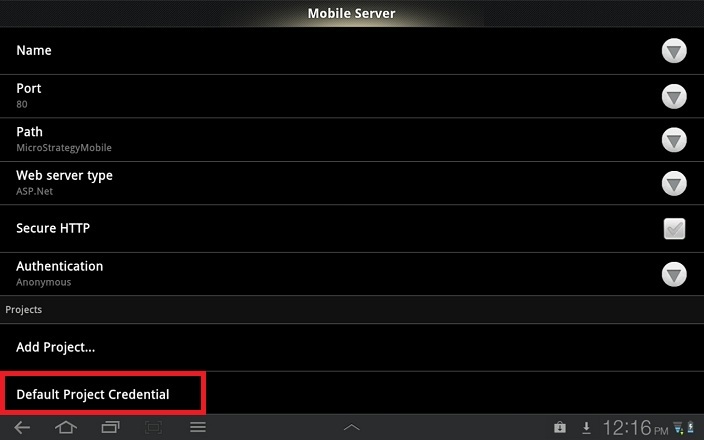
The default authentication mode and credentials can be configured from the Mobile configuration page, as shown below.
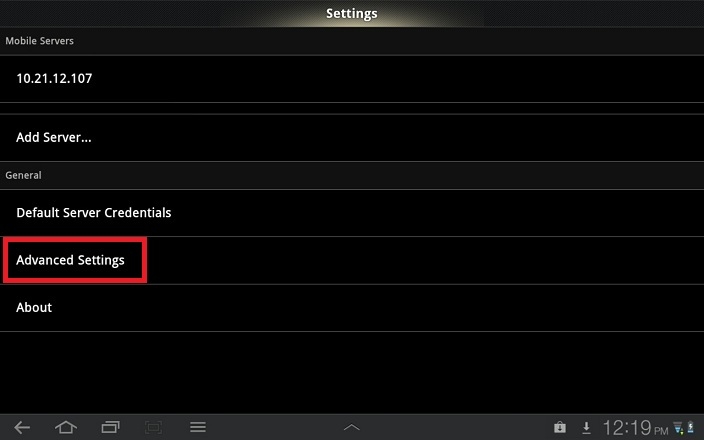
Additionally, other advanced settings can be configured manually on the Android device. To do so, tap on the "Advanced Settings" item from the initial screen when opening mobile configuration Settings. See screen shot below.
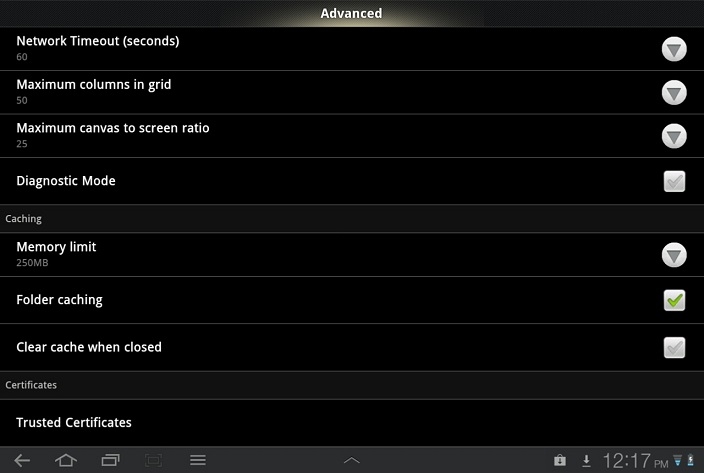
The following screen will appear to allow configuration of Advanced Settings concerning caching,
The main Settings menu also contains an "About" item, as shown below.
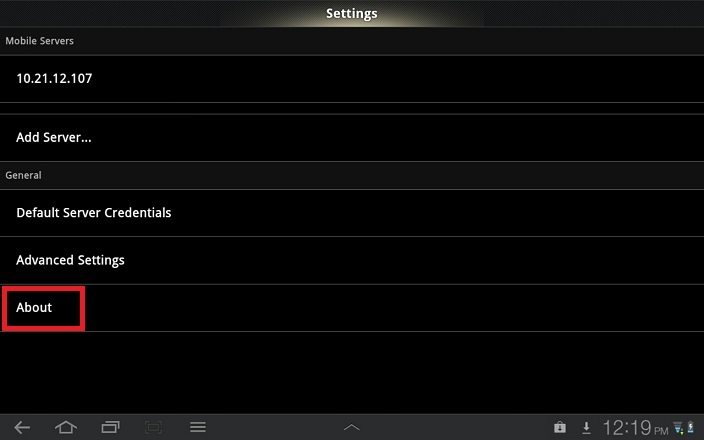
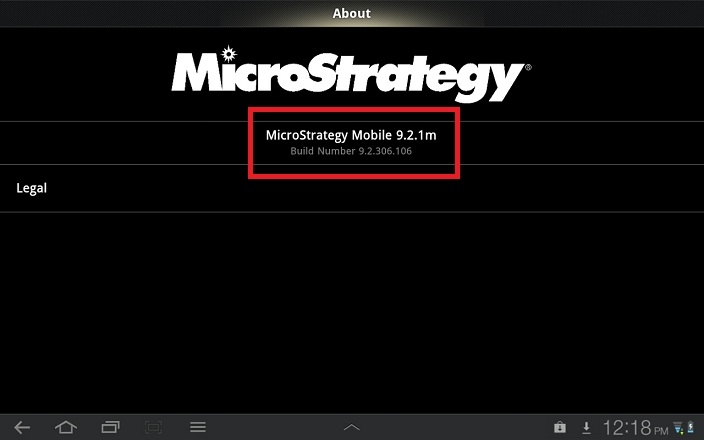
Tap on "About" to see information about the version and build number of the Strategy Mobile Application currently installed on the Android client device. See example below.
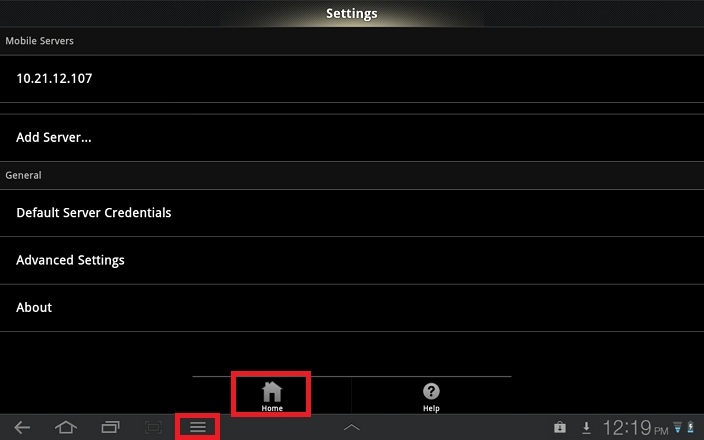
To exit and return to folder browsing inside the mobile application, tap on the

icon, and then tap on the home icon. See below.