EducationSoftwareStrategy.com
StrategyCommunity

Knowledge Base

Product

Community

Knowledge Base

TopicsBrowse ArticlesDeveloper Zone

Product

Download SoftwareProduct DocumentationSecurity Hub

Education

Tutorial VideosSolution GalleryEducation courses

Community

GuidelinesGrandmastersEvents
x_social-icon_white.svglinkedin_social-icon_white.svg
Strategy logoCommunity

© Strategy Inc. All Rights Reserved.

LegalTerms of UsePrivacy Policy
  1. Home
  2. Topics

KB409753: How to use Signature input control in MicroStrategy Mobile 10.x


Caitlin Corrigan

Senior Education Developer • Strategy


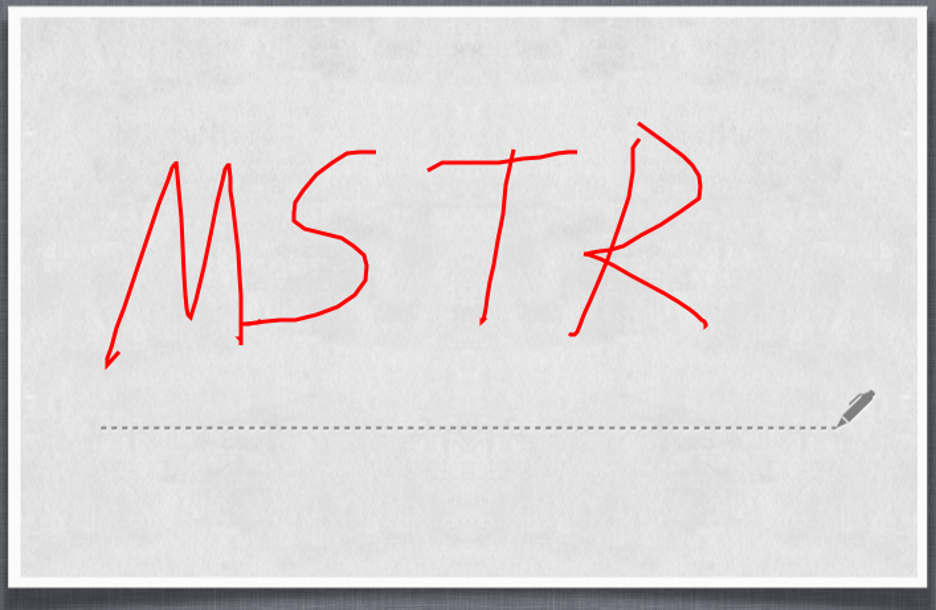
Signature is a new type of transaction data input control which allows the user to draw a signature on the touch screen of an iPad or iPhone, and save the signature as an image file on the MicroStrategy Mobile server.

Signature is a type of transaction data input control which allows the user to draw a signature on the touch screen of an iPad or iPhone, and save the signature as an image file on the Strategy Mobile server.
Below is an example on how to create a signature widget with Strategy Tutorial project:

  • Create a new table "Signature" in the Tutorial Data Warehouse with 2 columns: Unique File Path and Date of Signature. (By default, the Tutorial DWH Access file can be found here:
    C:\Program Files (x86)\Strategy\Tutorial Reporting\TUTORIAL_DATA_7200.mdb
    )
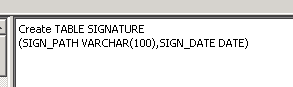
    Example SQL Statement:
    Create Table SIGNATURE (SIGN_PATH VARCHAR(100),SIGN_DATE DATE);
ka02R000000btSOQAY_0EM440000002ACs.png
  • Insert an initial row of data.
    Example SQL Statement:
    Insert into SIGNATURE Values (‘Path’, now());
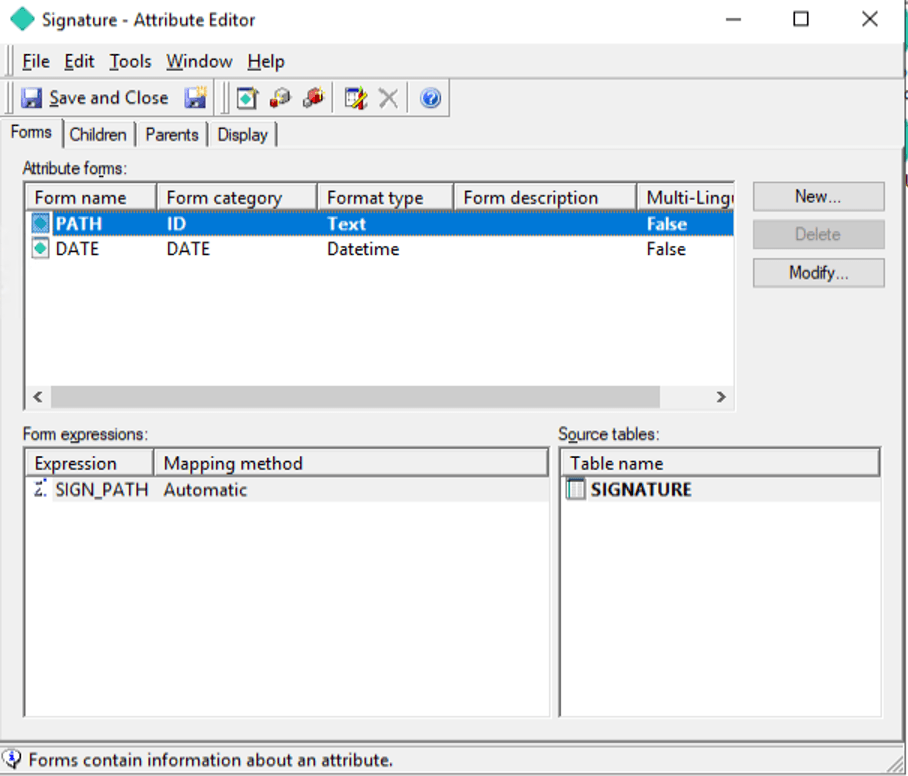
  • In Strategy Developer, create an attribute "Signature" based on the new table "Signature" created on step 1, as shown below:
ka02R000000btSOQAY_0EM2R000001IGDG.jpeg
  • Create a report, R1, containing the attribute "Signature." Required attribute forms must be in this order: Path, Date. (NOTE: This step can also be done using a Freeform SQL report)
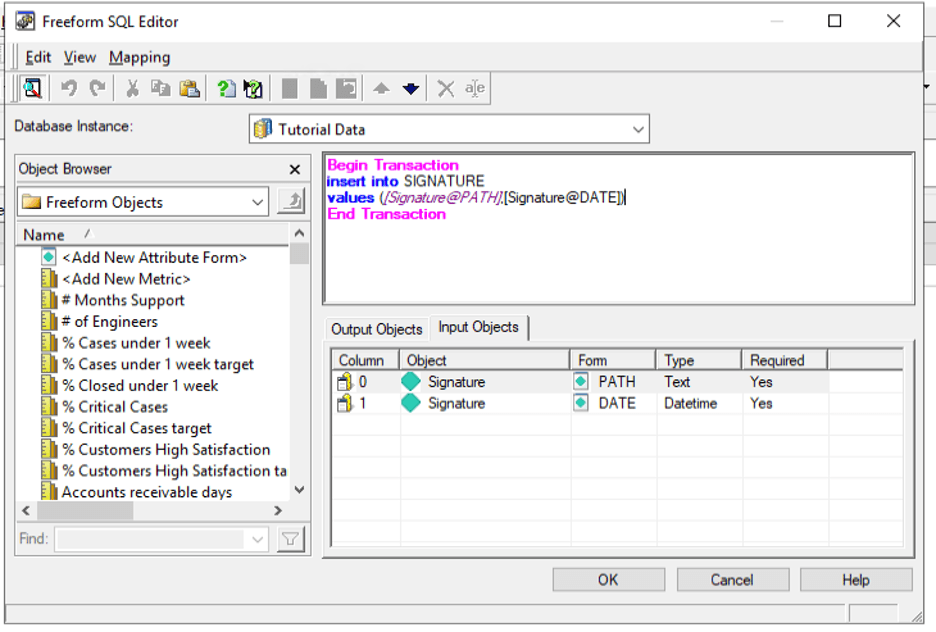
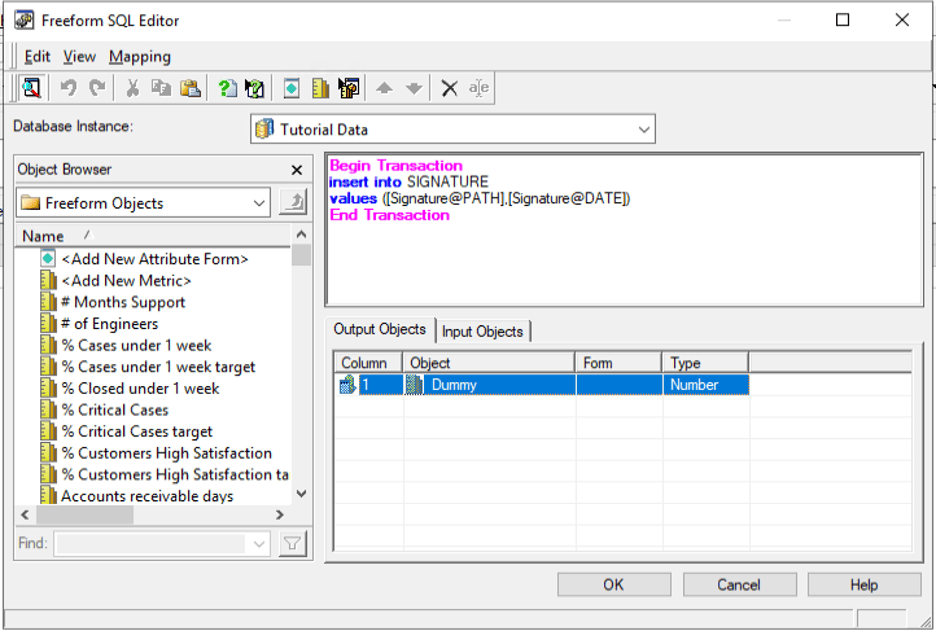
  • Create a Transaction Services report, T1, with input objects and output objects based on the new table "Signature" in Tutorial data created on step 1, as shown below:
    Right-click and select Define New Input > Attribute for each of the Signature attribute’s forms to be inserted as values.
ka02R000000btSOQAY_0EM2R000001IGDV.jpeg
ka02R000000btSOQAY_0EM2R000001IGDa.jpeg
  • Create a Report Services document with report "R1" created in Step 2 as the dataset. Add a panel stack and insert either a grid with Signature in the rows or text fields.
  • Insert an Action Selector Button for users to submit their signature (not on the panel stack).
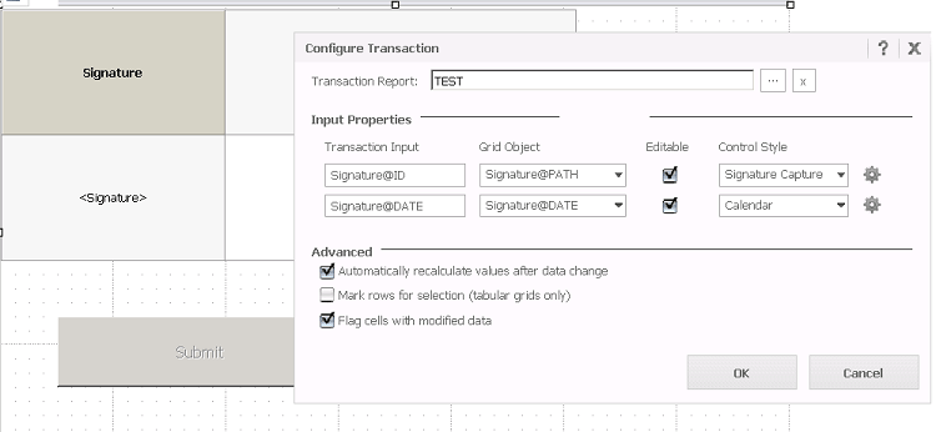
  • Right-click the grid/text and select Configure Transaction and configure the transaction as shown below:
ka02R000000btSOQAY_0EM2R000001IGDf.jpeg
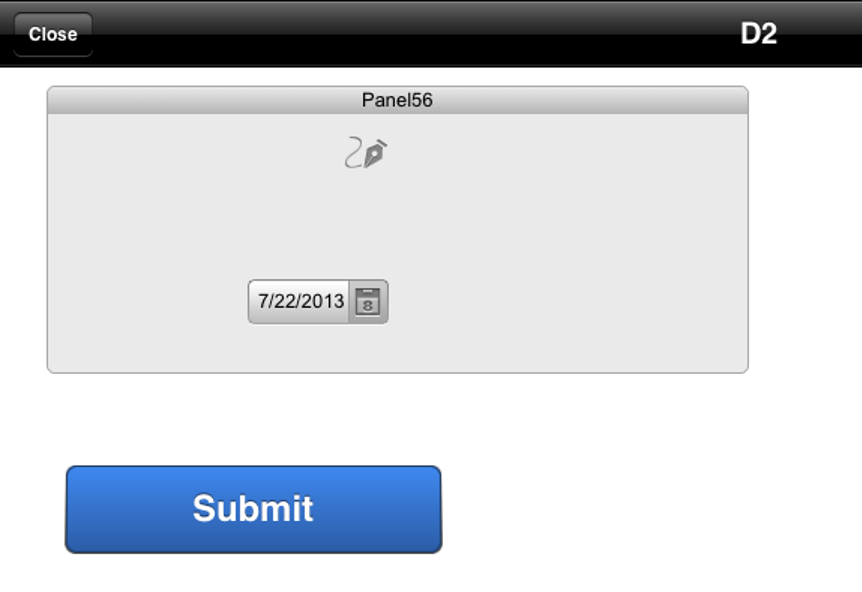
  • Run the document on your iPad, as shown below:
ka02R000000btSOQAY_0EM2R000001IGDk.jpeg
  • 10. Click the pen icon to input the signature, as shown below:
ka02R000000btSOQAY_0EM2R000001IGDp.jpeg
  • The signature will be uploaded as an image to Strategy Mobile server.

 
  KB409753


Comment

0 comments

Details

Knowledge Article

Published:

April 7, 2017

Last Updated:

July 27, 2020