SYMPTOM:
The following error message is faced when accessing Strategy Web running on Windows Server 2008 64 bits:
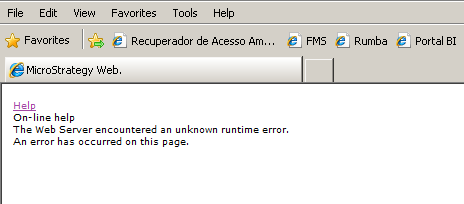
Help

On-line help

The Web Server encountered an unknown error.

An error has occurred on this page.
</div>


<div class="mstrError" id="mstrWeb_error" name="mstrWeb_error" iframe="true">

<!-- include 8 error content-->

        <div class="mstrError" id="mstrWeb_error" name="mstrWeb_error" iframe="true">

            <div class="mstrAlert">

            <div class="title">The Web Server encountered an unknown error.</div>

            <div class="message">An error has occurred on this page.</div>

            </div>

        <!--stackTrace:

        System.Web.HttpCompileException: C:\Windows\Microsoft.NET\Framework64\v2.0.50727\Temporary ASP.NET Files\MicroStrategy\e2d91b84\57134244\App_Web_projects_footer.ascx.c4da9bd.sswhsafh.0.vb(40): error BC30456: 'Context' is not a member of 'Strategy.Projects_Footer'.

   at System.Web.Compilation.AssemblyBuilder.Compile()

   at System.Web.Compilation.BuildProvidersCompiler.PerformBuild()

   at System.Web.Compilation.BuildManager.CompileWebFile(VirtualPath virtualPath)

   at System.Web.Compilation.BuildManager.GetVPathBuildResultInternal(VirtualPath virtualPath, Boolean noBuild, Boolean allowCrossApp, Boolean allowBuildInPrecompile)

   at System.Web.Compilation.BuildManager.GetVPathBuildResultWithNoAssert(HttpContext context, VirtualPath virtualPath, Boolean noBuild, Boolean allowCrossApp, Boolean allowBuildInPrecompile)

   at System.Web.UI.TemplateControl.LoadControl(VirtualPath virtualPath)

   at Strategy.Tags.Include.on_Load(Object sender, EventArgs e)
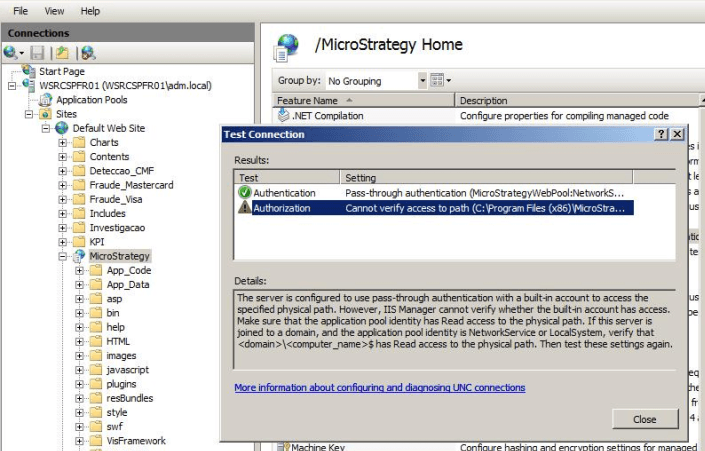
The server is configured to use pass-through authentication with a built-in account to access the specified physical path. However, IIS Manager cannot verify whether the built-in account has access. Make sure that the application pool identity has Read access to the physical path. If this server is joined to a domain, and the application pool identity is NetworkService or LocalSystem, verify that <domain>\<computer_name>$ has Read access to the physical path. Then test these settings again.
