EducationSoftwareStrategy.com
StrategyCommunity

Knowledge Base

Product

Community

Knowledge Base

TopicsBrowse ArticlesDeveloper Zone

Product

Download SoftwareProduct DocumentationSecurity Hub

Education

Tutorial VideosSolution GalleryEducation courses

Community

GuidelinesGrandmastersEvents
x_social-icon_white.svglinkedin_social-icon_white.svg
Strategy logoCommunity

© Strategy Inc. All Rights Reserved.

LegalTerms of UsePrivacy Policy
  1. Home
  2. Topics

KB41245: How to pass through answers of attributes elements in selector when linking to target document which does not include prompt for this attribute in Web 9.4.1 -10.x


Stefan Zepeda

Salesforce Solutions Architect • Strategy


This article explains how to pass through answers of attributes elements in selector when linking to target document which does not include prompt for this attribute in Web 9.4.1 -10.x

When linking to the target document from a source document, answer in the selector for an attribute will not be passed even if there is a prompt for this attribute defined in the target document or report.
 
The following steps introduce how to enable passing through attribute selector answers. Tutorial project is used in the illustration.
Step1 to 3 illustrate the creation of target document.

  1. Create target dataset report with attribute Region, Call Center and metric Revenue, Profit.  Add a prompt as filter for Year and Region attribute. Below screenshot shows the definition of target dataset report.
ka02R000000kbkLQAQ_0EM440000002D2p.png


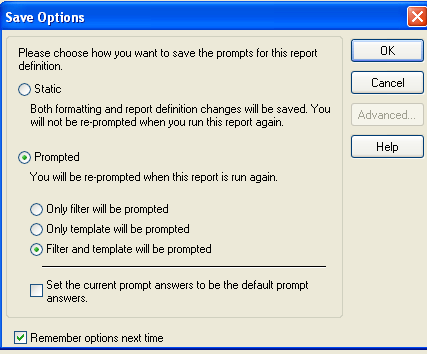
  • Save the report with prompt option 'Filter and template will be prompted' as shown in the screenshot below.
ka02R000000kbkLQAQ_0EM440000002D2r.png


  • In web, create a document and add target report as dataset. Save the document with option 'Display prompt but discard current answers' and name it with 'Target Document'.
ka02R000000kbkLQAQ_0EM440000002D2h.png

Steps 4 to 6 illustrate the creation of source document.

  • Create the source dataset report with attribute Year, Region and metric Revenue which can be seen as below.
ka02R000000kbkLQAQ_0EM440000002D2v.png

 
Steps 7 to 8 show the circumstance that selector is not passed through.

  • In web, create a document and add source report as dataset. Add a grid to the body of document with Region and Revenue. Create a selector for attribute Year.
  • Define a link based on Region and set Target document as link source. 
  • Choose 2009 in the selector.
ka02R000000kbkLQAQ_0EM440000002D2y.png


  • Click Central, the target document will open, as shown below:
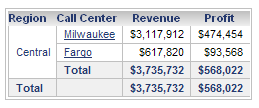
ka02R000000kbkLQAQ_0EM440000002D2l.png

Although it correctly filtered Central Region, but it displays data of all time instead of the data for that specific year chosen in source document.
 
Steps 9 to 10 demonstrate how to make modification to get selector answers passed through and the corresponding result.

  • In the source document, add Year attribute to grid as can be seen from below.
ka02R000000kbkLQAQ_0EM440000002D2n.png


  • Select 2009 in the selector and click Central again. The target document will appears as below. 
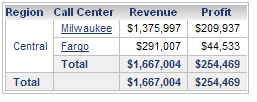
ka02R000000kbkLQAQ_0EM440000002D2j.png

Correct result filtered with Year 2009 is obtained in the target document.


Comment

0 comments

Details

Knowledge Article

Published:

June 9, 2017

Last Updated:

June 9, 2017