The following steps explain how to schedule the purging of element caches:
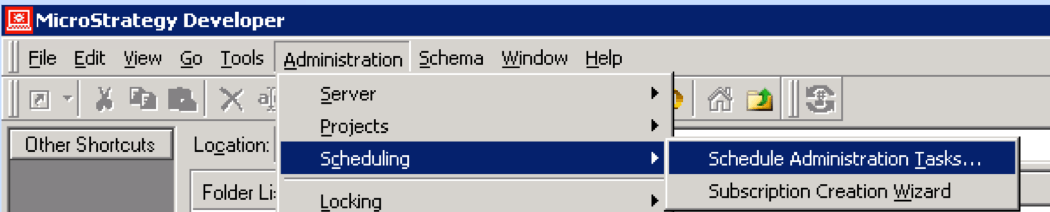
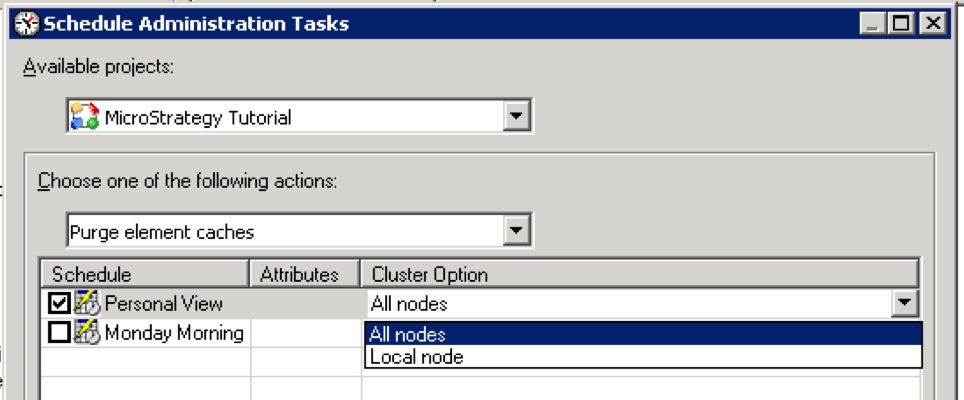
Verify that DssElementCachePurge has been added to the Schedule Monitor, as indicated in the screen shot below:

Note that this will only purge element caches in the Strategy Intelligence Server. In order to purge element caches stored in Strategy Desktop memory, users must restart Strategy Desktop or go to My Preferences > Advanced > Purge Client caches.
Note:
In clustered environments, administrators should use the 'Cluster Option' to specify if element caches should be purged locally or across all nodes.
For Command Manager:
PURGE ELEMENT CACHING IN PROJECT "<project_name>";
For automated execution, prepare a Windows batch file to execute Command Manager with the element cache purge script.
General form:
cmdmgr -n Project_Source_Name -u Username -f Inputfile
Example:
cmdmgr -n "Project_Source_Name" -u Administrator -f C:\PurgeElementCache.scp -o C:\CommandManagerOutput.txt
This batch file may be scheduled using the Windows Scheduler.
The Command Manager script, Windows batch file and Windows schedule should be set up on each node of the cluster.
KB413080
