EducationSoftwareStrategy.com
StrategyCommunity

Knowledge Base

Product

Community

Knowledge Base

TopicsBrowse ArticlesDeveloper Zone

Product

Download SoftwareProduct DocumentationSecurity Hub

Education

Tutorial VideosSolution GalleryEducation courses

Community

GuidelinesGrandmastersEvents
x_social-icon_white.svglinkedin_social-icon_white.svg
Strategy logoCommunity

© Strategy Inc. All Rights Reserved.

LegalTerms of UsePrivacy Policy
  1. Home
  2. Topics

KB41319: Tooltips do not display in Interactive or Flash Modes in a Microchart when an attribute is used as a selector in MicroStrategy Web


Community Admin

• Strategy


This article describes a known issue in MicroStrategy Web 9.x whereby tooltips are not displayed in Microcharts widget if an attribute is used as a selector.

SYMPTOM:
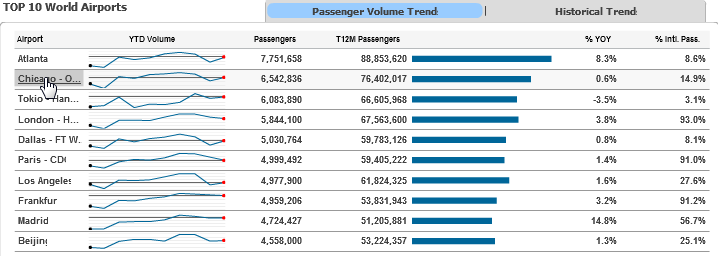
Tooltips do not display in Interactive or Flash Modes in a Microchart when an attribute is used as a selector in Strategy Web 9.x as shown below.
 

ka04W000000OgGAQA0_0EM4400000026zR.png


STEPS TO REPRODUCE:
 

  • In Strategy Tutorial Project, insert a grid into a document with at least 2 attribute elements and 5 metrics.
  • Right click on the graph and go to Properties and Formatting.
  • On the Widget tab under the Widget section, go to Flash and select Microcharts.
  • Click OK.
  • View the document in Interactive mode.
  • Hover the mouse over the attribute element that is not fully displayed and note that a tooltip displays with the attribute element name.
     
ka04W000000OgGAQA0_0EM4400000026zS.png
  • In Design mode, right click on the attribute name in the grid, and select 'Use as selector'.
  • Return back to Interactive Mode and hover the mouse over the same attribute element as in the previous step.
  • Note that the tooltip does not display over the attribute element.

CAUSE:
 
This is a known issue in Strategy Web 9.2.1.  This issue did not occur in Strategy Web 9.0.1.
 
ACTION:
 
Contact Strategy Technical Support for an update on this issue.
 
WORK AROUND:
 
Format the column width to fit the full name of the attribute element for the users to be able to view the entire name.


Comment

0 comments

Details

Knowledge Article

Published:

June 16, 2017

Last Updated:

June 16, 2017