In Strategy Desktop 9.x, while it is not possible to create a single time-triggered schedule that runs for the 10 calendar days starting the first day of the month; it is possible to create ten separate time-triggered schedules so that they can work together to achieve the same purpose. The following procedure describes how to setup time based schedules that only run for the 10 calendar days starting the first day of the month.
Step 1. In Strategy Desktop expand the Administration section and open Configuration Managers > schedules. Right-click and choose New >schedule.
Step 2. Click Next on the main screen. Enter a name for the schedule and then click Next.
Step 3. When prompted for the type of schedule choose "Time-Triggered" and then click Next.
Step 4. Select the first date of the month as a Start date. In this case, selected 10/1/2012 as a start date as below:

Step 5. For the first schedule, select the Monthly recurrence pattern that runs Day 1 of every 1 Month as below:

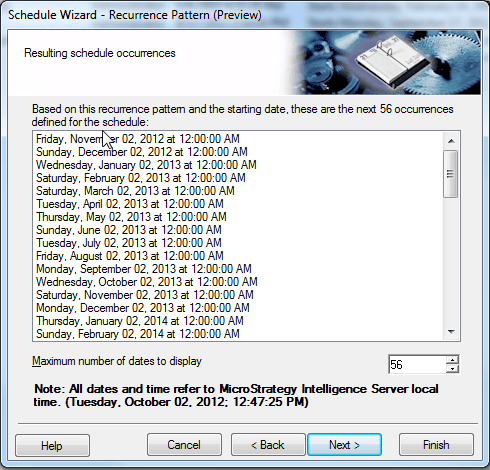
Step 6. Click Next to preview the recurrence schedule. Notice that All dates and time refer to Strategy Intelligence Server local time. In this example, because Strategy Intelligence Server local time is 10/02/2012, the recurrence schedule will start from 11/1/2012 instead of 10/1/2012. Click Next and then click Finish to save the schedule.

Step 7. Repeat the steps and create 9 more Monthly recurrence schedule start on the same day as 10/1/2012, and each run Day X of every 1 Month as below: