EducationSoftwareStrategy.com
StrategyCommunity

Knowledge Base

Product

Community

Knowledge Base

TopicsBrowse ArticlesDeveloper Zone

Product

Download SoftwareProduct DocumentationSecurity Hub

Education

Tutorial VideosSolution GalleryEducation courses

Community

GuidelinesGrandmastersEvents
x_social-icon_white.svglinkedin_social-icon_white.svg
Strategy logoCommunity

© Strategy Inc. All Rights Reserved.

LegalTerms of UsePrivacy Policy
  1. Home
  2. Topics

KB41434: How to use the iPad Calendar Widget in MicroStrategy Mobile for iPad


Community Admin

• Strategy


The iPad Calendar Widget is a MicroStrategy data driven calendar that looks and behaves very similar to the iPad's built-in calendar application in Month view that is available starting with MicroStrategy Mobile iPad app. MicroStrategy Mobile Server and MicroStrategy Intelligence Server are required to use this widget. The widget will display a list of events for each day of the month, optionally color coded based on an attribute.

The iPad Calendar Widget is a Strategy data driven calendar that looks and behaves very similar to the iPad's built-in calendar application in Month view that is available starting with Strategy Mobile iPad app. Strategy Mobile Server and Strategy Intelligence Server are required to use this widget. The widget will display a list of events for each day of the month, optionally color coded based on an attribute.
To use this widget in a document, go to Mobile Widgets section and select "Date Selection" Widget. 
These are the Data Requirements:

  • At least two attributes are required on the Rows.
    • The first attribute needs to be of date type.
    • The second attribute will represent an event.
  • An optional third attribute will be used for color coding. This is similar to coloring by category on a Bar graph, instead of color-coding the bars by series.
    • The "Category" attribute that determines color, could have the "hex" color value backed-in as an attribute form. This option enables the Dashboard Designer to "fix" a color to a particular "Category". For example, rated R movies should always appear Red, PG movies should be blue, etc.
  • If four or more attributes are placed on the Rows, the fourth attribute is assumed to be responsible for color-coding.
  • Additional attributes on the Rows will be displayed in "Day" view.
  • Any metrics placed in the Columns will be displayed in "Day" view.
  • Attributes on the columns are not allowed.
  • The event attribute can have three optional image attribute forms:
    • The first image will be used in the "Day" view.
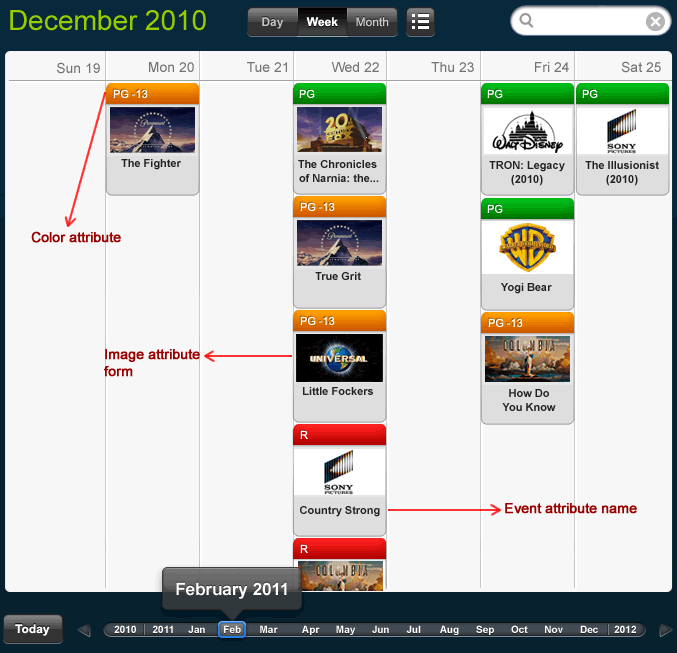
    • The second image will be used in the "Week" view.
    • The third image will be used in the "Month-by-week" view.

Example with an event attribute form containing two images:
Day View:
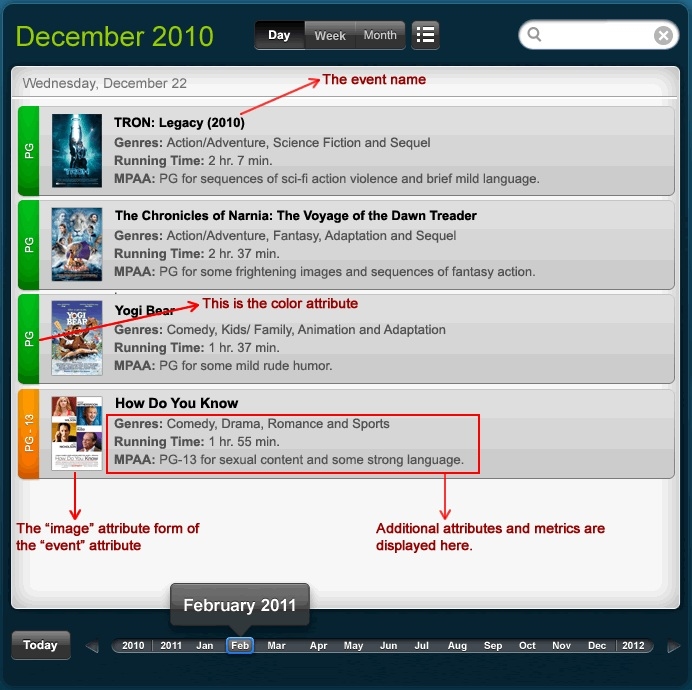
ka04W000000OdbPQAS_0EM440000002AFf.jpeg

Week View:

ka04W000000OdbPQAS_0EM440000002AFe.png

Tap and Holding on an event will bring op a tooltip. The tooltip will always show all attributes and metrics irrespective of "Day", "Week" or "Month" view.
Tapping on an event can:
1. Bring up an "Info Window": When the user's finger is placed over an event, a info window can be displayed. The contents of the info window can come from another data source.
2. Fire all applicable "Selections": If the widget has been configured to fire selections, then tapping on an event will trigger a selection. 
3. Open a hypertext link (Assumin the event is a link).


Comment

0 comments

Details

Knowledge Article

Published:

April 13, 2017

Last Updated:

April 13, 2017