EducationSoftwareStrategy.com
StrategyCommunity

Knowledge Base

Product

Community

Knowledge Base

TopicsBrowse ArticlesDeveloper Zone

Product

Download SoftwareProduct DocumentationSecurity Hub

Education

Tutorial VideosSolution GalleryEducation courses

Community

GuidelinesGrandmastersEvents
x_social-icon_white.svglinkedin_social-icon_white.svg
Strategy logoCommunity

© Strategy Inc. All Rights Reserved.

LegalTerms of UsePrivacy Policy
  1. Home
  2. Topics

KB41504: How to apply "Total" to some specific page-by attributes independently and keep other page-by attributes never have "Total" option in MicroStrategy Developer 10.x


Stefan Zepeda

Salesforce Solutions Architect • Strategy


In some business scenarios, it is required to apply 'Total' to some specific page-by attributes independently and keep other page-by attributes never have 'Total' option.

In some business scenarios, it is required to apply 'Total' to some specific page-by attributes independently and keep other page-by attributes never have 'Total' option.
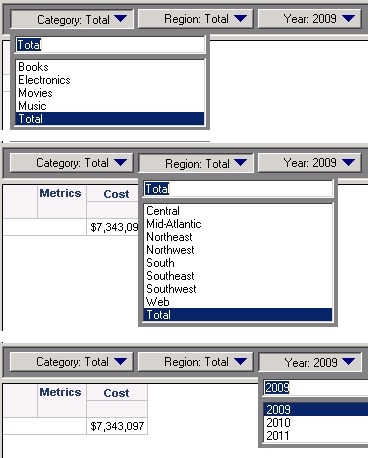
To give an example using Tutorial, there are three attributes , and in page-by. The requirement is to be able to select 'Total' option for both and independently, but never apply 'Total' to , as shown below:
ka02R000000kVh9QAE_0EM440000002D5o.jpeg

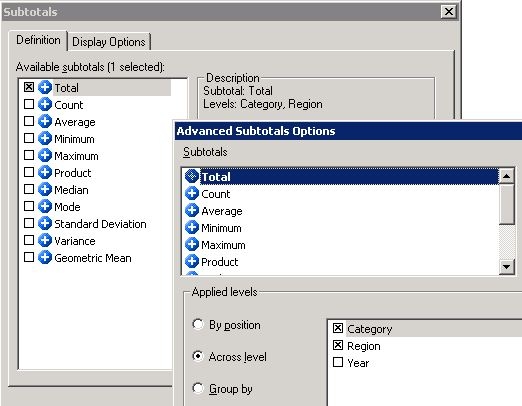
NOTE: If Advanced Subtotals are set across levels and , as shown below:
ka02R000000kVh9QAE_0EM440000002D5q.jpeg

 
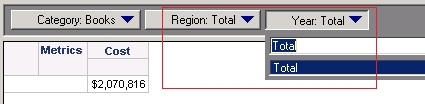
The attribute in page-by would display 'Total' as the only option when any of the other page-bys is selected as 'Total', which is NOT expected, as shown below:
ka02R000000kVh9QAE_0EM440000002D5U.jpeg

For the steps below to achieve the requirement:
  • In Strategy Developer, create a report with attributes , , and in page-by; and metric in column.
  • Go to Menu -> Data -> Subtotals.
  • Click on 'Advanced' under 'Definition' tab and open 'Advanced Subtotals Options' window.
  • Select 'Group by' option for 'Applied levels', and click on Add.
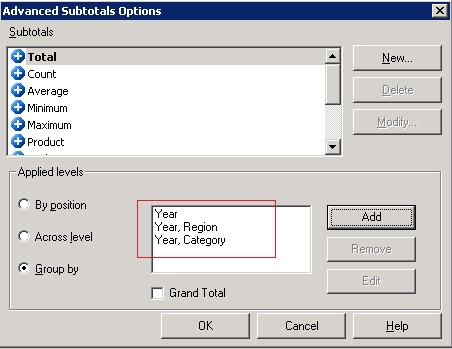
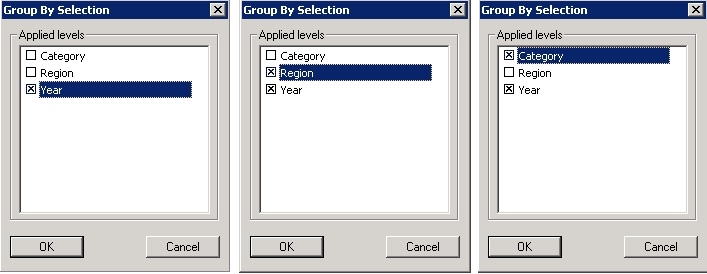
  • Add all possible combinations among attribute levels that include attribute(s) that is/are never expected to have 'Total' option, except the selection of all the attribute levels. Some examples about this will be discussed later. For the requirement in this example, add three Group By levels, as shown below:
ka02R000000kVh9QAE_0EM440000002D5e.jpeg
  •  
    After adding these selections, the group by setting is as shown below:
ka02R000000kVh9QAE_0EM440000002D5N.jpeg
  • Click on OK to apply the change. And the attributes in page-by of the report can display as expected.

 
NOTE: 
About the content that "all possible combinations among attribute levels that include attribute(s) that is/are never expected to have 'Total' option, except the selection of all the attribute levels" in step 5, here are two more complicated examples, as shown below:
 
Example 1 - Four attributes A, B, C, and D in page-by, while C and D are NEVER expected to have 'Total' option.
Group by levels needed:
(C, D)
(C, D), A
(C, D), B
 
Example 2 - Four attributes A, B, C, and D in page-by, while D is NEVER expected to have 'Total' option.
Group by levels needed:
(D)
(D), A
(D), B
(D), C
(D), A, B
(D), A, C
(D), B, C


Comment

0 comments

Details

Knowledge Article

Published:

May 28, 2017

Last Updated:

May 28, 2017