In Strategy 9.x and 10.x, it is possible for Administrators to enable the use of report caches at server level and project level. Also, it is possible for users to enable/disable the use of report caches for themselves.
Use Server Cache privilege:
For a user to be able to use report caches for a project, the Administrator should enable the 'Use Server Cache' privilege for the user. The privilege is available under 'Common Privileges' as shown below.

Project-level cache setting:
Enable Report Server Caching: This setting is located within the Project Configurations Editor (Right Mouse Click on a project, go to Caches > Reports (Advanced).
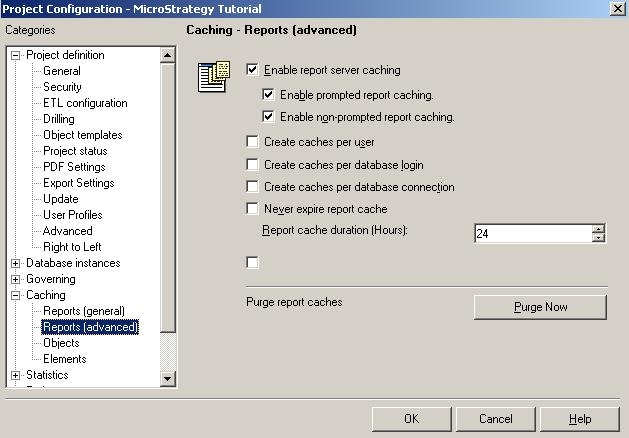
Only users who have administrative privileges may access this setting. The setting affects all users who are using this project. When the setting is unchecked, users cannot generate or access the report cache. Within this section, there are other settings to only enabled prompted or non-prompted report caching.
Project user-level cache setting:
This setting is located within the Strategy Desktop under the Tools drop down menu (Tools > My Preferences > Advanced > Server Cache). Only users who have the 'User Server Cache' privileges set by their Strategy Administrator may access this setting. If users change this setting for a project, it only affects this user when accessing this project.
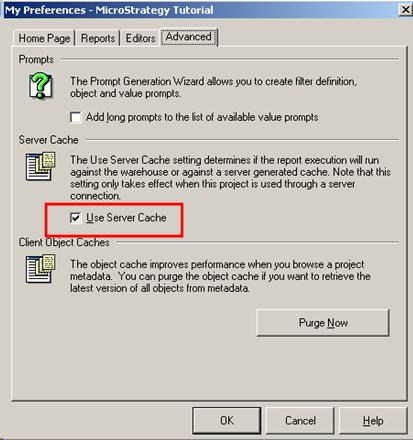
NOTE: If the administrator users wish to disable the report caching for a project, they may uncheck the project-level report cache settings. Afterwards, the individual user may not use the cache even if they select the user project-level cache setting.
When the administrator enables the report cache for the project, individual users can still choose not to use the cache by un-checking the project user-level cache.
