EducationSoftwareStrategy.com
StrategyCommunity

Knowledge Base

Product

Community

Knowledge Base

TopicsBrowse ArticlesDeveloper Zone

Product

Download SoftwareProduct DocumentationSecurity Hub

Education

Tutorial VideosSolution GalleryEducation courses

Community

GuidelinesGrandmastersEvents
x_social-icon_white.svglinkedin_social-icon_white.svg
Strategy logoCommunity

© Strategy Inc. All Rights Reserved.

LegalTerms of UsePrivacy Policy
  1. Home
  2. Topics

KB41591: How to hide a document section if a text prompt is unanswered in MicroStrategy 9.x - 10.x?


Stefan Zepeda

Salesforce Solutions Architect • Strategy


This technical note outlines the instructions for hiding a document section if a text prompt is not answered by the user in MicroStrategy 9.x -10.x.  This will prevent unwanted white space from being displayed when the document is run in the case where the user doesn't answer the prompt.

The following procedure outlines the instructions for hiding a document section if a text prompt is not answered by the user in Strategy 9.x -10.x.  This will prevent unwanted white space from being displayed when the document is run in the case where the user doesn't answer the prompt.
 
1)  Create a new value prompt and select Text Prompt.  Make sure to leave the Prompt Answer Required checkbox unchecked.
 
2)  Create a new metric with the following formula:  Length(Concat("A", ?Value))

  • In this formula Value is the name of the prompt previously created.  It must be manually entered into the metric formula.
  • The output of this metric is the Length of theuser inputted prompt answer concatenated with the arbitrary character "A"
  • The reason for concatenating with the arbitrary letter "A" is in case the prompt is left unanswered.  If unanswered, the Length function will be passed a null which could generate an error.
  • Save and close the metric.

3)  Create a new report and add the desired attributes and metrics as seen in the screenshot below:
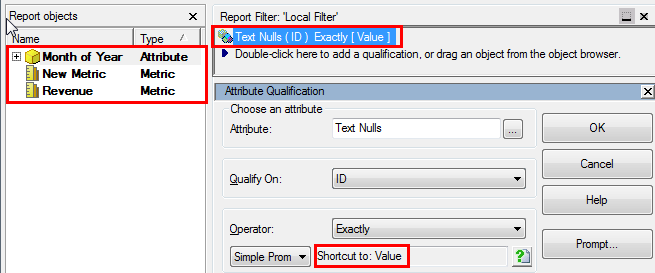
  • In this case, the Month of Year attribute, Revenue metric, and New Metric (metric created in previous step) are placed on the grid.
  • Create a filter condition on an arbitrary attribute.  The specific attribute doesn't matter since the prompt is simply a means to pass text to the document.
  • Browse to the prompt created earlier and drag it into the Operator field.
  • Save and close the report.
ka044000000kUDZAA2_0EM440000002D1n.png

 
4)  Create a new document and add the previously created report as a dataset.
 
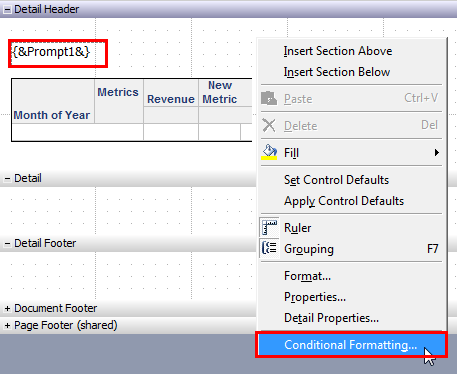
5)  Create a new text box in the desired document section and enter the following:  {&Prompt1&}
 
6)  As seen in the screenshot below, right-click anywhere in the document section and select Conditional Formatting...
 

ka044000000kUDZAA2_0EM440000002D1s.png

 
7)  Create a new threshold as depicted in the screenshot below:
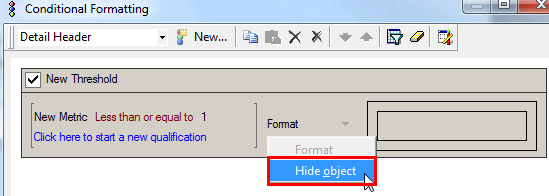
  • Create a condition to Hide Object when the New Metric is less than or equal to 1.
  • This condition will be met if the user leaves the prompt answer blank, in which case the document section will be hidden.
ka044000000kUDZAA2_0EM440000002D1q.png


*Note:  If multiple text prompts are to be displayed in the same document section and the user would like to hide the section under the condition that ALL of the prompts are unanswered, make the following modifications to the above steps.  The number of these steps corresponds to those above.*
 
1)  Create multiple text value prompts instead of just one.
 
2)  Modify the formula of the metric to sum up the Lengths of all prompt answers as follows:
 
          Length(Concat("A", ?Value1)) + Length(Concat("A", ?Value2)) + ... + Length(Concat("A", ?ValueX))
 
3)  Add a filter condition to the report for each text value prompt.
 
4)  No change to step 4.
 
5)  Create a text box for each prompt in the desired document section.  To determine the number of each prompt, click Data > Prompt Ordering...
 
6)  No change to step 6.
 
7)  Set the threshold condition to be less than or equal to X, where X is the number of prompts.  This way, the document section will only be hidden if ALL prompts are left unanswered, in which case the metric formula will evaluate to the sum of the lengths of the arbitrary letters "A".
41591


Comment

0 comments

Details

Knowledge Article

Published:

June 1, 2017

Last Updated:

March 27, 2019