SCENARIO:
Suppose there are two data warehouses for a project which are identical in structure, and one is the primary database and the other is a secondary database. Suppose the project contains a dashboard, and users of the dashboard require realtime data to be displayed. This is achieved by having the primary database undergo ETL several times during the daytime. During the ETL the project needs to point to the secondary database, and after ETL is completed the project should switch back to the primary database.
Creating a separate database instance for each data warehouse and switching the database instance for the project at runtime requires restarting the Intelligence Server. This is not an option because multiple other live projects are connected to the Intelligence Server and would get disconnected at restart.
SOLUTION:
The following list describes a couple of different options for how to achieve switching between warehouse databases for a 3-tier project in realtime without restarting Intelligence Server in Strategy Developer 9.x or 10.x
Option 1: Keep the same Database Instance but change the Database Connection and the associated DSN to the alternate warehouse.
Option 2: Keep the same Database Instance and Database Connection but just change the DSN and/or Database Login.
Option 3: Keep the same Database Instance, Database Connection and DSN but change the Database Login to point to the secondary database. This is permissible in database configurations where a different schema (i.e. different set of Database Login credentials) represents a different database location.
Note: In order for each of these changes to take effect, it may be necessary to unload and reload the project, or to drop the connection from the DB Connection Monitor.
There are Command Manager scripts for automating all of the above, under the DBConnection_Outlines, DBInstance_Outlines, and DBLogin_Outlines. The database connection can be dropped using the Disconnect outline in the Database_Connection_Monitor_Outlines. The outlines unload and reload a project can be found under Project_Outlines.
EXAMPLE:
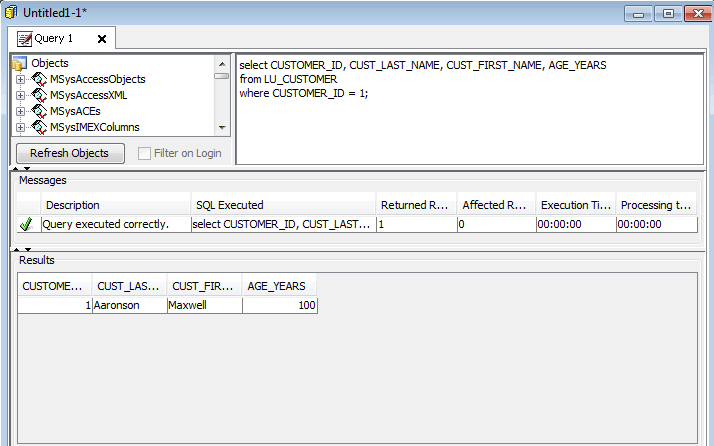
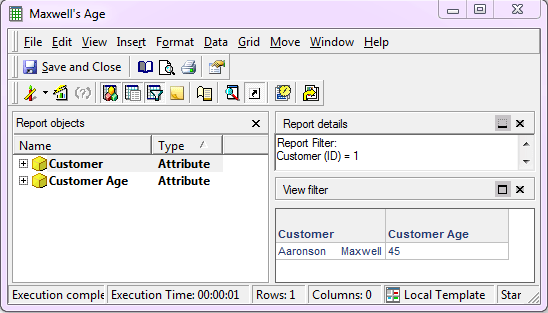
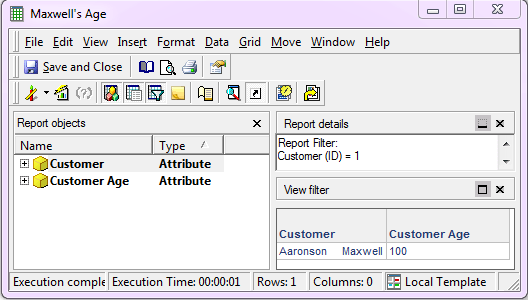
This is an example of how to achieve Option 2 using Strategy Tutorial project in 3-tier, keeping the same Database Instance and Database Connection but changing the DSN.