1. PRE-REQUISITES
Strategy
Strategy Version 9.4.X or greater must be installed with Strategy Architect.
Visual Studio 2010
Visual Studio 2010 with C/++ must be installed. Please note that Visual Studio Express does not support custom wizards, but the 'FP Wizard' is supported on all other Visual Studio packages (Professional, Ultimate, etc.). Note: Visual Studio 2005 is also supported, although Visual Studio 2005 is no longer supported by Microsoft.
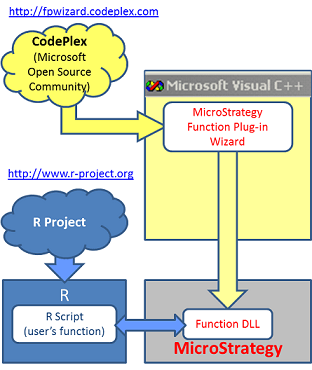
Strategy Function Plug-in Wizard
The Strategy Function Plug-in Wizard (FPWizard) is a Visual Studio C++ Template for creating Strategy Function Plug-ins, which allow the Strategy Business Intelligence platform to execute a user's own custom functions. More details about how to use the FP Wizard can be found using the FP Wizard's On-line help (accessible by clicking the FP Wizard's Help button in Visual Studio).
Once the FP Wizard is installed, a new template will be available for your C++ projects. New C++ projects can be created using this template and the FP Wizard will allow you to specify all the relevant details, such as capturing each function's signature (inputs/outputs/properties). Once you finish entering the information about your function, the FP Wizard will create a C++ project with all code necessary for Strategy to pass inputs to your functions and consume the results. All you need to do is add the function execution code, compile and deploy your DLL to Strategy.
The FP Wizard installer can be downloaded from http://fpwizard.codeplex.com/.
R
For function plug-ins implemented using the R statistical environment, R can be installed from http://CRAN.R-project.org.
2. PROCESS OVERVIEW
1. User installs pre-requisites (Strategy, Visual Studio, FP Wizard and R)
2. User creates a Visual C++ project using the Strategy Function Plug-in Wizard
a. User specifies the inputs and output of the function
b. User specifies any function parameters
c. User provides the location of the R Script containing the function.
d. Repeat a-c for each additional functions to be included in the Function DLL.
3. User compiles the Visual C++ project which results in the Function DLL
4. User imports the Function DLL into Strategy using Strategy Desktop’s Function Import Utility
5. The new function is now ready to be used in metrics that can be deployed in Strategy reports, scorecards, dashboards and other objects such as filters and custom groups.
3. STEPS TO IMPORT FUNCTION DLL
1. Open Strategy Desktop
2. Go to 'Schema' menu and select 'Import Functions' option
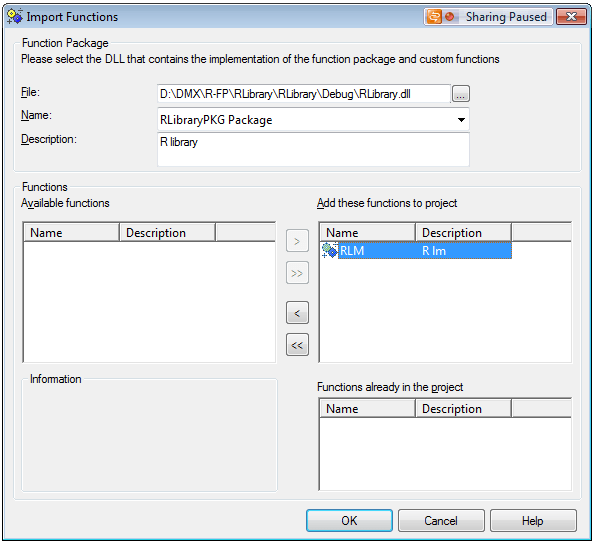
3. Browse using the '...' button to locate the DLL to import
4. Move the selected DLL from "Available functions" to "Add these functions to project"
5. Click OK to save the function to a folder called "My Functions" (if it doesn’t exist, the folder can be added by clicking the "new folder" icon in the upper right), then click OK
6. Update Schema (so the new function will become available)
4. STEPS TO METRIC BASED OFF NEW FUNCTION
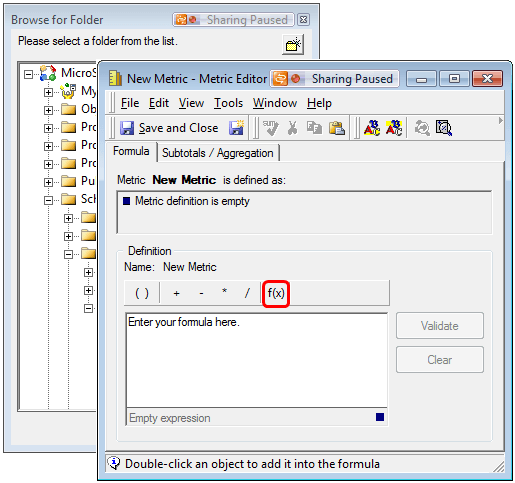
1. Create a new metric and use the "Function Picker" button to select the newly imported function.
2. Browse to the "My Functions" folder and select the function.
3. Add neccesary parameters and configure the metric as usual. Once created, the metric can be deployed just like any other metric within the Strategy Project.