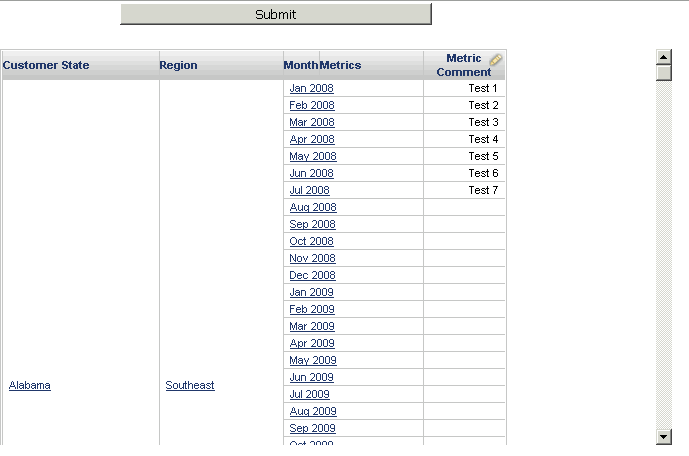
In Strategy Web 9.x-10.x, a transaction that updates multiple rows at one time will repeat the the last entry updated for all other updated rows. The issue occurs anytime two or more rows are updated with different values and the 'submit' button is clicked.
1. Add a column COMMENT to the STATE_REGION_MNTH_SLS table in the tutorial warehouse with data-type as text.
2. Update Table Structure for the table STATE_REGION_MNTH_SLS in Warehouse catalog so the table structure looks like below:
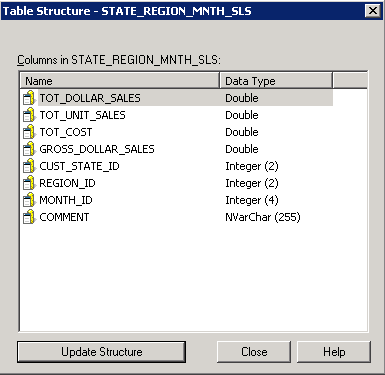
3. Create attribute named Comment from the newly created column.
4. Create a new transaction report with the attribute "Output" defined as the output object.
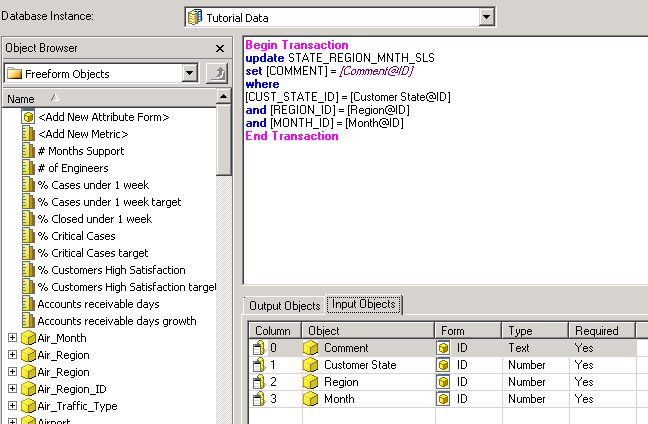
5. Enter the freeform SQL definition as shown below with input objects defined as attributes Comment, Customer State, Region and Month.
Sql
Begin Transaction
update STATE_REGION_MNTH_SLS
set =
where
=
and =
and =
End Transaction
10. Insert the Action Selector Button above the grid.
11. Run the document in Express mode and modify more than one row of the Comment attribute. In the example below, 7 test lines have been modified.
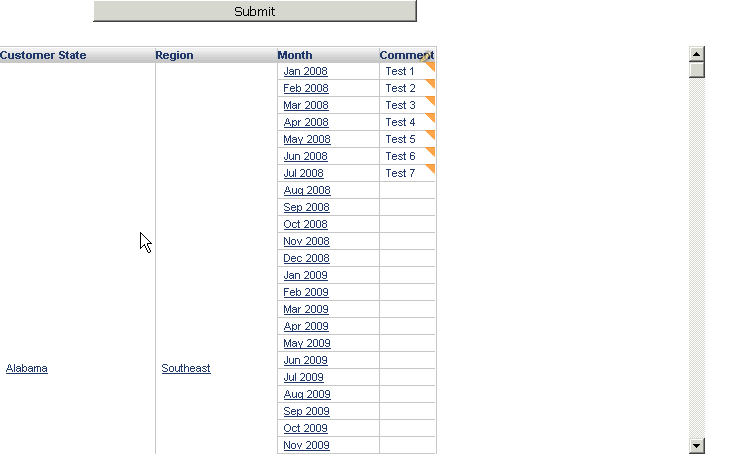
12. Click the 'submit' button and notice that the last value updated has been inserted into all rows.
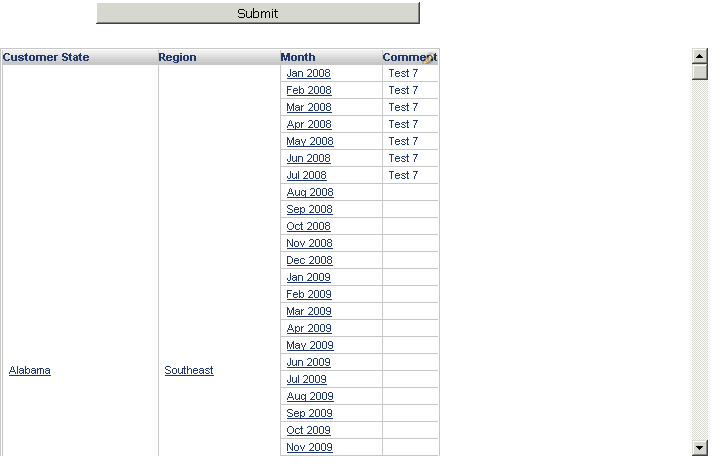
This is working as expected in Strategy 9.x and 10.x. For a transaction services grid, attribute elements with the same value seem to be different elements, but actually these elements with same ID form are saved as one single element for storage optimization. So updating one element results in the backend value for this element ID being changed so all displayed elements with this same ID will be updated to the new value. This occurs when the grid is re-calculated during the "Submit" action. However, this behavior only occurs with attributes and not for metrics.
Please upgrade to Strategy 10.4.3 or 10.7 or follow the workaround.
1. Create a fact for the column "COMMENT" or whichever column should be updated.
2. Define a new metric that is a max of the fact created in step 1. Metric definition should be like: Max() {~} .
3. The previously created transaction report can either be keep the same or modified to use a metric instead of the Comment attribute.
4. Create a new blank report with attributes Customer State, Region and Month on the rows and metric created in step 2 on the columns.
5. Create a new document with the report created in step 4.
6. In Strategy Web right click on the report created in step 5 and create new document.
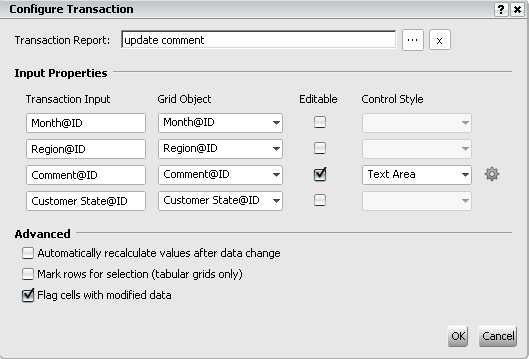
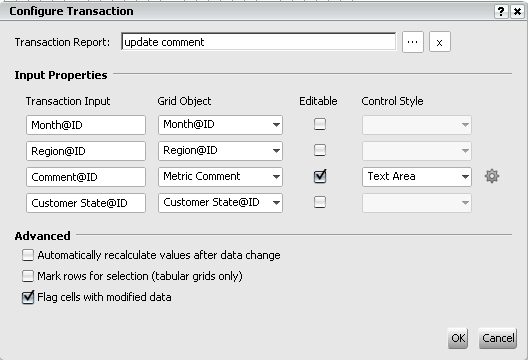
7. Right click on the grid and click Configure Transaction, change the Grid Object for the Comment input to the metric created in step 2, change to editable and control style to Text Area as shown below:
8. Insert the Action Selector Button above the grid.
9. Run the document in Express mode and modify more than one row of the Comment attribute. In the example below, 7 test lines have been modified.
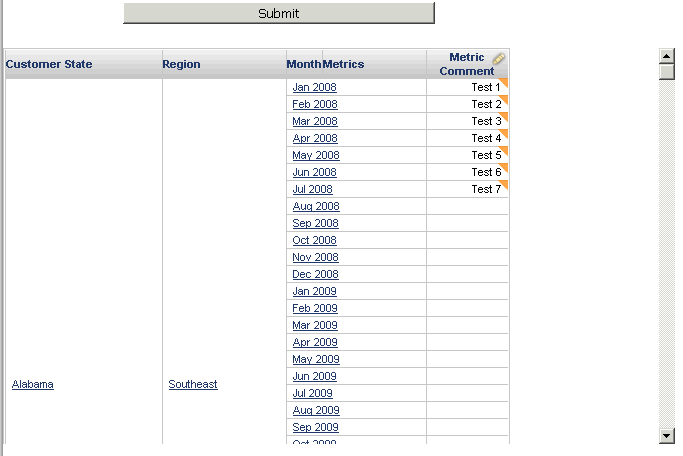
10. Click the 'submit' button and notice that all rows have been updated correctly.