EducationSoftwareStrategy.com
StrategyCommunity

Knowledge Base

Product

Community

Knowledge Base

TopicsBrowse ArticlesDeveloper Zone

Product

Download SoftwareProduct DocumentationSecurity Hub

Education

Tutorial VideosSolution GalleryEducation courses

Community

GuidelinesGrandmastersEvents
x_social-icon_white.svglinkedin_social-icon_white.svg
Strategy logoCommunity

© Strategy Inc. All Rights Reserved.

LegalTerms of UsePrivacy Policy
  1. Home
  2. Topics

KB41669: How to control the sort order of attribute elements displayed in a selector in MicroStrategy Web


Community Admin

• Strategy


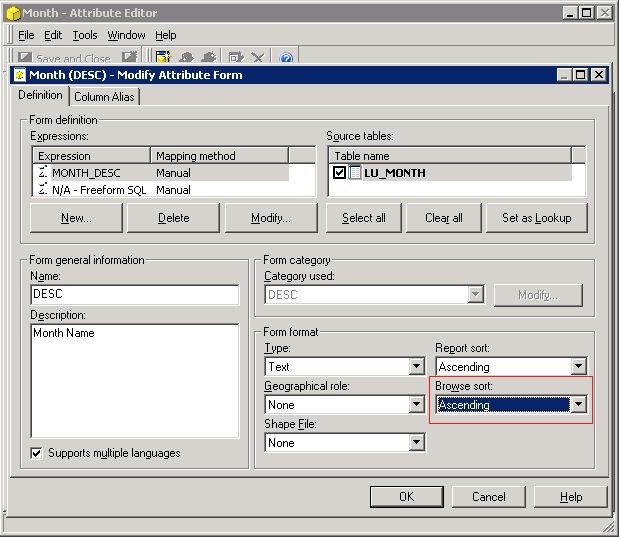
In some business scenarios, it is required to control the sort order of attribute elements displayed in a selector to be different from its original browse sort. For example, attribute has form (DESC) in Ascending Browse sort, as shown below:
ka04W000000OeibQAC_0EM4400000026wr.jpeg

 
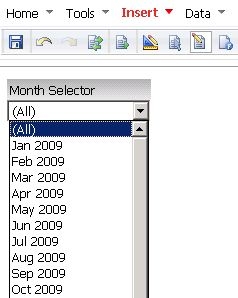
As a result, the elements of  in a selector will be listed in Ascending way in Strategy Web, as shown below:
ka04W000000OeibQAC_0EM4400000026wf.jpeg


For the steps below to change the sort order of elements displayed in the selector in Web:

  • In Strategy Web, edit the document (or run the document in Editable Mode).
  • Right mouse click on a selector -> Properties and Formatting
  • Under Properties -> Selector, click on the sorting button on the right of Displayed forms -> select the attribute form (e.g. ID) and select the sort order, as shown below:
ka04W000000OeibQAC_0EM4400000026wt.jpeg
  • Click on OK to save the change. And the elements in this selector are displayed in Descending order, as shown below:
ka04W000000OeibQAC_0EM4400000026wp.jpeg


Comment

0 comments

Details

Knowledge Article

Published:

June 7, 2017

Last Updated:

June 7, 2017