EducationSoftwareStrategy.com
StrategyCommunity

Knowledge Base

Product

Community

Knowledge Base

TopicsBrowse ArticlesDeveloper Zone

Product

Download SoftwareProduct DocumentationSecurity Hub

Education

Tutorial VideosSolution GalleryEducation courses

Community

GuidelinesGrandmastersEvents
x_social-icon_white.svglinkedin_social-icon_white.svg
Strategy logoCommunity

© Strategy Inc. All Rights Reserved.

LegalTerms of UsePrivacy Policy
  1. Home
  2. Topics

KB41736: How to pre-set sorting on a drilling destination object which is not in the report grid on a drilled-to report in MicroStrategy Developer 9.4.1 and 10.x.


Stefan Zepeda

Salesforce Solutions Architect • Strategy


In some business scenarios, it is required to pre-set sorting on a drilling destination object which is not in the report grid. In MicroStrategy Developer 9.4.1 and 10.x, this functionality can be achieved.

SYMPTOM:
In some business scenarios, it is required to pre-set sorting on a drilling destination object which is not in the report grid. In Strategy Developer 9.4.1 and 10.x, this functionality can be achieved. To give an example using the Tutorial project, the requirement is to drill to a report, and have the sort order of that new report to be descending using the "Year" attribute. For this example, "Year" isn't present on the original report.
ACTION:
For the steps below to achieve the above requirement:
  • In Strategy Developer, create a report with attribute , in row, and metric in column.
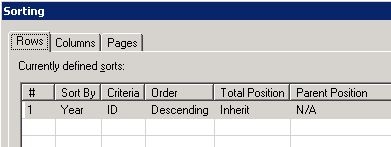
  • Go to Menu -> Data -> Advanced Sorting, add a new sort to sort by in Descending order, as shown below:
ka02R000000kcHTQAY_0EM440000002D33.jpeg
  • Click on OK to save the change.
  • Remove the attribute from report.
    NOTE: the "Sort By" element can only be added when the object is in the grid.
     
  • Save the report as "Pre-set sort order".
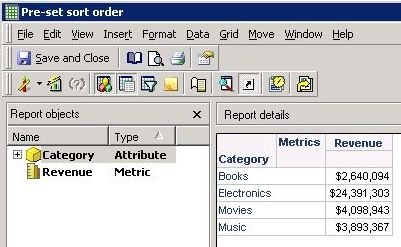
  • Run the report in Grid View, notice that is no longer in Report objects window, as shown below:
ka02R000000kcHTQAY_0EM440000002D3R.jpeg
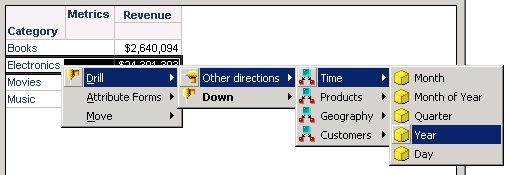
  • Drill on one Category element "Electronics" -> Other directions -> Time -> Year, as shown below:
ka02R000000kcHTQAY_0EM440000002D32.jpeg
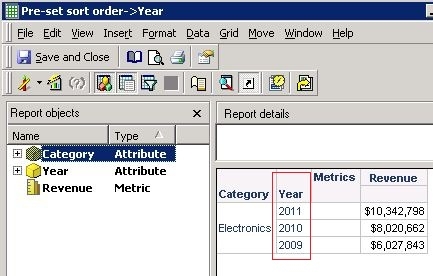
  • In the new report "Pre-set sort order->Year", the attribute has been sorted in Descending order, as shown below:
ka02R000000kcHTQAY_0EM440000002D31.jpeg

 
NOTE:
The sort setting will be inherited in the new report to be the same as the previous one - no matter the attribute is included in the report objects or not.
If drilling to an attribute that is different from (e.g. ), the sort setting will also be passed to the new report - even though it will not affect the sorting result, as shown below:
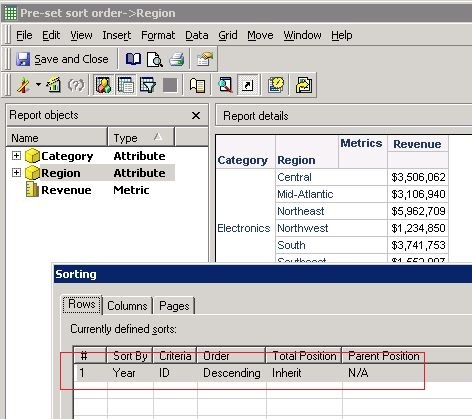
ka02R000000kcHTQAY_0EM440000002D3G.jpeg


Comment

0 comments

Details

Knowledge Article

Published:

May 15, 2017

Last Updated:

May 15, 2017