EducationSoftwareStrategy.com
StrategyCommunity

Knowledge Base

Product

Community

Knowledge Base

TopicsBrowse ArticlesDeveloper Zone

Product

Download SoftwareProduct DocumentationSecurity Hub

Education

Tutorial VideosSolution GalleryEducation courses

Community

GuidelinesGrandmastersEvents
x_social-icon_white.svglinkedin_social-icon_white.svg
Strategy logoCommunity

© Strategy Inc. All Rights Reserved.

LegalTerms of UsePrivacy Policy
  1. Home
  2. Topics

KB41737: How to use hyperlink in a Report Services Document to navigate to a specific sheet of a Microsoft Excel file in MicroStrategy Developer 9.x and 10.x


Stefan Zepeda

Salesforce Solutions Architect • Strategy


KB41737: How to use hyperlink in a Report Services Document to navigate to a specific sheet of a Microsoft Excel file in MicroStrategy Developer 9.x and 10.x

In some business scenarios, it is required to use hyperlink in a Report Services Document to navigate to a specific sheet of a Microsoft Excel file in Strategy Developer 9.x and 10.x.
 
For the steps below to achieve the requirement:

  • In Strategy Desktop, create a Report Services Document.
  • Insert a Text box. And right mouse click on the Text box -> Properties, under General tab -> Navigation, check the "Is hyperlink" option, and type the hyperlink with syntax as shown below:
     

    Sample Code/Error

    
    file:\\path\File_Name#Sheet_Name!Selected_Cell
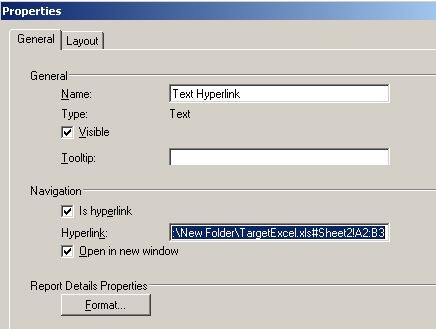


     An exmple is as shown below:
ka02R000000kbgUQAQ_0EM440000002D3I.jpeg
  • Sample Code/Error

    
    file:\\C:\New Folder\TargetExcel.xls#Sheet2!A2:B3
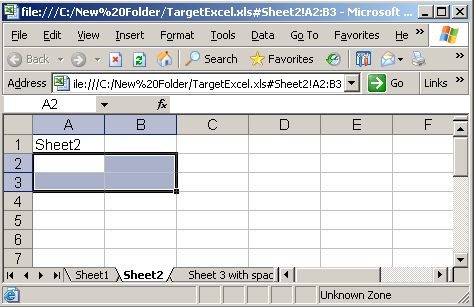


  • Run the document and click on the hyperlink, it navigates to the Sheet2 of the Excel file with cells A2:B3 selected, as shown below:
ka02R000000kbgUQAQ_0EM440000002D38.jpeg

 
NOTE 1
The selected cell can be single or multiple. As an example, the following similar hyperlink is valid:
Sample Code/Error


file:\\C:\New Folder\TargetExcel.xls#Sheet2!A3

 
NOTE 2
When there are spaces in the file name or in the folder path, it can also navigate successfully. As an example, the following hyperlink is valid:
Sample Code/Error

file:\\C:\New Folder\Target Excel with space in file name.xls#Sheet2!A2:B3
 
NOTE 3
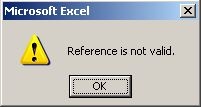
When there is any space in the Sheet name, an error occurs when clicking on the hyperlink, as shown below:

ka02R000000kbgUQAQ_0EM440000002D3C.jpeg

Sample Code/Error


Reference is not valid.
 
And the Excel will be open in the saved sheet previously, rather than navigating to the sheet required.
 
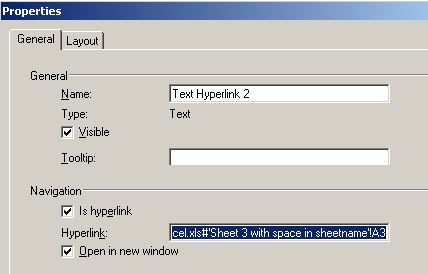
In this situation, a pair of single quotes needs to be added before and after the sheet name, as shown below:

ka02R000000kbgUQAQ_0EM440000002D3E.jpeg

Sample Code/Error


file:\\C:\New Folder\TargetExcel.xls#'Sheet 3 with space in sheetname'!A3

  
NOTE 4
If the document is run in Web, the Excel file needs to be moved into the corresponding folder defined in IIS (Internet Information Services). And the hyperlink should be:
Sample Code/Error

http://IP_ADDRESS/MicroStrategy/TargetExcel.xls#Sheet2!A2:B3


Comment

0 comments

Details

Knowledge Article

Published:

June 12, 2017

Last Updated:

June 12, 2017