SYMPTOM:
In Strategy 9.4.1 and 10.x, if setting the attribute formatting to "Date" at the grid level, the ID form in numeric format gets changed to date format while the DESC form continues to remain in text format.
STEPS TO REPRODUCE:
1. Within the Tutorial Project, create a lookup table in the data warehouse; with structure and data in the tables as below:
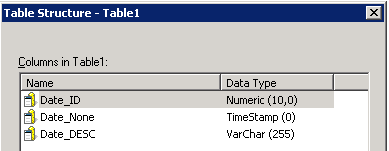
Insert some sample data as shown below:

2. Create attribute 'Date' with three forms: ID, DESC, NONE and their data type are numeric, text and date-time accordingly.
3. Create a simple report with attribute ‘Date’ and run as shown below:
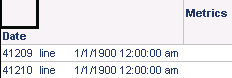
4. Right-click the attribute, select formatting>attribute values, and change the attribute value format to 'Date' as shown below.

5. Execute the report. The ID form displays as Date as shown below:

CAUSE:
This is working by design.
When formatting the attribute value at the grid level, the formatting change applies to all attribute forms. In this case, the three attribute forms happen to be of different formats. Thus, Numeric data can end up getting displayed as Date and vice versa.
The Numeric to Date conversion that is used in Strategy Desktop (which is also used in Microsoft Excel, and most databases) is as follows:
Numeric_Value = DaysBetween(Date_Value, 1/1/1900)+1
A numeric_value of 1 corresponds to a date_value of 1/1/1900. Following this rule, a numeric_value of 41209 corresponds to a date_value of 10/27/2012, which is correctly shown in the Strategy report above.
WORKAROUND:
There are two possible workarounds to the above situation:
1) Do not display ID form for the attribute on the grid (show only DESC or Date form).
2) Do not format the attribute to Date but rather keep the default formatting.
