SYMPTOM:
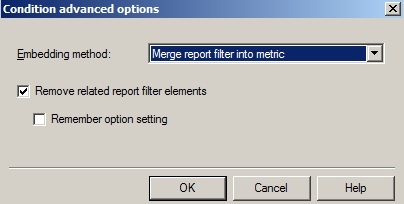
Creating a metric based off of a metric object template with the "remove related report filter elements" option unchecked has that option checked in Strategy Desktop 9.4.1 and 10.x. The object template fails to pass its default settings to the new metric object, having the following option enabled below:
STEPS TO REPRODUCE:
1.) Within Strategy Developer, for the Tutorial project, navigate to the toolbar at the top of the window to Administration->Preferences->Browsing, and enable the "Display" hidden objects option. This will show the "Object Templates" folder under the project in the GUI.
2.) From the main window, navigate to Strategy Tutorial->Object Templates->Metrics, and create a new template metric with the definition of "Sum(1)", and a condition of "[Last Quarter]". Click on the condition of the metric and navigate to the "Advanced..." option. In the Conditional advanced options window, uncheck the "Remove related report filter elements" option. Save this metric.
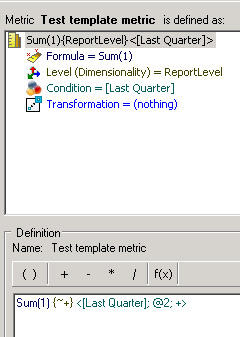
3.) Within the Report Objects folder, create a new metric using the template created in Step 2.
4.) Navigate to the Conditional advanced options window again, and notice that the "Remove related report filter elements" option is checked.
CAUSE:
This is a known issue in Strategy Developer 9.4.1 and 10.x.
ACTION:
Currently this issue is still being reviewed by our Technology team as and it is not scoped for any upcoming scheduled Strategy release.
