EducationSoftwareStrategy.com
StrategyCommunity

Knowledge Base

Product

Community

Knowledge Base

TopicsBrowse ArticlesDeveloper Zone

Product

Download SoftwareProduct DocumentationSecurity Hub

Education

Tutorial VideosSolution GalleryEducation courses

Community

GuidelinesGrandmastersEvents
x_social-icon_white.svglinkedin_social-icon_white.svg
Strategy logoCommunity

© Strategy Inc. All Rights Reserved.

LegalTerms of UsePrivacy Policy
  1. Home
  2. Topics

KB41780: How to create a date range answered from a single prompt for a Cube report in MicroStrategy Developer.


Stefan Zepeda

Salesforce Solutions Architect • Strategy


KB41780: How to create a date range answered from a single prompt for a Cube report in MicroStrategy Developer.

1. Create an Intelligent Cube with Date and Revenue with tutorial data
2. Create a Value Prompt->"Date and Time"-> Finish
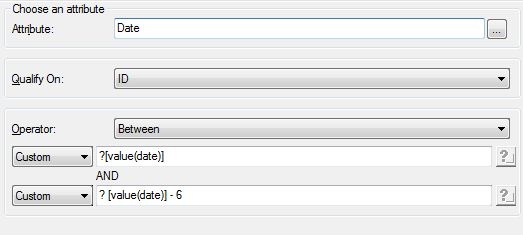
3. Create a Filter with the Date attribute.
Qualify on ID
Operator: Between
Custom: Prompt created in step 1
Custom: (Prompt created in step 1)-6
 

ka044000000kUGdAAM_0EM440000002D41.jpeg

 
4. Create a cube report. In the view filter choose
Field: Date
Operator: In List
Value: Prompt for Element
next
select the "Use a filter to reduce the number of elements"
 
5. Select the filter created in step 3.
 
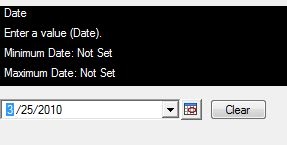
6. Run the report and select the desired date and select finish
 

ka044000000kUGdAAM_0EM440000002D46.jpeg

 
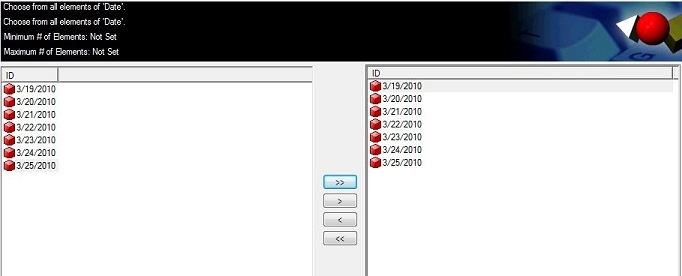
7. Another Prompt will pop up allowing the user to select out of the 7 days (this is a limitation of the cube. This is only a workaround)
Select all the dates and moves them to the right side. Finish
ka044000000kUGdAAM_0EM440000002D4A.jpeg


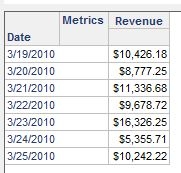
8. After selecting the dates, the report will show data between the date chosen, and the date set in your custom expression at the end of step 3.


ka044000000kUGdAAM_0EM440000002D48.jpeg

41780


Comment

0 comments

Details

Knowledge Article

Published:

June 2, 2017

Last Updated:

March 28, 2019