SUMMARY:
Issues with importing OLAP Cubes from multidimensional (MDX) data sources is complicated by the fact that the Strategy OLAP Cube Catalog requires connectivity to the data source. To address the situation, Strategy 10.x provides the ability to log cube structure information into a file. With this file, the operations of importing or updating the structure of a cube may be replicated, greatly simplifying troubleshooting.
This feature is also known as "rowset logging" because OLAP Cube data sources return cube structure information in a format called "schema rowsets" within the ODBO standard.
How to record OLAP Cube Catalog operations
OLAP Cube Catalog logging is enabled by adding connection string parameters to the database connection object for the data source in Strategy Desktop. Two parameters should be added:
RECORD;FILE={drive:\path\to\filename.log}
Note: SAP BI database connections must have "JCO" as one of the connection string parameters. Therefore, the "Additional connection string parameters" line for SAP BI connections should read:
JCO;RECORD;FILE={C:\RowsetLog.log}
JCO should not be used for Microsoft Analysis Services or Hyperion Essbase connections.
After configuring logging in the database connection, perform the required operations in the OLAP Cube Catalog as normal, and the file will be created in the specified location. (The file is in a binary format that is not human-readable.)
How to replicate OLAP Cube Catalog issues using a log file
To replicate an issue with a fresh cube import, the log file is sufficient by itself.
If the issue is with updating the structure of a cube, the ideal for troubleshooting is to have a backup of the metadata prior to the structure update as well as the log file. If the metadata for the update is no longer available, it may be possible to replicate the issue as an import using a fresh metadata; however, this would not identify issues relating to conflicts between the structure in the metadata and the structure in the data source. (Maintaining routine backups of active metadatas is a project management best practice in any case. It is not critical to have the latest possible metadata prior to the update. Cube structure issues concern schema objects and the base objects representing the physical structure. Changes to reports or other application objects after the backup was taken are generally not relevant to troubleshooting OLAP Cube Catalog issues.)
The following steps should be taken to replicate the issue:
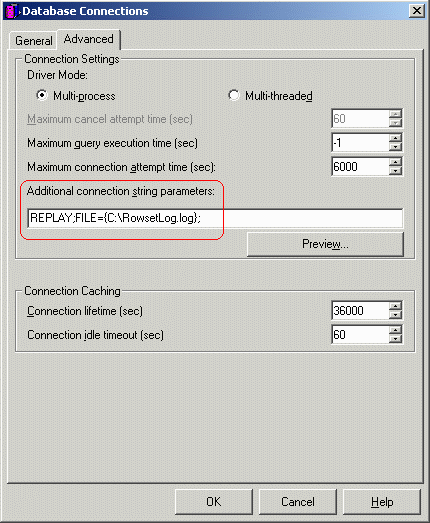
The OLAP Cube Catalog will read the available cubes and cube structure information from the file, without connecting to the data source.
Possible errors when obtaining cube structure information from the log file
With the database connection configured to replay rowsets from the log, no connection to the data source will be made in the OLAP Cube Catalog. Therefore, if the file does not exist or its location is specified incorrectly, the OLAP Cube Catalog will fail to open with the following error.

Internal Error: MFileSystem::ReadableFileImpl::ReadableFileImpl: ::CreateFileW failed for 'RowsetLog.log'.
System Error 0x00000002 (2): The system cannot find the file specified.
If the log file exists but does not contain rowsets for the Cube being imported or updated, a different error returns. In this case, the log file will have to be generated again, making sure to import or update structure on the cube that was not found when the error occurred.

Error in accessing information from the external data source (Database Instance: MSAS 2000 hh7, Error: XDACatalog call failed. Error interpretation failure. Error type: Invalid operation. Cannot find the table corresponding to the XDACatalog query: XDACatalogArchiveKey: Type: Dimension Query. CubeName:Tutorial Sales1 ColumnRestrictions: TableSize:0 CatalogName: DataSourceName: SelectedProperties: SelfBrowseFlag:false.)
KB417934
