EducationSoftwareStrategy.com
StrategyCommunity

Knowledge Base

Product

Community

Knowledge Base

TopicsBrowse ArticlesDeveloper Zone

Product

Download SoftwareProduct DocumentationSecurity Hub

Education

Tutorial VideosSolution GalleryEducation courses

Community

GuidelinesGrandmastersEvents
x_social-icon_white.svglinkedin_social-icon_white.svg
Strategy logoCommunity

© Strategy Inc. All Rights Reserved.

LegalTerms of UsePrivacy Policy
  1. Home
  2. Topics

KB41809: How to get the schema name of an Oracle warehouse table to show up as a table prefix in report SQL in MicroStrategy


Stefan Zepeda

Salesforce Solutions Architect • Strategy


This article notes how to get schema names to show up as table prefixes in report SQL

 
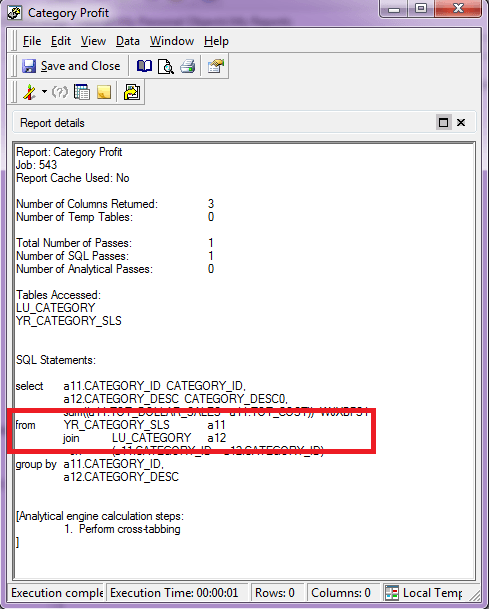
Suppose an Oracle data warehouse is being used with Strategy. After running a report the user switches to SQL view and notices that the schema name does not show up as the table prefix in the report SQL:
 

ka04W000000ObPiQAK_0EM440000002D3e.png

 
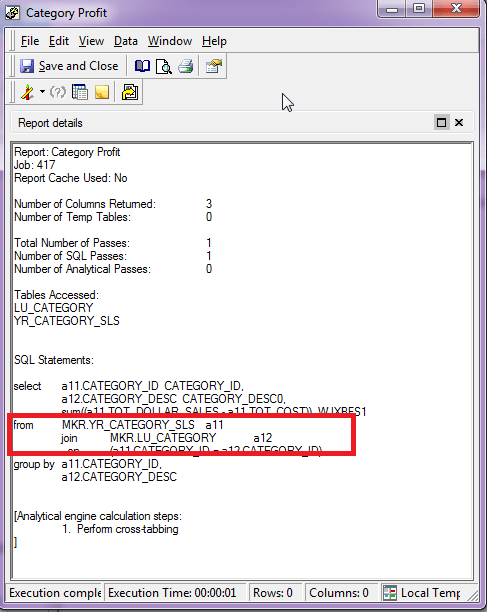
The following procedure describes how to get the schema name of a warehouse table to show up as a table prefix in the report SQL in Strategy.
 
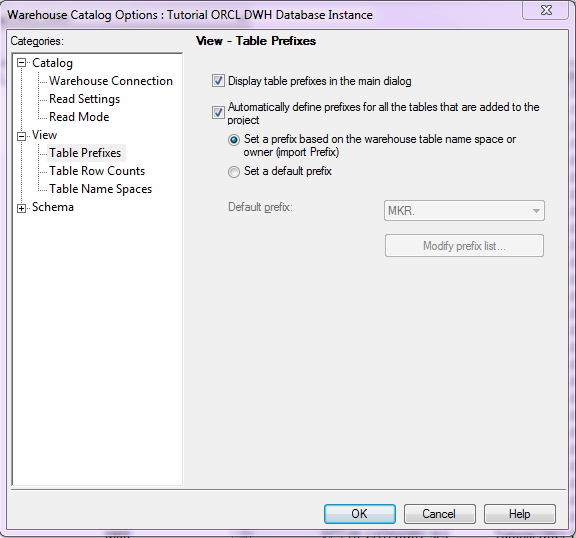
1.) When importing new tables from the data warehouse into the project:
ka04W000000ObPiQAK_0EM440000002D3q.png


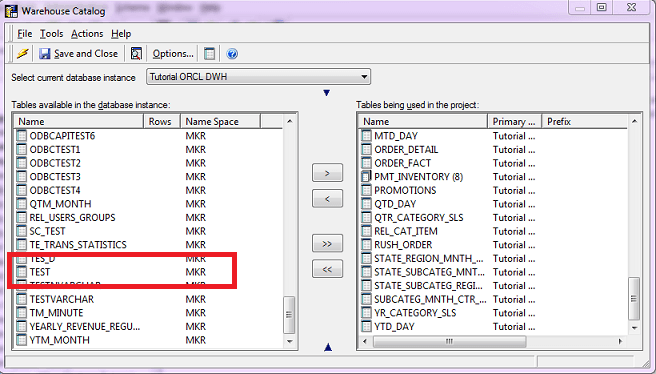
  • Open Warehouse Catalog and go to Options -> View -> Table Prefixes. Make sure that both "Display table prefixes in the main dialog" and "Automatically define prefixes for all the tables that are added to the project" checkboxes are checked. For the second option, make sure to select the first radio button "Set a prefix based on the warehouse table name space or owner (import Prefix)". Hit OK.
     
  • On the left hand side of the Warehouse Catalog the schema name should now appear in the "Name Space" column. When a table is selected and moved to the right hand side, i.e. the project tables, the prefix comes along and shows up in the "Prefix" column.
     
ka04W000000ObPiQAK_0EM440000002D3l.png

 
2.) For tables already in the project:
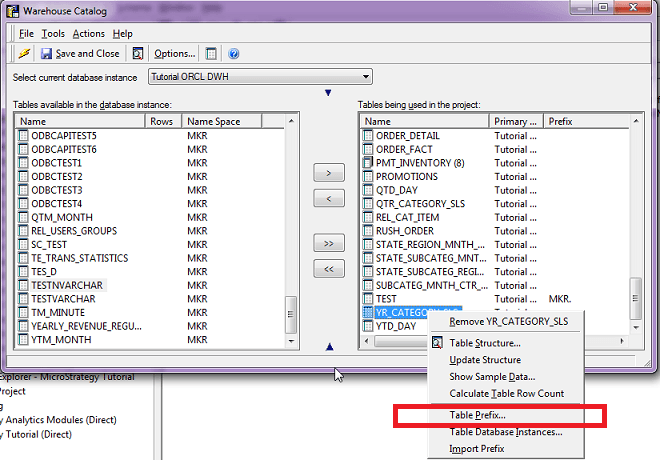
  • Right-click on the table name and select "Table Prefix..."
     
ka04W000000ObPiQAK_0EM440000002D3j.png
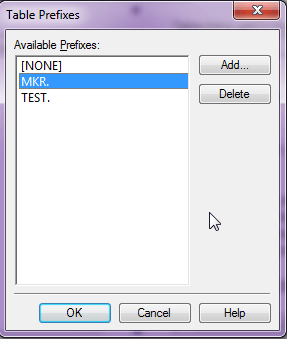
  • If the schema name has already been added as an available prefix, select it from the list and click OK. Choose OK when asked "Are you sure that you want to set <<my_schema_name.>> as a prefix?"
     
ka04W000000ObPiQAK_0EM440000002D3s.png
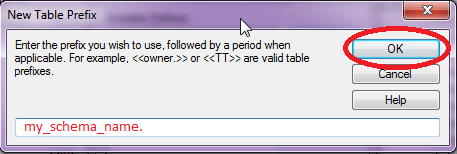
  • If it is not already in the list of available prefixes, click on the "Add" button. Type in the schema name followed by a dot, e.g. "my_schema_name." Click OK. Select it from the list of available prefixes and click OK. Choose OK when "Are you sure that you want to set <<my_schema_name.>> as a prefix?" is prompted 
     
ka04W000000ObPiQAK_0EM440000002D3h.png

3.) Save and close the Warehouse Catalog.
 
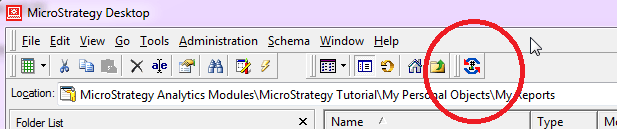
4.) Save and update schema.
 

ka04W000000ObPiQAK_0EM440000002D3g.png

 
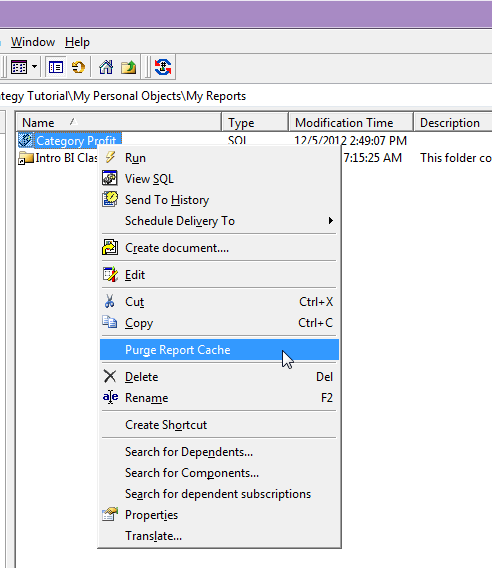
5.) Purge the report cache.
 

ka04W000000ObPiQAK_0EM440000002D3b.png


6.) Run the report and switch to SQL view.
 

ka04W000000ObPiQAK_0EM440000002D3o.png


Comment

0 comments

Details

Knowledge Article

Published:

June 2, 2017

Last Updated:

June 2, 2017