The extended data access (XDA) features in Strategy 9.x--Freeform SQL, Query Builder and OLAP Cube integration--require objects to be created in the Strategy metadata separate from the normal schema and application objects that belong to a project. These new objects are called 'Managed Objects,' so named because their location is managed by Strategy (that is, they do not exist in project folders).
By default, when searching for objects in a project, these managed objects are not included in the search results. However, the search tool has options to search managed objects specifically.
To enable this option, use the search options dialog box, available from the Tools menu > Options command, as shown below:
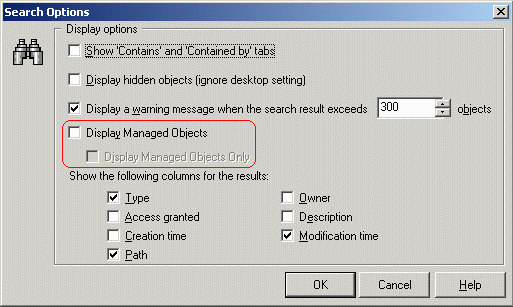
There are two options relating to managed objects:
Restricting the search based on object usage
The managed objects collection is a flat list; thus, it is not evident from the search results which object belongs to which data source or report.
In most cases, the option 'Show "Contains' and 'Contained by' tabs" can help narrow down the list based on membership in a report or OLAP Cube. After checking this option and clicking OK, users will notice two additional tabs in the search panel:
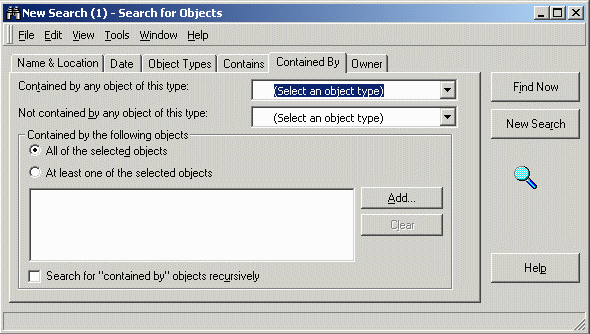
"Contains" is like the "search for dependents" right-click option. It searches for objects that use the current object as a component. In the context of an object search, the "current object" can be specified in the "At least one of the selected objects" list.
"Contained by" is the inverse search--that is, it searches for objects that are components of a given object.
For example, to search for managed objects that belong to a certain Freeform SQL report, click the "Add..." button on this panel, navigate to the desired object, and move it to the right-hand panel where it will be included in the search.
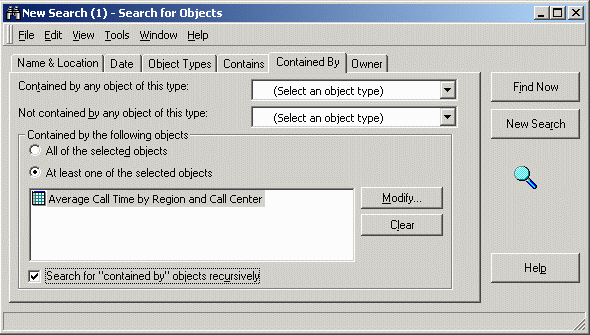
Be sure also to search for objects recursively using the checkbox at the bottom.
The "Object Types" tab can further restrict the result to a particular kind of object.
For objects belonging to an OLAP Cube (imported from SAP BW, Microsoft Analysis Services or Hyperion Essbase), the cube itself can be selected as one of the "selected objects" by navigating to it through the Data Explorer for the OLAP cube data source.
Important: Managed objects can, in nearly every case, be accessed through project objects, or the Data Explorer belonging to the database instance. If users delete or inappropriately edit objects accessed through an object search, it is possible (though rare) to damage the data source's schema and cause report execution failures. Users are urged to exercise caution when working with managed objects.
KB418484
