EducationSoftwareStrategy.com
StrategyCommunity

Knowledge Base

Product

Community

Knowledge Base

TopicsBrowse ArticlesDeveloper Zone

Product

Download SoftwareProduct DocumentationSecurity Hub

Education

Tutorial VideosSolution GalleryEducation courses

Community

GuidelinesGrandmastersEvents
x_social-icon_white.svglinkedin_social-icon_white.svg
Strategy logoCommunity

© Strategy Inc. All Rights Reserved.

LegalTerms of UsePrivacy Policy
  1. Home
  2. Topics

KB41961: "Google has disabled use of the Maps API for this application. This site is not authorized to use the Google Maps client ID provided..." error message appears when running a document with Google Maps plug-in in MicroStrategy Web.


Community Admin

• Strategy


"Google has disabled use of the Maps API for this application. This site is not authorized to use the Google Maps client ID provided..." error message appears when running a document with Google Maps plug-in in MicroStrategy Web.

SYMPTOM:
A popup error message appears when running a document with Google Maps plug-in enabled in Strategy Web 9.x:
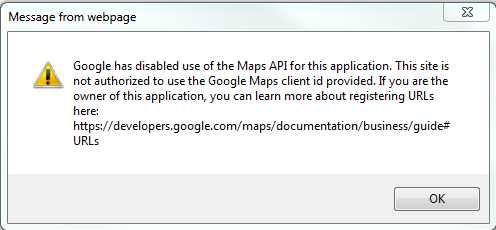
 

ka04W000000Oh5rQAC_0EM4400000026uH.png

 
CAUSE:
A possible cause is that the user didn't authorized the right URL to use their client ID.
 
ACTION:
In most cases, the user needs to authorize an application to use their client ID. Applications often use multiple URLs that share a common pattern, e.g. a store locator can live at example.com/stores or at stores.example.com. The user needs to find a URL that will match all URLS their application uses.
 
Note: Authorizing www.example.com will not authorize stores.example.com or any other subdomain of example.com
 
To find the correct URL the user may need to inspect certain HTTP requests from the browser to Google servers.
 
They URL that needs to be authorized is the one in the Refer header for the requests the browser sends to Google to load the API. To capture the request, the user can use tools like Fiddler or Developer Tools included in Google Chrome.
 
After getting one of this tools, follow these steps:
 

  1. Start the capturing tool (Fiddler for example)
  2. Run the document that is throwing the error in Strategy
  3. Stop capturing HTTP traffic.
  4. Find the request that tries to load the Maps API.
  5. HTTP request headers follow immediately after that line. Find one like: 

Refer: http://www.example.com/microstrategy/...
 
The URL in that line is the one that needs to be authorized.


Comment

0 comments

Details

Knowledge Article

Published:

June 5, 2017

Last Updated:

June 5, 2017