EducationSoftwareStrategy.com
StrategyCommunity

Knowledge Base

Product

Community

Knowledge Base

TopicsBrowse ArticlesDeveloper Zone

Product

Download SoftwareProduct DocumentationSecurity Hub

Education

Tutorial VideosSolution GalleryEducation courses

Community

GuidelinesGrandmastersEvents
x_social-icon_white.svglinkedin_social-icon_white.svg
Strategy logoCommunity

© Strategy Inc. All Rights Reserved.

LegalTerms of UsePrivacy Policy
  1. Home
  2. Topics

KB419988: How to create a Market Basket Analysis - Affinity Report in the MicroStrategy Product Suite


Community Admin

• Strategy


This article describes how to create a market basket analysis affinity report in MicroStrategy.

An affinity report is a market basket analysis report that shows the relationship between two products. If one product is sold in conjunction with another product in the same basket, and if this behavior is repeated often, it is said that both products hold a high affinity. Contrarily, when two products are rarely sold together, they have a low affinity.
The objective of this kind of reports is to help identifying products that are not obviously related and to make decisions according to the results.
 
EXAMPLE:


Data Model:


Order and Item hold a many-to-many relationship.Base Table (transaction): ORDERS


Order and Item hold a many-to-many relationship.Base Table (transaction): ORDERS


Lookup Table: LU_ITEM


Lookup Table: LU_ITEM


A report that shows the orders and items with an empty filter will return the following:A report that shows the affinity of 'CEREAL' with all the other products sold will return:


A report that shows the orders and items with an empty filter will return the following:A report that shows the affinity of 'CEREAL' with all the other products sold will return:


A report that shows the orders and items with an empty filter will return the following:A report that shows the affinity of 'CEREAL' with all the other products sold will return:


FormulaFact_IDConditionalitycount(order)Sales AmtF3      Dimensionality      FILTERING      GROUPINGItemStandardNONEFormulaFact_IDConditionalitycount(order) F2      Dimensionality      FILTERING      GROUPINGItemStandardStandard

 
This means that in 66.67 percent of the orders (baskets) that had jelly, there was a cereal in them as well, so they hold a relatively high affinity.
This report also shows that one of every three orders that contained milk, included cereal also. Obviously, the selected product has a 100 percent affinity with itself (cereal).
To create the previous report, the following objects are needed:
 
Filter: F1
 
Choose from all elements of 'Item'.
 
Filter: F2
 
Relationship Filter (Set Qualification)
Output Level: Order
Filter Qualification: F1
Relate By: Sales Amt
 
Filter: F3
Relationship Filter (Set Qualification)
Output Level: Item
Filter Qualification: F1
Relate By: Use System Default
 
Metric: SELECTED ITEM - TIMES SOLD
Count(Order) {!Item+} <[F3]>


FormulaFact_IDConditionalitycount(order)Sales AmtF3      Dimensionality      FILTERING      GROUPINGItemStandardNONEFormulaFact_IDConditionalitycount(order) F2      Dimensionality      FILTERING      GROUPINGItemStandardStandard


FormulaFact_IDConditionalitycount(order)Sales AmtF3      Dimensionality      FILTERING      GROUPINGItemStandardNONEFormulaFact_IDConditionalitycount(order) F2      Dimensionality      FILTERING      GROUPINGItemStandardStandard


FormulaFact_IDConditionalitycount(order)Sales AmtF3      Dimensionality      FILTERING      GROUPINGItemStandardNONEFormulaFact_IDConditionalitycount(order) F2      Dimensionality      FILTERING      GROUPINGItemStandardStandard


FormulaFact_IDConditionalitycount(order)Sales AmtF3      Dimensionality      FILTERING      GROUPINGItemStandardNONEFormulaFact_IDConditionalitycount(order) F2      Dimensionality      FILTERING      GROUPINGItemStandardStandard


FormulaFact_IDConditionalitycount(order)Sales AmtF3      Dimensionality      FILTERING      GROUPINGItemStandardNONEFormulaFact_IDConditionalitycount(order) F2      Dimensionality      FILTERING      GROUPINGItemStandardStandard


FormulaFact_IDConditionalitycount(order)Sales AmtF3      Dimensionality      FILTERING      GROUPINGItemStandardNONEFormulaFact_IDConditionalitycount(order) F2      Dimensionality      FILTERING      GROUPINGItemStandardStandard


FormulaFact_IDConditionalitycount(order)Sales AmtF3      Dimensionality      FILTERING      GROUPINGItemStandardNONEFormulaFact_IDConditionalitycount(order) F2      Dimensionality      FILTERING      GROUPINGItemStandardStandard


FormulaFact_IDConditionalitycount(order)Sales AmtF3      Dimensionality      FILTERING      GROUPINGItemStandardNONEFormulaFact_IDConditionalitycount(order) F2      Dimensionality      FILTERING      GROUPINGItemStandardStandard


FormulaFact_IDConditionalitycount(order)Sales AmtF3      Dimensionality      FILTERING      GROUPINGItemStandardNONEFormulaFact_IDConditionalitycount(order) F2      Dimensionality      FILTERING      GROUPINGItemStandardStandard


FormulaFact_IDConditionalitycount(order)Sales AmtF3      Dimensionality      FILTERING      GROUPINGItemStandardNONEFormulaFact_IDConditionalitycount(order) F2      Dimensionality      FILTERING      GROUPINGItemStandardStandard


FormulaFact_IDConditionalitycount(order)Sales AmtF3      Dimensionality      FILTERING      GROUPINGItemStandardNONEFormulaFact_IDConditionalitycount(order) F2      Dimensionality      FILTERING      GROUPINGItemStandardStandard


FormulaFact_IDConditionalitycount(order)Sales AmtF3      Dimensionality      FILTERING      GROUPINGItemStandardNONEFormulaFact_IDConditionalitycount(order) F2      Dimensionality      FILTERING      GROUPINGItemStandardStandard

NOTE: Remove 'Report Level' dimensionality.
 
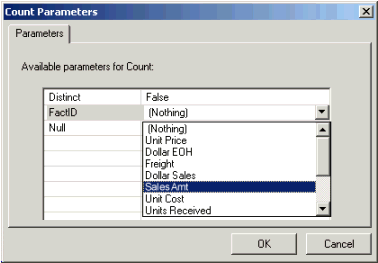
The fact ID (Sales Amt) is used so the engine queries the base table and not the lookup table for orders. To access this parameter: Select the Count function in the metric editor and right-click on it:
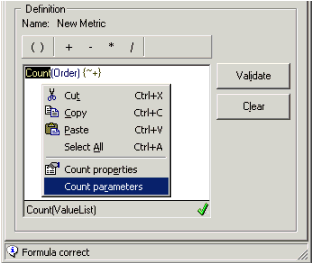
ka04W000000Oah0QAC_0EM440000002GIL.gif

 
Select the fact ID:

ka04W000000Oah0QAC_0EM440000002GII.gif

 
Metric: TIMES SOLD TOGETHER
Count(Order) {Item+} <[F2]>


FormulaFact_IDConditionalitycount(order)Sales AmtF3      Dimensionality      FILTERING      GROUPINGItemStandardNONEFormulaFact_IDConditionalitycount(order) F2      Dimensionality      FILTERING      GROUPINGItemStandardStandard


FormulaFact_IDConditionalitycount(order)Sales AmtF3      Dimensionality      FILTERING      GROUPINGItemStandardNONEFormulaFact_IDConditionalitycount(order) F2      Dimensionality      FILTERING      GROUPINGItemStandardStandard


FormulaFact_IDConditionalitycount(order)Sales AmtF3      Dimensionality      FILTERING      GROUPINGItemStandardNONEFormulaFact_IDConditionalitycount(order) F2      Dimensionality      FILTERING      GROUPINGItemStandardStandard


FormulaFact_IDConditionalitycount(order)Sales AmtF3      Dimensionality      FILTERING      GROUPINGItemStandardNONEFormulaFact_IDConditionalitycount(order) F2      Dimensionality      FILTERING      GROUPINGItemStandardStandard


FormulaFact_IDConditionalitycount(order)Sales AmtF3      Dimensionality      FILTERING      GROUPINGItemStandardNONEFormulaFact_IDConditionalitycount(order) F2      Dimensionality      FILTERING      GROUPINGItemStandardStandard


FormulaFact_IDConditionalitycount(order)Sales AmtF3      Dimensionality      FILTERING      GROUPINGItemStandardNONEFormulaFact_IDConditionalitycount(order) F2      Dimensionality      FILTERING      GROUPINGItemStandardStandard


FormulaFact_IDConditionalitycount(order)Sales AmtF3      Dimensionality      FILTERING      GROUPINGItemStandardNONEFormulaFact_IDConditionalitycount(order) F2      Dimensionality      FILTERING      GROUPINGItemStandardStandard


FormulaFact_IDConditionalitycount(order)Sales AmtF3      Dimensionality      FILTERING      GROUPINGItemStandardNONEFormulaFact_IDConditionalitycount(order) F2      Dimensionality      FILTERING      GROUPINGItemStandardStandard


FormulaFact_IDConditionalitycount(order)Sales AmtF3      Dimensionality      FILTERING      GROUPINGItemStandardNONEFormulaFact_IDConditionalitycount(order) F2      Dimensionality      FILTERING      GROUPINGItemStandardStandard


FormulaFact_IDConditionalitycount(order)Sales AmtF3      Dimensionality      FILTERING      GROUPINGItemStandardNONEFormulaFact_IDConditionalitycount(order) F2      Dimensionality      FILTERING      GROUPINGItemStandardStandard


FormulaFact_IDConditionalitycount(order)Sales AmtF3      Dimensionality      FILTERING      GROUPINGItemStandardNONEFormulaFact_IDConditionalitycount(order) F2      Dimensionality      FILTERING      GROUPINGItemStandardStandard


FormulaFact_IDConditionalitycount(order)Sales AmtF3      Dimensionality      FILTERING      GROUPINGItemStandardNONEFormulaFact_IDConditionalitycount(order) F2      Dimensionality      FILTERING      GROUPINGItemStandardStandard

NOTE: Remove 'Report Level' dimensionality.
 
Metric: AFFINITY
[TIMES SOLD TOGETHER] / (1 * [SELECTED ITEM - TIMES SOLD]))
Format: Percentage, 2 decimals
NOTE: The '1 *' part of the formula has the purpose of converting the result into a floating-point data type.
 
The SQL that is generated is as follows:


select a11.ITEM_ID ITEM_ID,
    count(a11.ORDER_ID) TIMESSOLDTOG
into #ZZTJY00IEQNMD00
from   ORDERS a11
where   ((a11.ORDER_ID)
in   (select   r11.ORDER_ID
    from   ORDERS r11
    where   r11.ITEM_ID in (2)))
group by     a11.ITEM_ID

 
The first pass is generated by the metric 'Times Sold Together' and the subquery comes from the relationship filter F2. Here all the items that were sold together with the selected item are inserted along with the number of times that they were sold with the mentioned item.

select (1.0 * count(a11.ORDER_ID)) WJXBFS1
into #ZZTJY00IEQNMD01
from   ORDERS a11
where   ((a11.ITEM_ID)
in     (select     r11.ITEM_ID
    from   LU_ITEM r11
    where   r11.ITEM_ID in (2)))

 
The second pass is generated by the metric 'SELECTED ITEM - TIMES SOLD', and the subquery comes from the relationship filter F2. It calculates the total number of orders in which the selected attribute was sold. Here we can see how the '1 *' part of the formula converts to '1.0 *' in the query in order to return a floating-point data type.

select   distinct a11.ITEM_ID ITEM_ID,
    a13.ITEM_DESC ITEM_DESC,
    ISNULL((a11.TIMESSOLDTOG / NULLIF(a12.WJXBFS1, 0)), 0) AFFINITY
from #ZZTJY00IEQNMD00 a11,
    #ZZTJY00IEQNMD01 a12,
    LU_ITEM a13
where   a11.ITEM_ID = a13.ITEM_ID

The last pass performs the affinity analysis between the previous two metrics.
 

KB419988


Comment

0 comments

Details

Knowledge Article

Published:

April 10, 2017

Last Updated:

December 31, 2018