EducationSoftwareStrategy.com
StrategyCommunity

Knowledge Base

Product

Community

Knowledge Base

TopicsBrowse ArticlesDeveloper Zone

Product

Download SoftwareProduct DocumentationSecurity Hub

Education

Tutorial VideosSolution GalleryEducation courses

Community

GuidelinesGrandmastersEvents
x_social-icon_white.svglinkedin_social-icon_white.svg
Strategy logoCommunity

© Strategy Inc. All Rights Reserved.

LegalTerms of UsePrivacy Policy
  1. Home
  2. Topics

KB42134: How to create an attribute form that displays an attribute and a tooltip when hovering over the attribute element in MicroStrategy Web 9.4.x-10.x?


Stefan Zepeda

Salesforce Solutions Architect • Strategy


This technical note documents the process to create an attribute form that displays an attribute and a tooltip when hovering over the attribute element in MicroStrategy Web 9.4.x-10.x.

To create an attribute form that displays an attribute and a tooltip when hovering over the attribute element in Strategy Web 9.4.x-10.x, the attribute must have an attribute form with syntax similar to the one shown below where Attribute_DESC_A is the attribute form that will be displayed in a grid and Attribute_DESC_B is the attribute form that is displayed in the tooltip. 


ApplySimple("'<span title=""#1"">'+#0+'</span>'",,)
ACTION:
In Strategy Tutorial Project,

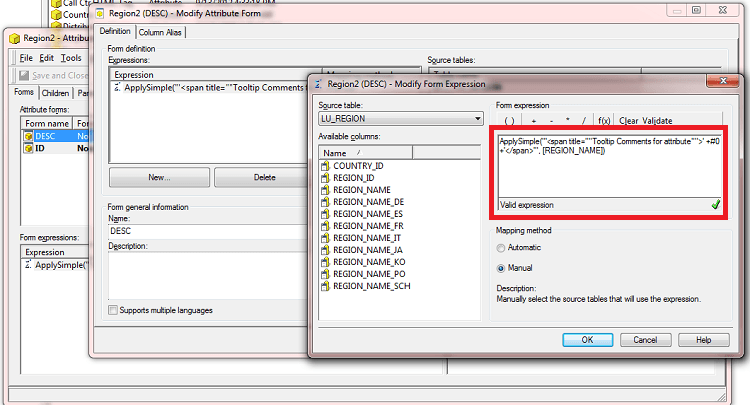
  • In Strategy Developer, edit the Region attribute so that the DESC form is of Format type HTML Tag and the Expression is as follows:
ka02R000000kXeYQAU_0EM440000002Czg.png
  •  

    
    ApplySimple("'<span title=""Tooltip Comments for attribute"">'+#0+'</span>'",)

    Note that this example is displaying static text as the tooltip rather than text from an attribute column. 
  • Make sure DESC is an attribute display form.
  • Click OK, Save, and Close through the menus to save the attribute.
  • Update the schema.
  • In Strategy Web, create a report with the Region attribute.
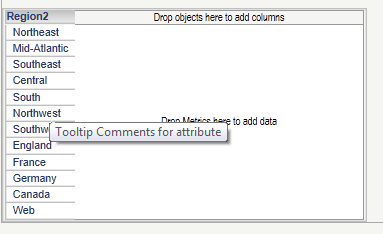
  • Run the report and hover the mouse over the attribute and notice that the tooltip displays the desired text, as shown below.
ka02R000000kXeYQAU_0EM440000002Czi.png

Note: If the tooltip is only displaying the first word of the attribute form, check the single and double quotations to match the syntax described above.  The below syntax will only display the first word "Tooltip" on the tooltip rather than the whole phrase.


ApplySimple("'<span title=Tooltip comments will not display now>' +#0+'</span>'", )

 
Third Party Software Installation:
WARNING:
The third-party product(s) discussed in this technical note is manufactured by vendors independent of Strategy. Strategy makes no warranty, express, implied or otherwise, regarding this product, including its performance or reliability.


Comment

0 comments

Details

Knowledge Article

Published:

April 4, 2017

Last Updated:

April 4, 2017