EducationSoftwareStrategy.com
StrategyCommunity

Knowledge Base

Product

Community

Knowledge Base

TopicsBrowse ArticlesDeveloper Zone

Product

Download SoftwareProduct DocumentationSecurity Hub

Education

Tutorial VideosSolution GalleryEducation courses

Community

GuidelinesGrandmastersEvents
x_social-icon_white.svglinkedin_social-icon_white.svg
Strategy logoCommunity

© Strategy Inc. All Rights Reserved.

LegalTerms of UsePrivacy Policy
  1. Home
  2. Topics

KB42139: "Attribute form ID of attribute XXX has not been mapped" or "Error saving and publishing the Cube:com.microstrategy.webapi.MSTRWebAPIException: (Item not found in this collection.)" error message appears in Data Import in MicroStrategy Web 9.3.0


Community Admin

• Strategy


When importing a dataset using Data Import through MicroStrategy Web 9.3.0 and mapping attributes, an error message appears after clicking to publish the cube

SYMPTOM:
When importing a dataset using Data Import through Strategy Web 9.3.0 and mapping attributes, an error message appears such as below after clicking to publish the cube:
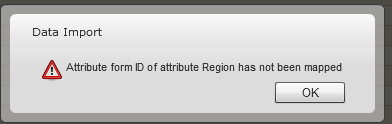
 

ka04W000000OenAQAS_0EM4400000026tN.png


Data Import

Attribute form ID of attribute XXX has not been mapped

 
Or after selecting a file name and location:

ka04W000000OenAQAS_0EM4400000026ta.png


Data Import

Error saving and publishing the Cube:com.Strategy.webapi.MSTRWebAPIException: (Item not found in this collection. Item not found in this collection.)

STEPS TO REPRODUCE:
Follow these steps to reproduce the issue in a Strategy Tutorial Project using the Region attribute.

  • In Strategy Web, use Data Import and select the source 'From a file'.
  • Navigate to where the file was saved and press Next.
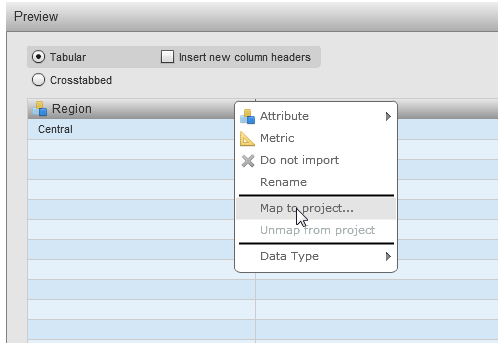
  • On the drop-down menu next to the Region attribute, select Map to Project, like shown below.
ka04W000000OenAQAS_0EM4400000026tZ.png
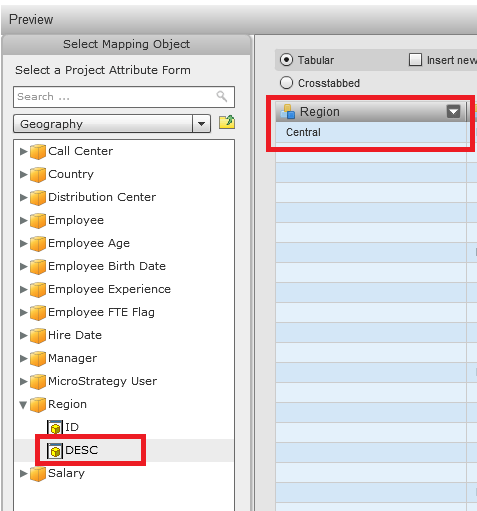
  • On the menu that displays on the left, navigate to the Region attribute in the Metadata and select DESC, as shown below, because the attribute form being imported is the description form.
ka04W000000OenAQAS_0EM4400000026tL.png
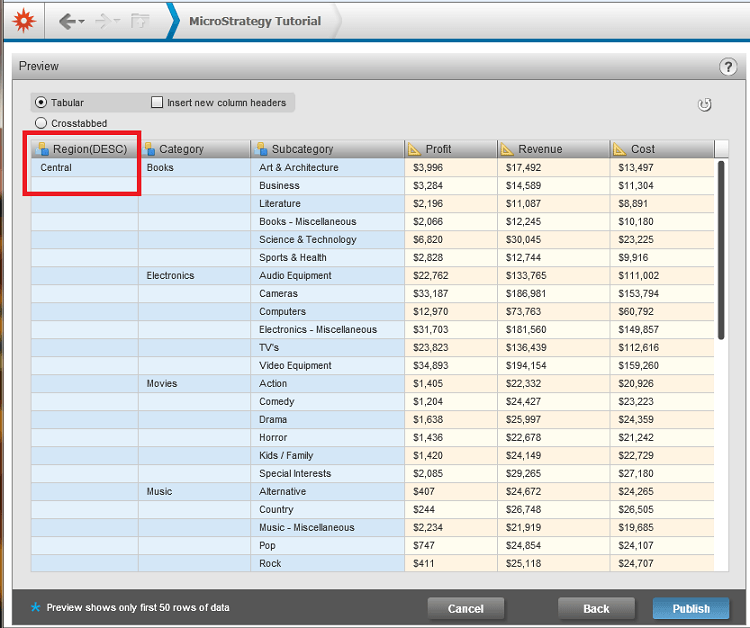
  • Select OK and note that Region is now called Region(DESC). The description attribute form has been mapped properly.
ka04W000000OenAQAS_0EM4400000026tM.png
  • Now press Publish and notice the error messages shown at the top.

 
CAUSE:
This issue occurs when the file being imported doesn't contain the attribute form that matches the primary key of the attribute, i.e. the ID column of the attribute. 
 
ACTION:
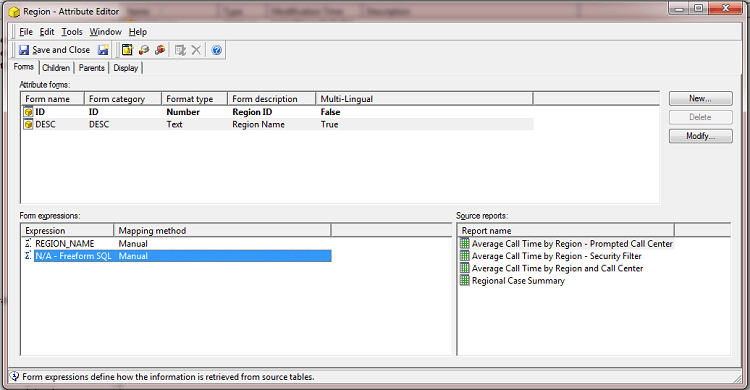
  • In Strategy Developer, edit the attribute that is being mapped through Data Import.
  • Identify the attribute form that is the attribute key. For the Region attribute in Strategy Tutorial Project, the primary key of the Region attribute is the one in bold, called ID. This is shown below.
ka04W000000OenAQAS_0EM4400000026tY.png
  • Take note of the Format type column shown in the attribute editor. In this case, the Format type is Number.
  • When using Data Import, make sure the file being imported contains a column with the attribute's primary key aside from the column originally intended for importing.
    Note: the format type of the column in the file has to match the form shown in step 3. 
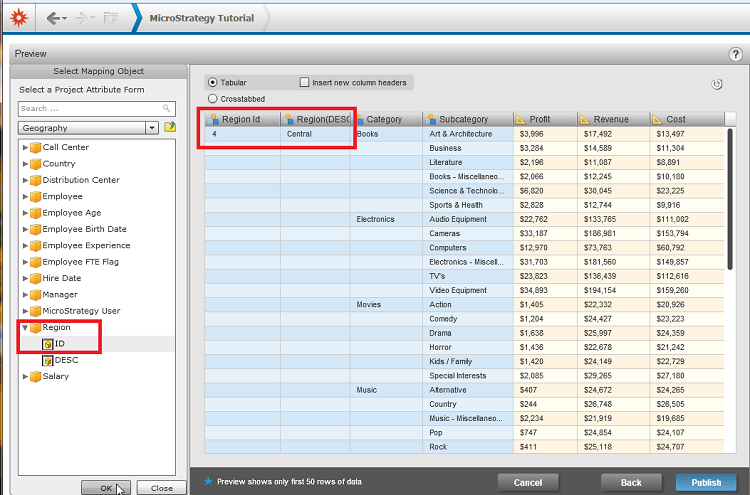
  • To properly map the Region attribute, map each column from the file to the respective attribute form in the Metadata.
ka04W000000OenAQAS_0EM4400000026th.png
  • After properly mapping the columns to the forms, the column titles will display as shown below and the report will be properly imported.
ka04W000000OenAQAS_0EM4400000026tP.png

Comment

0 comments

Details

Knowledge Article

Published:

June 5, 2017

Last Updated:

June 5, 2017