EducationSoftwareStrategy.com
StrategyCommunity

Knowledge Base

Product

Community

Knowledge Base

TopicsBrowse ArticlesDeveloper Zone

Product

Download SoftwareProduct DocumentationSecurity Hub

Education

Tutorial VideosSolution GalleryEducation courses

Community

GuidelinesGrandmastersEvents
x_social-icon_white.svglinkedin_social-icon_white.svg
Strategy logoCommunity

© Strategy Inc. All Rights Reserved.

LegalTerms of UsePrivacy Policy
  1. Home
  2. Topics

KB42143: How to create an Information Window that can be triggered with a neutral button in Flash mode in MicroStrategy Web 9.3.0


Community Admin

• Strategy


How to create an Information Window that can be triggered with a neutral button in Flash mode in MicroStrategy Web 9.3.0

SYMPTOM
 
The following steps would allow users to create an information window that is triggered by clicking on a neutral “button”.
 
Consider the scenario shown in the image below, where panel stack "Panel 47" is an information window that contains selectors.
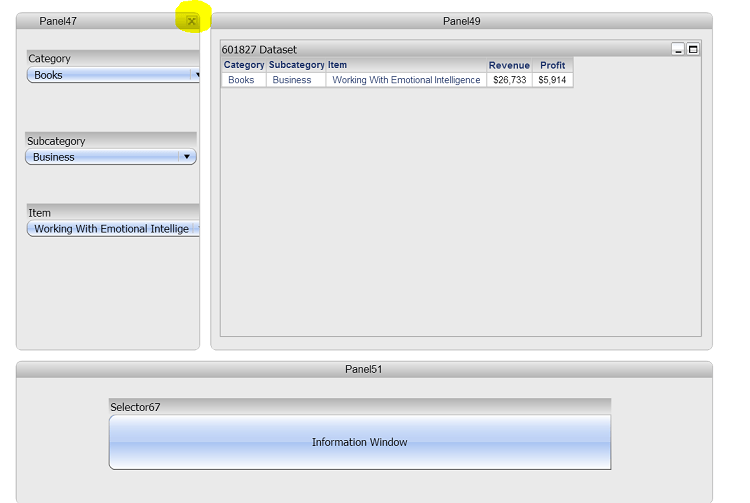
ka04W000000ObvGQAS_0EM4400000026sG.png

 
From the image above, panel stack Panel51 contains a button that triggers the information window panel stack. Typically, selectors targeting panel stacks, is the mechanism that triggers an information window. However, selectors often have an attribute as source that would filter whatever the selector triggers. In this case, the desired results require the trigger for the info window not to filter the target as it contains more selectors.
 
ACTION
 
Follow these instructions to create a "neutral button" that will trigger an information window without filtering its contents, using a Button Bar selector.
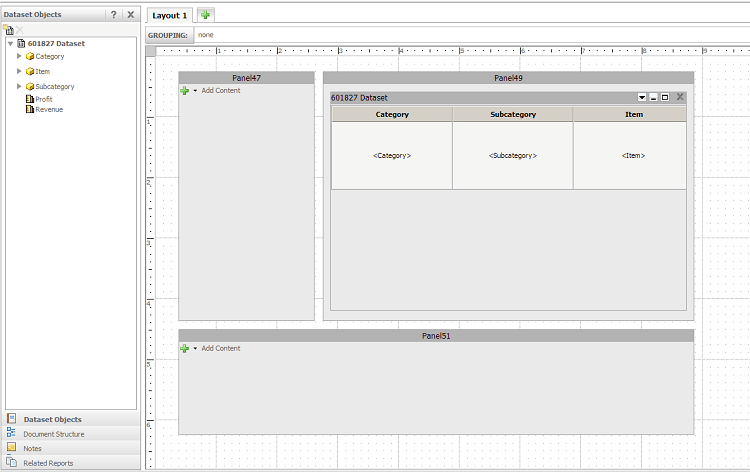
  • Create a dashboard as follows:
     
ka04W000000ObvGQAS_0EM4400000026ri.png
  • Panel 47 will be configured as the information window. Right click on panel > Properties and Formatting.
  • Enable “Use as Information Window”.  
  • In panel stack Panel51, add a Button Bar selector.
  • Configure the Button Bar selector by right clicking the selector > Properties and Formatting > Selector.
  • For the "Action", choose "Select Panels"  and for Targets, select the Information Window Panel Stack.
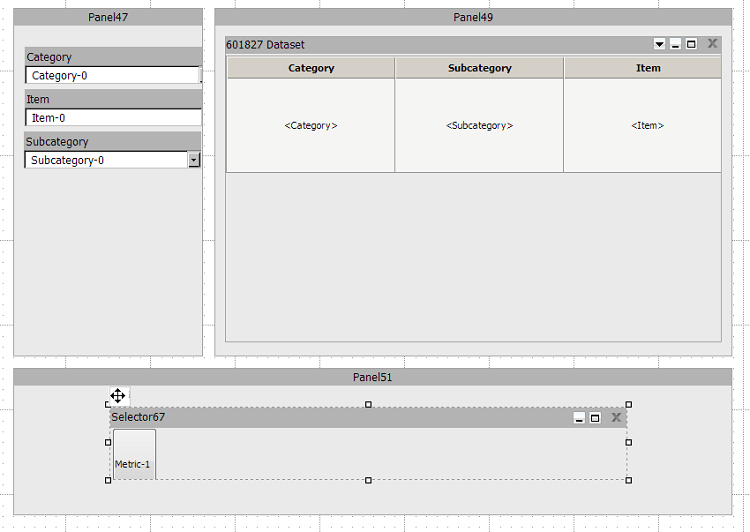
  • If later on, selectors are added to information window, as shown below: 
     
ka04W000000ObvGQAS_0EM4400000026s7.png
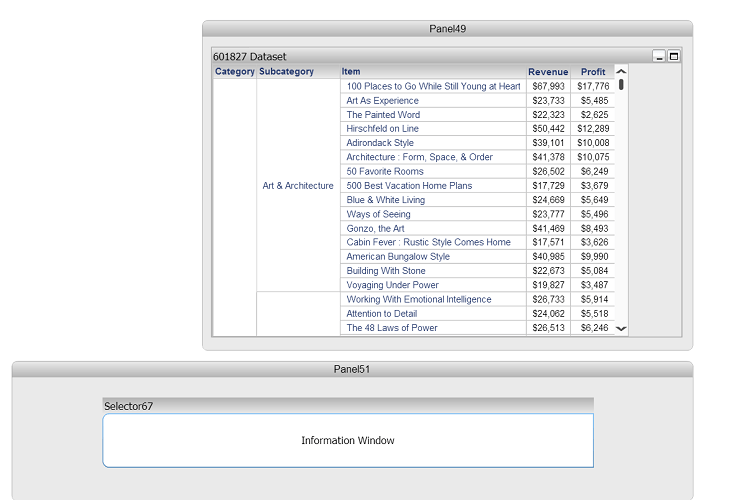
  •  When the dashboard is run in Flash mode, it will display as follows:
     
ka04W000000ObvGQAS_0EM4400000026rj.png
  •  
    Click on the Button bar selector and the information window will appear.  
ka04W000000ObvGQAS_0EM4400000026sG.png
  • This Information Window can be closed by pressing the X in the upper right hand, and even when it's closed, the content in the grid will remain filtered.

Comment

0 comments

Details

Knowledge Article

Published:

June 1, 2017

Last Updated:

June 1, 2017