EducationSoftwareStrategy.com
StrategyCommunity

Knowledge Base

Product

Community

Knowledge Base

TopicsBrowse ArticlesDeveloper Zone

Product

Download SoftwareProduct DocumentationSecurity Hub

Education

Tutorial VideosSolution GalleryEducation courses

Community

GuidelinesGrandmastersEvents
x_social-icon_white.svglinkedin_social-icon_white.svg
Strategy logoCommunity

© Strategy Inc. All Rights Reserved.

LegalTerms of UsePrivacy Policy
  1. Home
  2. Topics

KB42156: "The length of the query string for this request exceeds the configured maxQueryStringLength value" error message appears in MicroStrategy Web hosted on IIS with ASP.NET 4.0 running or re-prompting a report.


Community Admin

• Strategy


"The length of the query string for this request exceeds the configured maxQueryStringLength value" error message appears in MicroStrategy Web 9.4.1 hosted on IIS with ASP.NET 4.0 running or re-prompting a report.

SYMPTOM:
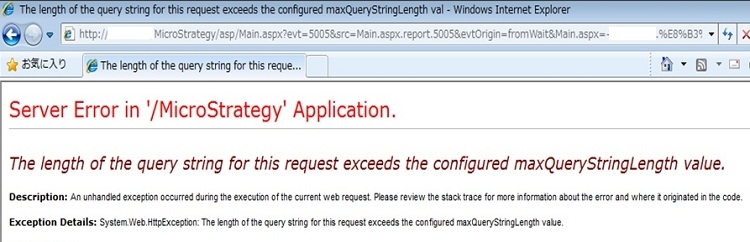
When running or re-prompting a report in Strategy Web user is presented with the following error:
 

ka04W00000148Q4QAI_0EM440000002Uzs.jpeg


"The length of the query string for this request exceeds the configured maxQueryStringLength value"

 
CAUSE:
The issue is caused by Microsoft ASP.NET and IIS governing rules, limiting the length of the query allowed to be executed on Microsoft IIS application server.
It is more likely to occur during a re-prompt of a report containing non-ASCII characters in its name and numerous prompts - for details please refer to KB42239: MicroStrategy Web 9.4.1 and above generates a very long query string causing an error in Microsoft IIS/ASP.NET: "The length of the query string for this request exceeds the configured maxQueryStringLength value"
 
ACTION:
The solution to this issue is to change the values of maxQueryStringLength and maxQueryString set for the Strategy Web application.
 
WARNING:
The third-party product(s) discussed in this technical note is manufactured by vendors independent of Strategy. Strategy makes no warranty, express, implied or otherwise, regarding this product, including its performance or reliability.
1. Go to the folder where Strategy Web is installed (usually C:\Program Files\Strategy\Web ASPx) and edit web.config file. Find the following element:
Sample Code/Error

<httpRuntime requestValidationMode="2.0" />

 and edit it by adding an attribute with the appropriate value (by default it is 2048 so we change it here to 4096):
Sample Code/Error

<httpRuntime requestValidationMode="2.0" maxQueryStringLength="4096" />
Save the file after ensuring an appropriate backup is made.
2. Open Internet Information Services (IIS) Manager and navigate to Strategy application (the path will resemble the following one: SERVER-NAME > Sites > Default Web Site > Strategy).
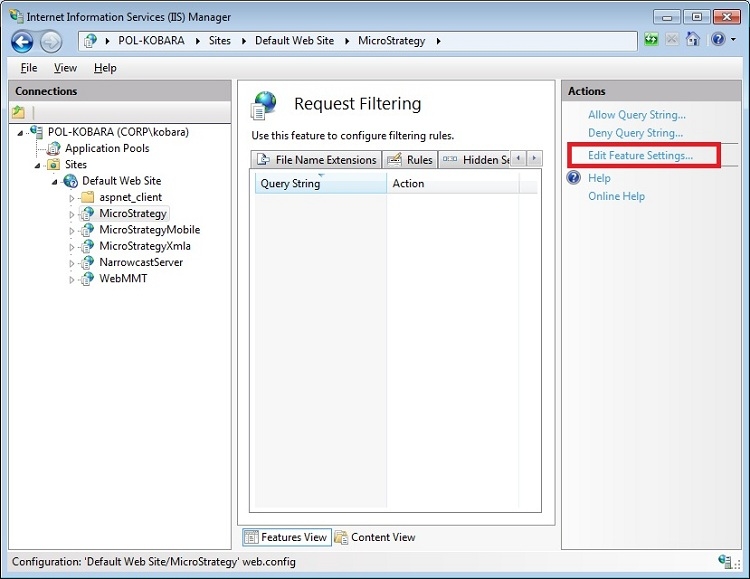
3. Under IIS section in the middle pane double click on Request Filtering. On the next screen in the Actions pane on the right chose Edit Feature Settings as shown on the image below:
 

ka04W00000148Q4QAI_0EM440000002Uzt.jpeg

 
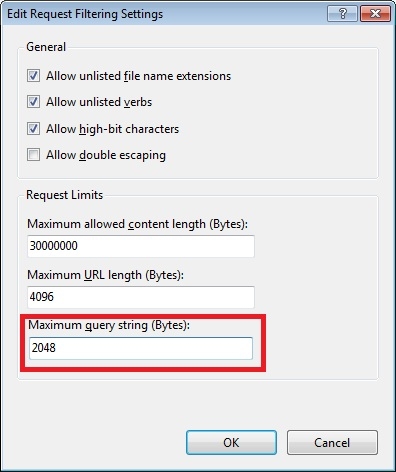
4. Change the value of Maximum query string to 4096 or higher, depending on your needs as shown on the following image:
 

ka04W00000148Q4QAI_0EM440000002Uzy.jpeg

 
Note:
If after performing the steps 1-4 the user is presented with HTTP Error 404.13 also modify the value of Maximum URL length parameter.
 
Warning: Changing the above configuration settings has influence on the Microsoft IIS security. It is advised to set the values as low as possible and only when necessary.
 
More details can be found on the following Microsoft webpages:
http://www.iis.net/configreference/system.webserver/security/requestfiltering/requestlimits#005
http://msdn.microsoft.com/en-us/library/system.web.configuration.httpruntimesection.maxquerystringlength(v=VS.100).aspx


Comment

0 comments

Details

Knowledge Article

Published:

July 12, 2017

Last Updated:

July 12, 2017