DESCRIPTION
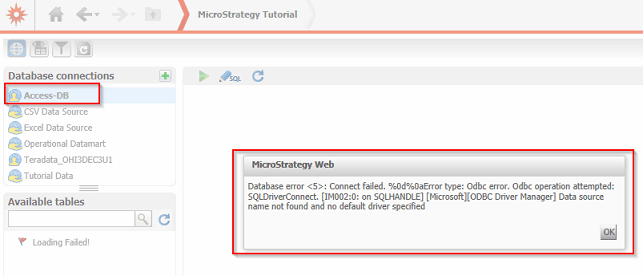
When using Strategy Web Data Import functionality in Strategy 9.3.1 or above, in order to connect to a Microsoft Access database located in a shared folder on a network location, users receive the following error message when they attempt to connect to the database instance created:
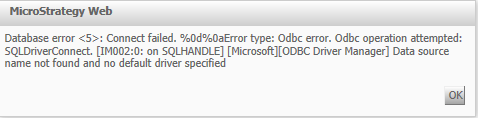
Database error <5>: Connect failed. %0d%0aError type: Odbc error. Odbc operation attempted: SQLDriverConnect. Data source name not found and no default driver specified
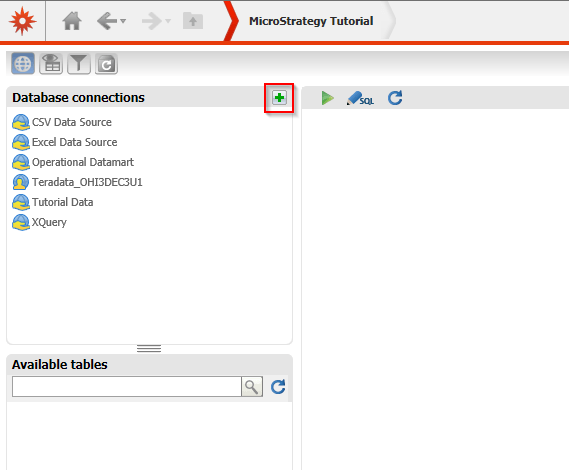
2. In Strategy Web open the Data Import Wizard, then select database and click the icon "New Connection".
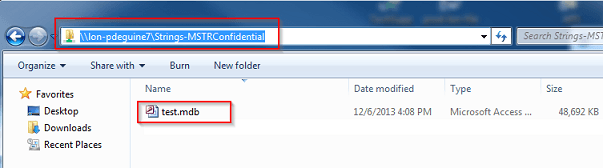
3. Complete the required database connection information and provide the path to the shared location where the Access database has been stored.
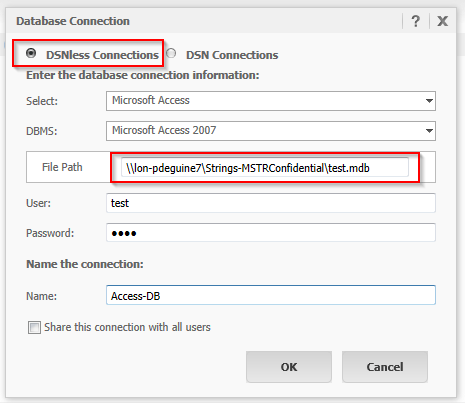
4. Attempt accessing the newly created database connection and observe the error message.
CAUSE
This is a known issue with Strategy 9.3.1. and above.
ACTION
Contact Strategy Technical Support for an update on this issue.
WORKAROUND
This issue only affects shared locations that are not on the Intelligence Server machine itself. To work around the issue, share a folder on the Intelligence Server machine and copy the Access database to that location before creating a new database connection.
Alternatively, an administrator user can create a new DSN on the Intelligence Server machine pointing to the Access MD on the shared location using Connectivity Wizard and Strategy Developer.
This issue is being tracked by internal reference number 821403.
KB422055
