This technical note outlines the steps to configure Strategy on Windows to connect to Salesforce.com. This setup can be achieved through the Strategy connectivity configuration wizard.
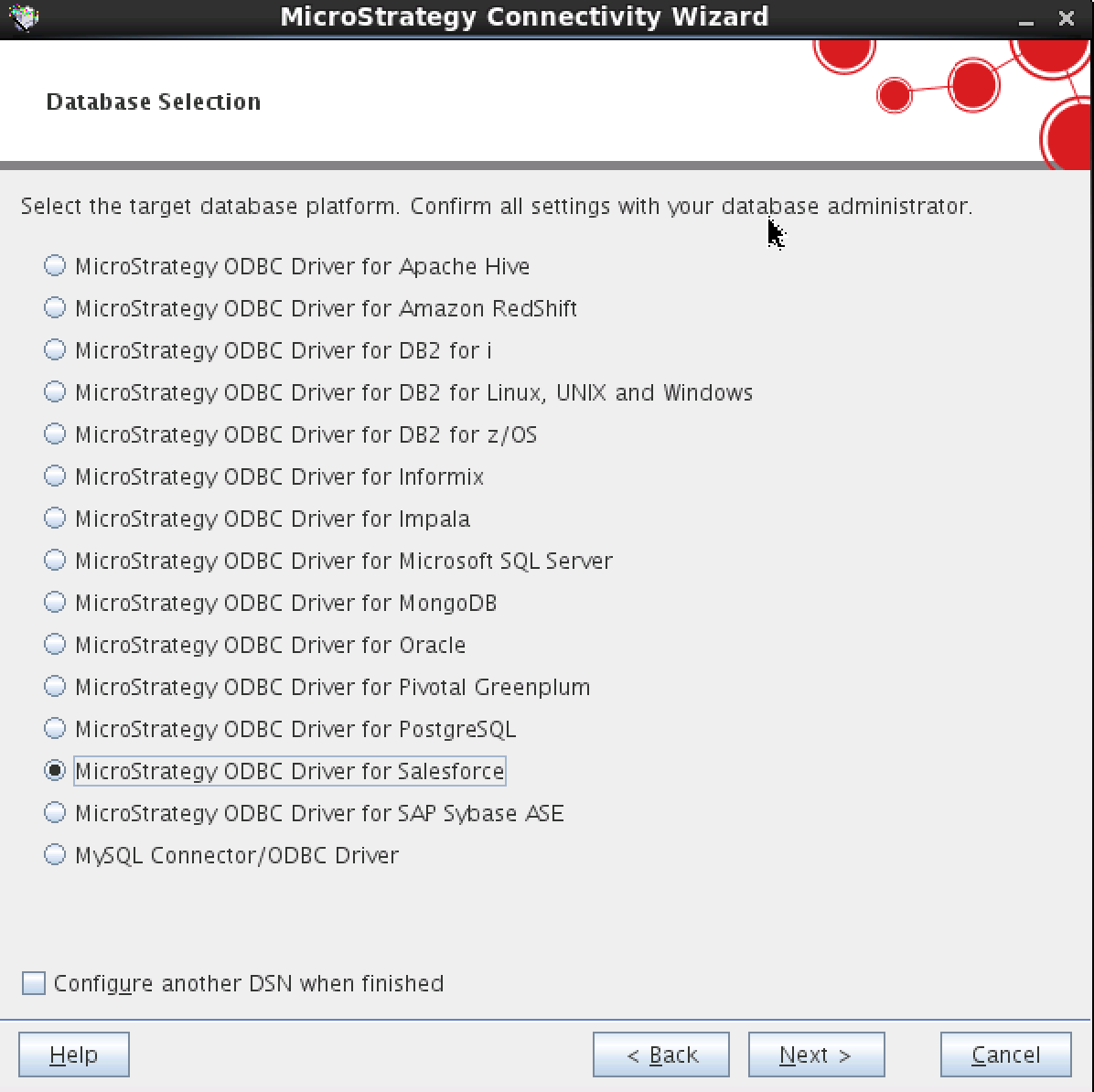
1. Launch Strategy Connectivity Wizard, and select the Strategy ODBC driver for Salesforce as shown below:
2. Input DSN name as shown below:
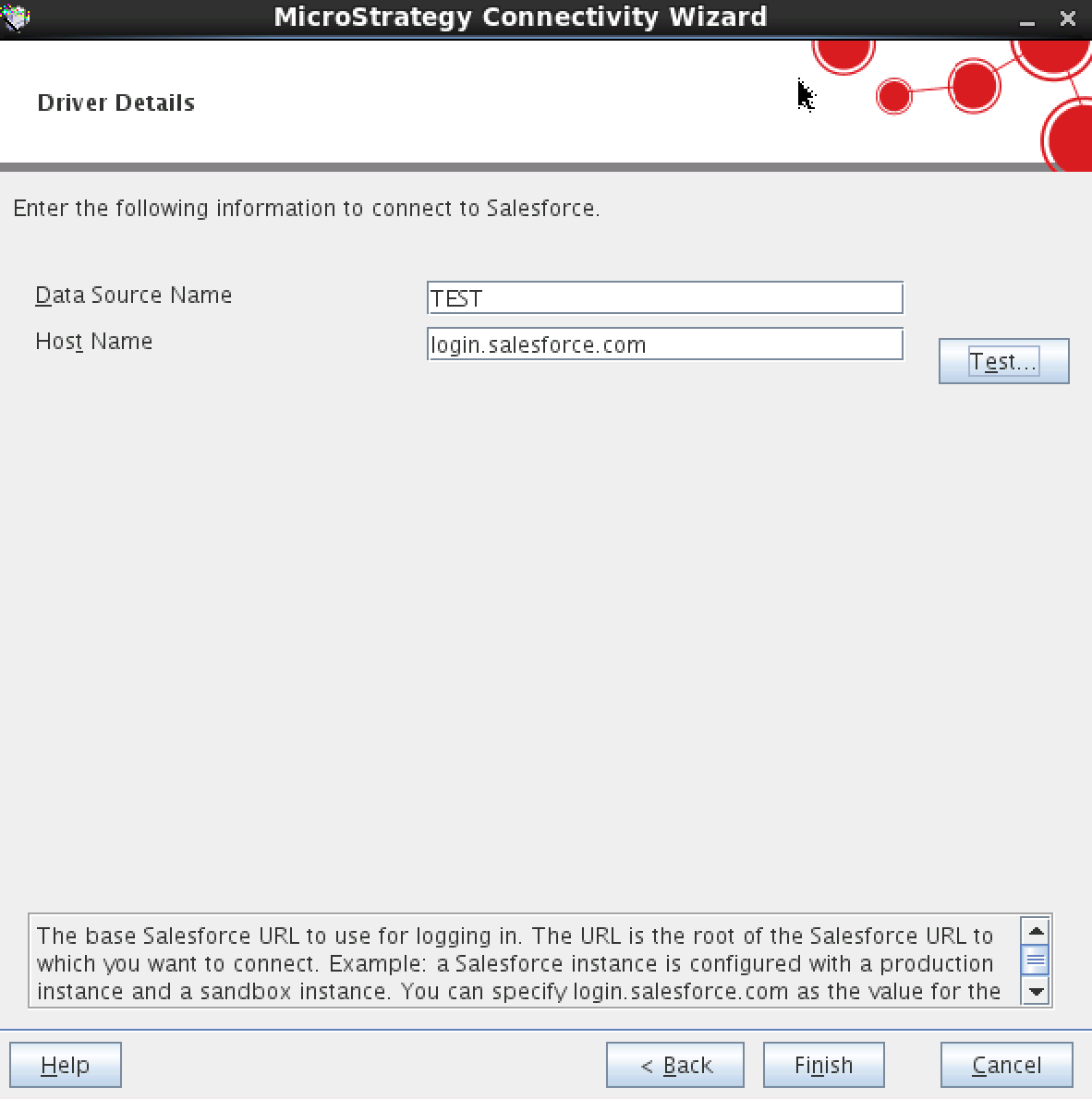
– Data Source Name: Type a descriptive name that identifies the DSN in the system.
– Host Name: You can either keep the default value of login.salesforce.com or change it to a sandbox instance relevant for your organization
3. Click Test to input the login credentials.
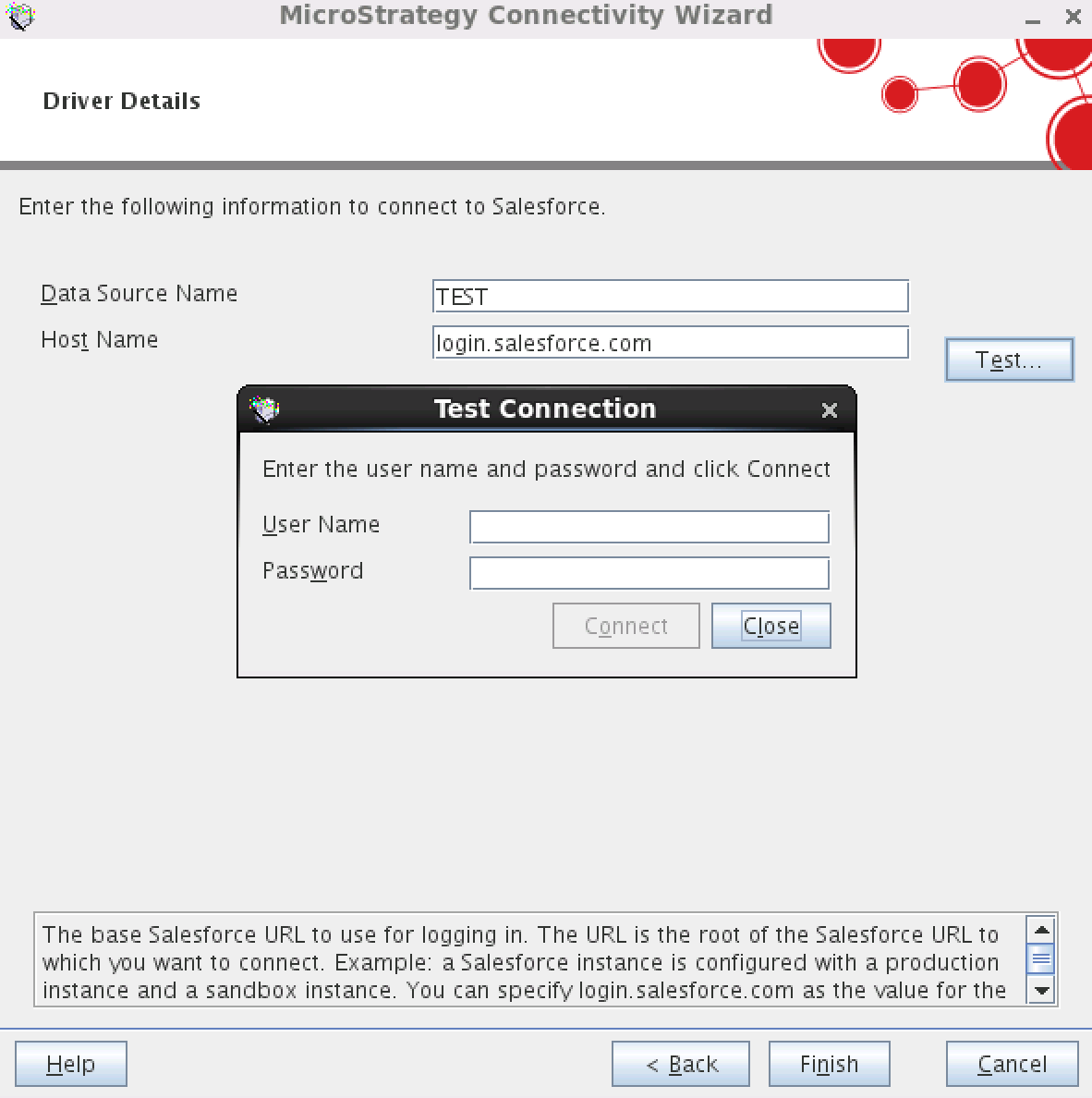
Use a Salesforce account login information. Note that the password syntax is PasswordSecurityToken, where Password is the password for the user account and SecurityToken is the additional security token required to access Salesforce.com. Do not use any spaces or other characters to separate the password and security token.
KB43264 KB422148
