EducationSoftwareStrategy.com
StrategyCommunity

Knowledge Base

Product

Community

Knowledge Base

TopicsBrowse ArticlesDeveloper Zone

Product

Download SoftwareProduct DocumentationSecurity Hub

Education

Tutorial VideosSolution GalleryEducation courses

Community

GuidelinesGrandmastersEvents
x_social-icon_white.svglinkedin_social-icon_white.svg
Strategy logoCommunity

© Strategy Inc. All Rights Reserved.

LegalTerms of UsePrivacy Policy
  1. Home
  2. Topics

KB42230: How to create and send personalized subscriptions of the same report to multiple recipients using Distribution Services in MicroStrategy 9.x - 10.x


Community Admin

• Strategy


This technote explains how to send personalized subscriptions of the same report to multiple recipients.

The following steps describe how to create a personalized email or file subscription for multiple recipients.  The report or document must have a prompt setup in order to select the personalization information.
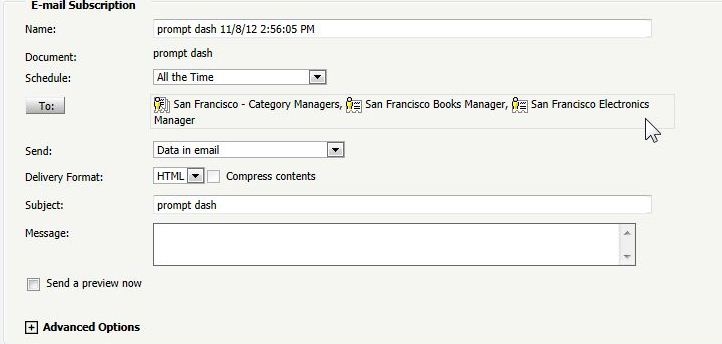
1.  Select all the contacts, users and file locations as the recipients by clicking on 'To:'.  Save to create the subscription.
ka04W000000OhKcQAK_0EM4400000029f8.jpeg

 
2.  In Web, go to 'My Subscriptions' and expand the 'Multiple' option under 'Recipient' for the subscription to view the list of all recipients.
3.  Click on the question mark icon under 'Action' for each recipient to edit the personalized prompt answer.

ka04W000000OhKcQAK_0EM4400000029fB.jpeg

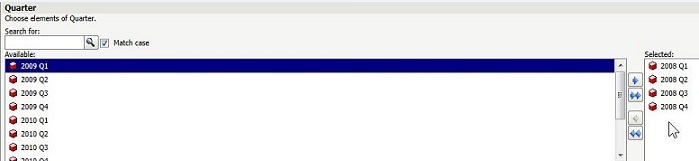
4.  Select the prompt answer to use for the recipient's report.
ka04W000000OhKcQAK_0EM4400000029f9.jpeg

 
5.  Repeat steps 1-4 for each recipient. When the subscription executes, it will result in personalized reports based on the prompt answer selected for each recipient. 


Comment

0 comments

Details

Knowledge Article

Published:

May 25, 2017

Last Updated:

May 25, 2017