EducationSoftwareStrategy.com
StrategyCommunity

Knowledge Base

Product

Community

Knowledge Base

TopicsBrowse ArticlesDeveloper Zone

Product

Download SoftwareProduct DocumentationSecurity Hub

Education

Tutorial VideosSolution GalleryEducation courses

Community

GuidelinesGrandmastersEvents
x_social-icon_white.svglinkedin_social-icon_white.svg
Strategy logoCommunity

© Strategy Inc. All Rights Reserved.

LegalTerms of UsePrivacy Policy
  1. Home
  2. Topics

KB422328: How to configure MicroStrategy to query Salesforce.com data through its Web Services API


Community Admin

• Strategy


Starting with Strategy 9.2.1m, user is able to query Salesforce.com data through its Web Services API.
 
Strategy 9.2.1m ships a native connector to Salesforce using its Web Services API. This connector allows users to query data in Salesforce.com using the Salesforce Object Query Language (SOQL). The connector improves upon the pure Freeform Xquery approach of connecting to Salesforce with built-in logic for authentication, request generation and response processing. The only user inputs to the connector are the credentials to connect to Salesforce and the SOQL query. The steps below outline how to set-up this connector:
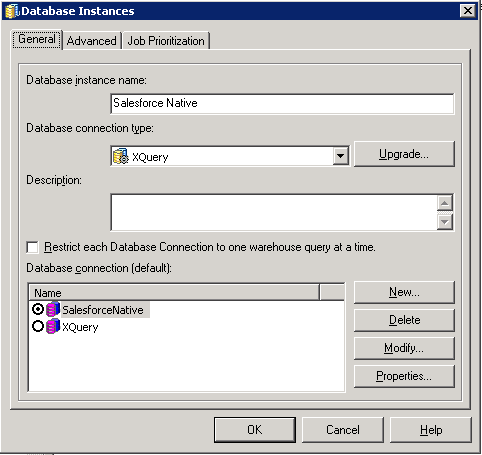


  • Create a new database instance, set the "Database connection type" to "XQuery", as shown below:  
     
ka04W000000OajGQAS_0EM440000002HPs.png
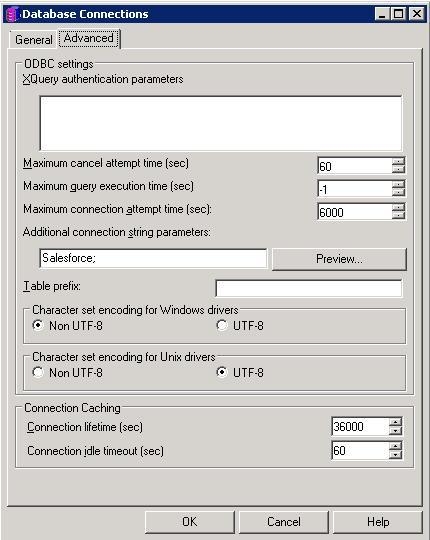
  • Create a new database connection, go to the Advanced Tab and specify the "Addtional connection string parameters" as "SalesForce", as shown below. The "Salesforce" keyword tells the Strategy Intelligence Server to invoke the Salesforce Native Connector logic which doesn’t require the user to write the complete XQuery Code.   
ka04W000000OajGQAS_0EM440000002HPx.jpeg
  • Create a new Database Login, specify the username and password.
    NOTE: The password is concatenation of the password and Salesforce security token.
  • Enable the newly created database instance for Freeform XQuery reports creation. Under Project Configuration > Database instances > SQL Data warehouses, check the database instance created at earlier steps, as shown below:
ka04W000000OajGQAS_0EM440000002HPr.png
  • Use this newly created database instance to define a Freeform XQuery report, as shown below:
ka04W000000OajGQAS_0EM440000002HPm.png
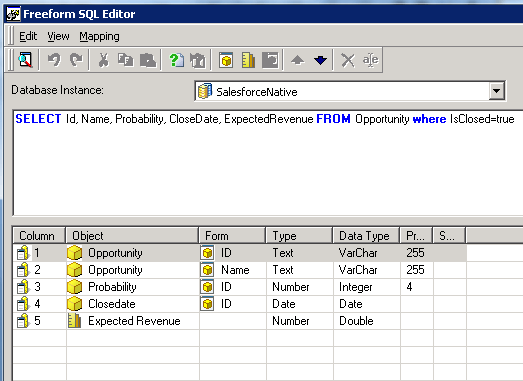
  • Enter a SOQL query in the Freeform SQL Editor. Map Attributes, Attribute Forms and Metrics to the returned columns.  Note that columns are matched by order and not by name, as shown below:
ka04W000000OajGQAS_0EM440000002HQE.png

 
KB422328


Comment

0 comments

Details

Knowledge Article

Published:

May 5, 2017

Last Updated:

January 1, 2019