Image layout is a new widget introduced in Strategy Web 9.3.0. The following steps will guide the users on how to add a custom map:
1. Refer to Using the Image Map Coordinates Utility in MSDZ to create a map coordinates file. For example name it Custom.html. Usually, there is an image associated with the coordinates file.
Note: This utility does not exist in the Strategy 9.3.1 SDK and above. For 9.3.1 and above users, check online resources like http://www.image-maps.com or www.htmlgoodies.com, which provides a list of tools that can be used to create an Image map.
2. Open Custom.html. In the first line, the image is embed as shown below:

3. Change the image source to as below:

The SRC can be blank if no image is needed.
4. Place custom.html and the image under Strategy_Web_installation/VisFramework/map.
Note: If the Image layout widget will be used in Mobile make sure that you include this file in: Strategy_MobileServer_installation/VisFramework/map.
5. Back up the existing ShapeFileMap.xml in Strategy_Web_installation/VisFramework/map for 9.3.x -9.5.x and Strategy_Web_installation/WEB-INF/xml/config for 10.x.
Note: If the Image layout widget will be used in Mobile make sure that you include this file in: Strategy_MobileServer_installation/VisFramework/map for 9.3.x-9.5.x and Strategy_MobileServer_installation/WEB-INF/xml/config for 10.x.
6. Edit ShapeFileMap.xml. And insert a line like this:
<ShapeFileMap shapeKey="Custom" shapeType="Polygon" role="State" name="Custom" descWeb="custom.1" descFlash="custom.11" descDesktop="26973" shapeFile="VisFramework/map/Custom.html"/>
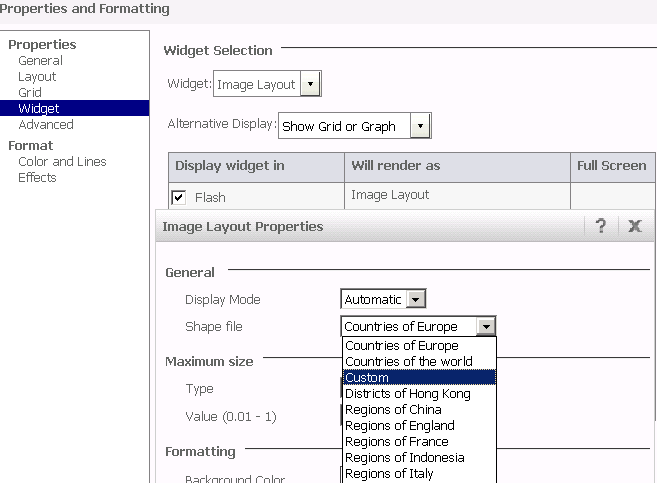
If image layout export is also required, repeat step 4 to step 7 for the Strategy Intelligence Server VisFramework folder.
If Strategy Intelligence Server is running on a Microsoft Windows x32 machine, then the default location of the VisFramework is:
C:\Program Files\Common Files\MicroStrategy\VisFramework
C:\Program Files (x86)\Common Files\MicroStrategy\VisFramework
/home/<user>/MicroStrategy/install/VisFramework
