A Heatmap widget has two different ways in which it can be refreshed: 'Default Configuration' and "Saved Configuration".
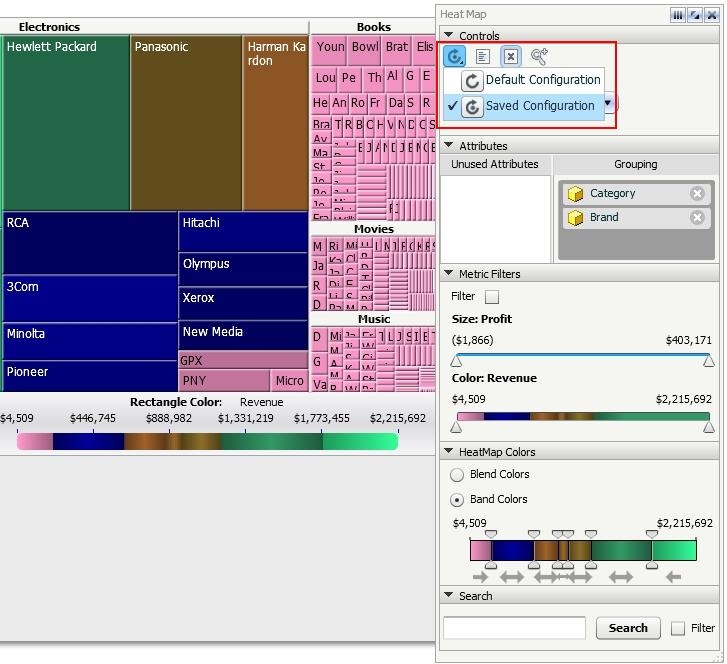
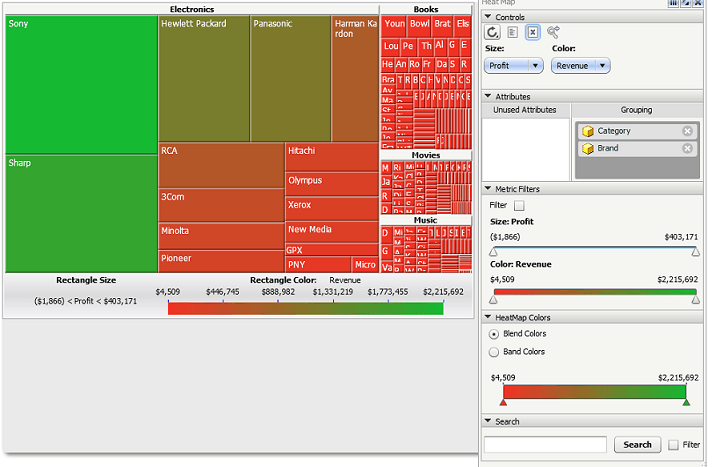
The 'Default Configuration' option refers to the Green and Red color scheme that the Strategy Heat Map is configured out of the box as seen below. Using this type of refresh will revert the heatmap back to its original state including the color scheme.
Note the refresh button is just a circular arrow.
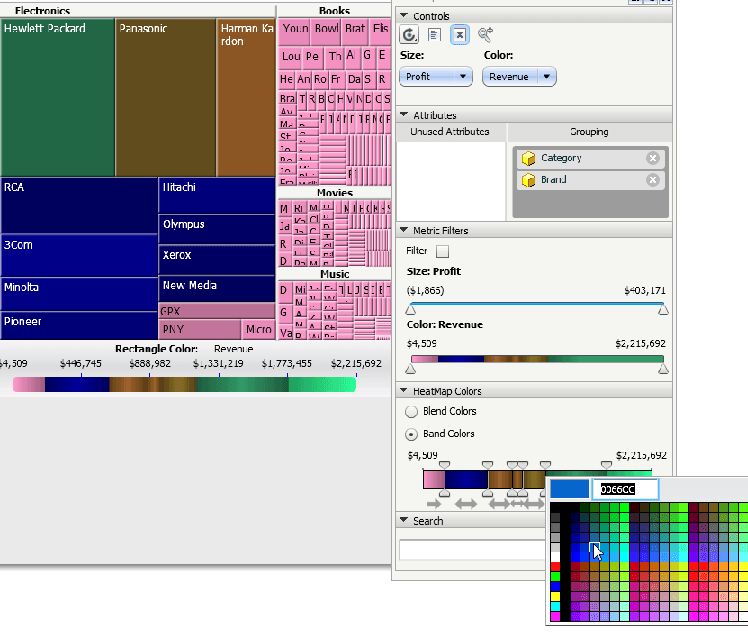
When the "Saved Configuration" refresh option is enabled, clicking on it will cause the Heat Map colors to revert back to its original state, preserving the color settings that the user last saved the document with. Users can change the color of the heat map by switching to band colors and double-clicking within the band.
Note that the refresh button shows a dot inside the circular arrow.
To change the refresh function from "Default Configuration" to "Saved Configuration," click and hold the refresh button down. A drop down with the two options will show up. Click "Saved Configuration", and click the refresh button again. This will allow users to refresh the heat map to the last saved configuration of the document.
Article Reference Number:
KB4241
