EducationSoftwareStrategy.com
StrategyCommunity

Knowledge Base

Product

Community

Knowledge Base

TopicsBrowse ArticlesDeveloper Zone

Product

Download SoftwareProduct DocumentationSecurity Hub

Education

Tutorial VideosSolution GalleryEducation courses

Community

GuidelinesGrandmastersEvents
x_social-icon_white.svglinkedin_social-icon_white.svg
Strategy logoCommunity

© Strategy Inc. All Rights Reserved.

LegalTerms of UsePrivacy Policy
  1. Home
  2. Topics

KB42444: How to make metric and subtotal values use two different formulas at different attribute element levels with consolidation as a workaround in a report?


Community Admin

• Strategy


In some business scenarios, it is required to make metric and subtotal values use two different formulas at different attribute element levels with consolidation as a workaround in a report.
 
The following steps demonstrate how to design this kind of report in Strategy Tutorial project as shown below:
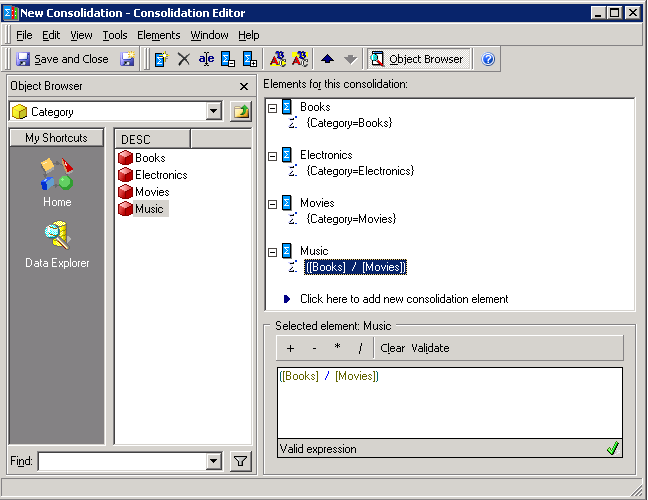
 

  1. Create a consolidation "Category_Con" based on attribute Category. "Value of Music" = "Value of Books" / "Value of Movies". Format the value of Music element as Percent with two decimals, as shown below:
ka04W000000OaglQAC_0EM440000002CgG.png


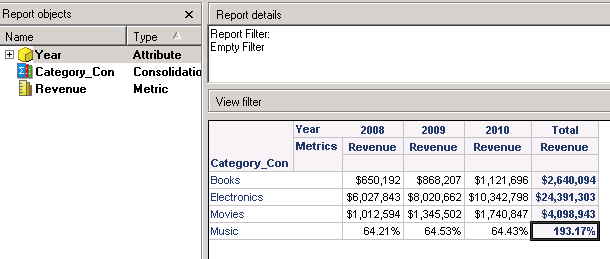
  • Create a report with Category_Con in rows and Year and Revenue in columns. Run the report and insert grand total in columns. The total values at Books, Electronics, Movies and Music are directly summed from values of each year as shown below:
ka04W000000OaglQAC_0EM440000002Cft.png


  • In Data>Report Data Options>Calculations>Evaluation Order, set Total=1 and Category_Con=2, as shown below:
ka04W000000OaglQAC_0EM440000002CgH.png


  • This will make values are summed and then divided. That is, "Total value at Music level" = "Total value at Books level" / "Total value at Movies level" as shown below:
ka04W000000OaglQAC_0EM440000002CgE.png


KB42444


Comment

0 comments

Details

Knowledge Article

Published:

June 5, 2017

Last Updated:

December 31, 2018