EducationSoftwareStrategy.com
StrategyCommunity

Knowledge Base

Product

Community

Knowledge Base

TopicsBrowse ArticlesDeveloper Zone

Product

Download SoftwareProduct DocumentationSecurity Hub

Education

Tutorial VideosSolution GalleryEducation courses

Community

GuidelinesGrandmastersEvents
x_social-icon_white.svglinkedin_social-icon_white.svg
Strategy logoCommunity

© Strategy Inc. All Rights Reserved.

LegalTerms of UsePrivacy Policy
  1. Home
  2. Topics

KB42445: How to apply threshold on rows without specific characters in attribute element names in a report with compound metrics in MicroStrategy Developer?


Stefan Zepeda

Salesforce Solutions Architect • Strategy


This article notes how to apply thresholds on rows based on rows containing specific characters

In some business scenarios, it is required to apply threshold on rows without specific characters in attribute element names in a report with compound metrics in Strategy Developer.
 
The following steps demonstrate how to design this kind of report in Strategy Tutorial project as shown below:
 

  1. Create two compound metrics C_R=Cost/Revenue and C_R_PM=C_R/.
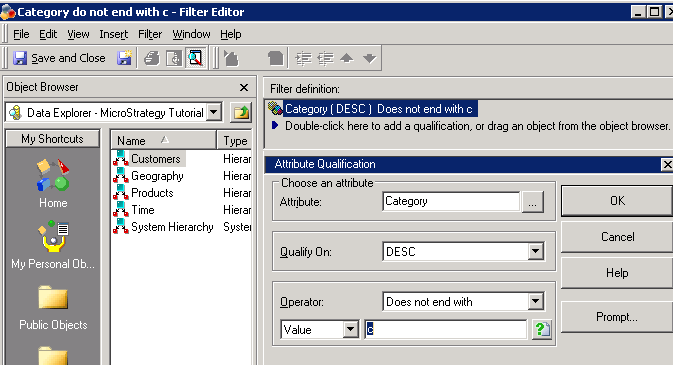
  2. Create a filter “Category do not end with c” with definition below:
ka02R000000kZysQAE_0EM440000002Cg0.png

 
This filter will filter out Category elements with character “c” in names.
 

  • Copy metric “Cost” to “Cost(1)” . Modify Cost(1) and add filter “Category do not end with c” into condition as shown below:
ka02R000000kZysQAE_0EM440000002Cg1.png


  • Create two compound metrics C1_R=Cost(1)/Revenue and C1_R_PM=C1_R/. Create a report as shown below:
ka02R000000kZysQAE_0EM440000002Cg3.png


  • When Category=Music, the Cost(1) and C1_R_M will have null values. So the row for Music will not display in the grid. To enable this row display, change the Join type to “Join 92” and disable “null check” for metric in report VLDB properties. Set the metric “C1_R_PM” as outer join in Report Data Options as shown below:
ka02R000000kZysQAE_0EM440000002CgD.png

ka02R000000kZysQAE_0EM440000002Cg2.png


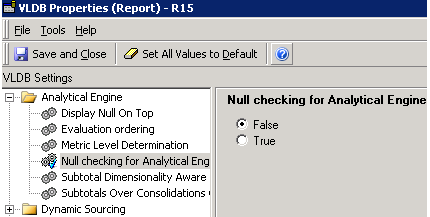
  • Change the report VLDB properties and set “False” for “Null checking for Analytical Engine” as shown below:
ka02R000000kZysQAE_0EM440000002Cfx.png


  • Add threshold which qualifies on Rank of “C1_R_PM” as shown below:
ka02R000000kZysQAE_0EM440000002Cfw.png


  • Analytical Engine will first exclude category elements with name ending with “c” due to null value, and then, apply threshold on rows at Movies and Electronics as shown below:
ka02R000000kZysQAE_0EM440000002Cg4.png

 
If directly ranking on C_R_M, rows at Movies and Music will display red. This way can make threshold applied only on rows without character 'c' in attribute element names.


Comment

0 comments

Details

Knowledge Article

Published:

June 1, 2017

Last Updated:

June 1, 2017