EducationSoftwareStrategy.com
StrategyCommunity

Knowledge Base

Product

Community

Knowledge Base

TopicsBrowse ArticlesDeveloper Zone

Product

Download SoftwareProduct DocumentationSecurity Hub

Education

Tutorial VideosSolution GalleryEducation courses

Community

GuidelinesGrandmastersEvents
x_social-icon_white.svglinkedin_social-icon_white.svg
Strategy logoCommunity

© Strategy Inc. All Rights Reserved.

LegalTerms of UsePrivacy Policy
  1. Home
  2. Topics

KB424730: How to add custom images to Visual Insight thresholds


Alejandro Olvera Velasco

Product Manager, Principal • MicroStrategy


Visual Insight users have the ability to add thresholds onto elements based off of metric/attribute values. The threshold editor automatically loads predefined image/color samples to choose from, however in some cases a user will want to choose unique images that they have added onto their server.

Description

Visual Insight users have the ability to add thresholds onto elements based off of metric/attribute values.The threshold editor automatically loads predefined image/color samples to choose from, however in some cases a user will want to choose unique images that they have added onto their server.
ka02R000000g2pAQAQ_0EM440000002NK3.png

Steps to Reproduce

  • Create a new Visual Insight Dashboard.
  • Add a Grid Visualization with Country as an attribute and Cost as the metric.
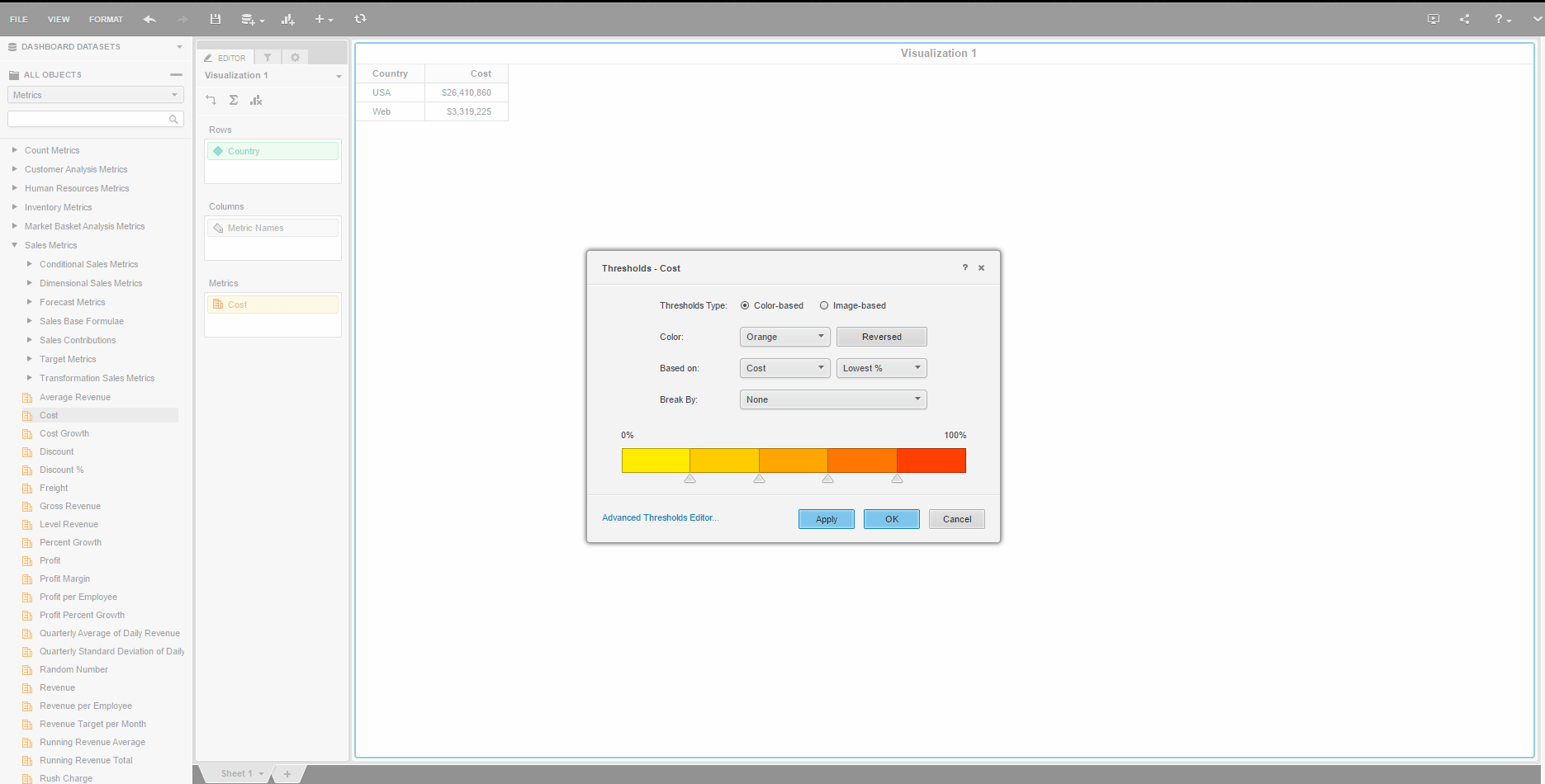
  • In the Grid pane, select the drop down next to Cost and choose Thresholds.
  • Select Advanced thresholds editor.
ka02R000000g2pAQAQ_0EM440000002NKI.png
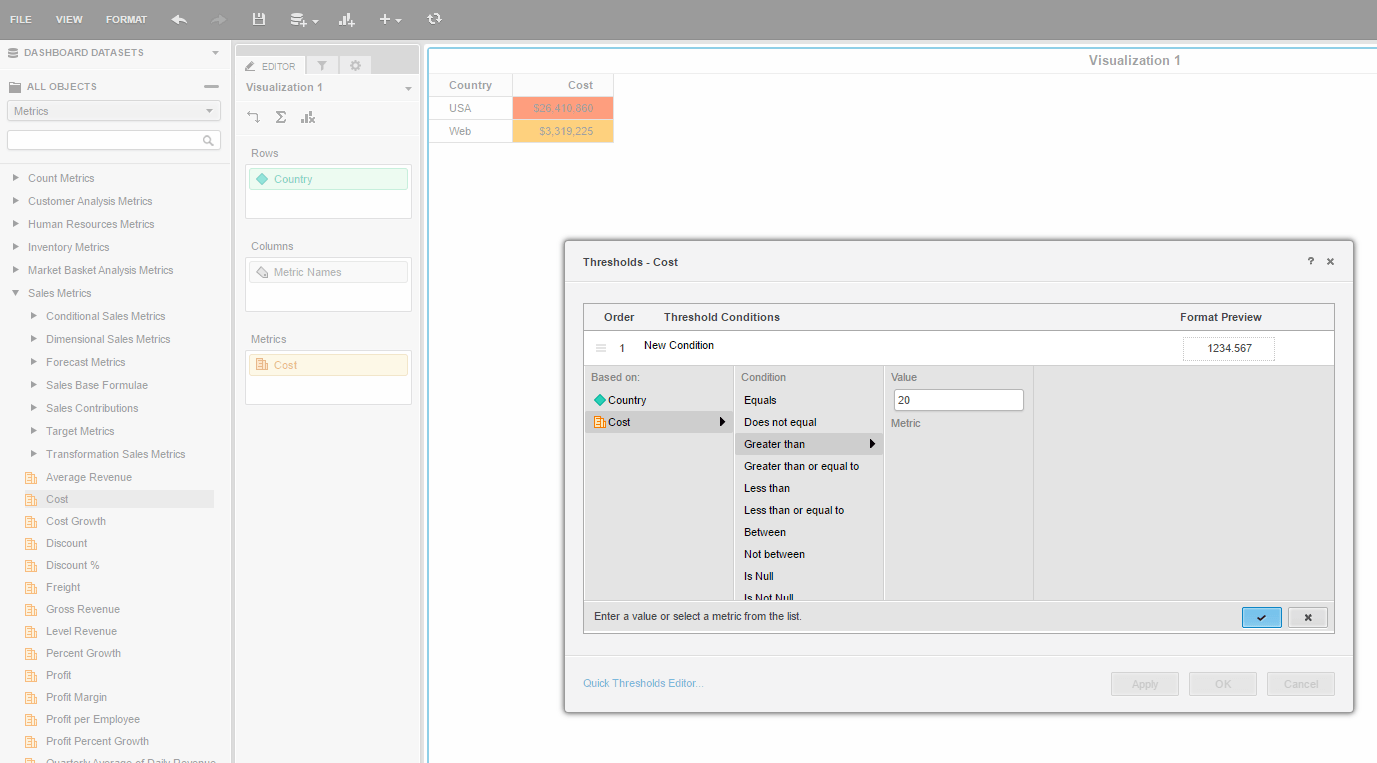
  • Add formatting condition (for example Cost greater than 20).
ka02R000000g2pAQAQ_0EM440000002NK8.png
  • Click Cell format.
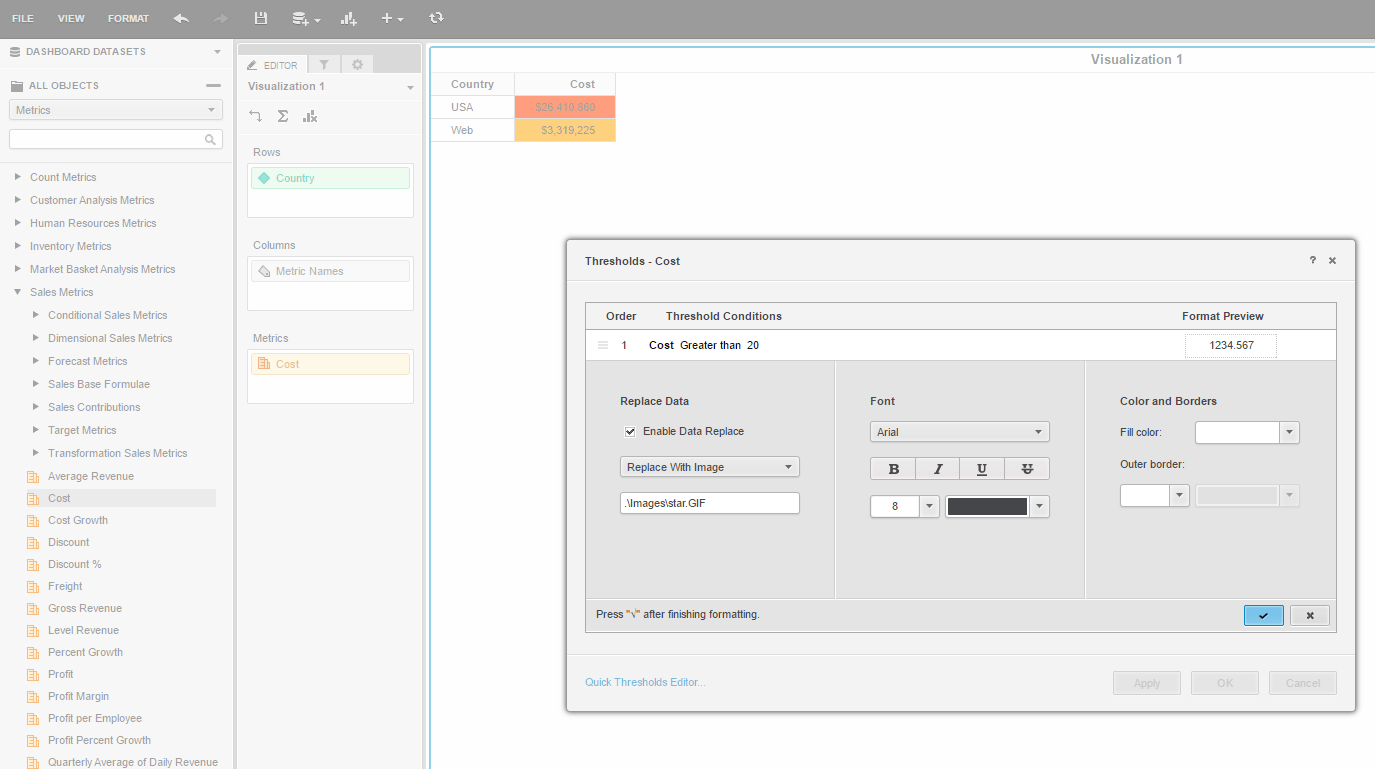
  • Click Enable data replace > Replace with image > and enter a relative path (for example
    .\Images\star.GIF
    ).
ka02R000000g2pAQAQ_0EM440000002NKD.png
  • Select OK.
ka02R000000g2pAQAQ_0EM440000002NK3.png

Comment

0 comments

Details

Knowledge Article

Published:

May 31, 2017

Last Updated:

November 13, 2018