When troubleshooting JavaScript issues in Strategy Web, one of the most important steps taken is to clear the various web-related caches interacting with the application.
Note: These caches are completely unrelated to the Strategy Intelligence Server caches and do not contain dataset or element caches.
The following list describes all of those locations and how to clear them.
Microsoft IIS, which uses the .Net Framework to compile the application will keep application level caches. These caches are not cleared when uninstalling Strategy Web or when installing a newer version Strategy Web on top of an older one. For this reason it is crucial to know where these caches are located and how to delete them.
The location of these cache files varies based on the OS version of the web server machine, the IIS version, and the .NET version.
Running a 64-bit machine with Windows OS, IIS 7, and .NET 2.0 or .NET 4.0, the location might be:
To purge the caches, simply delete the folder with the Strategy Web application name under that folder.
Note: For other versions of Windows or IIS refer to the 3rd party vendor for more information on their location.
JSP application servers will also have their own application level caches. These caches are not cleared when undeploying or redeploying a war file. For this reason it is crucial to know where these caches are located and how to delete them.
The location of these cache files varies based on the OS version of the web server machine and the application server brand.
E.g. Apache Tomcat will have a cache folder under:
<tomcat home>/work/Catalina/<web_server_name>/
The Strategy Web application will cache certain files that are loaded into the application server memory in order to speed up its internal processes. These caches are mostly the same caches that get cleared when the application server is restarted; although actually restarting the application server may clear up a little more than just these caches.
For more information on how to clear these caches refer to tech note KB16403.
Note: These caches are not specific to ASP or JSP.
Strategy Web stores some of its settings using browser cookies. This is the default option in the Strategy Web Admin page. Some temporary settings stored in cookies are lost when the browser is closed; these settings include the last page visited, filter and template definitions for report execution, shared report location, and so on. Persistent settings are stored in cookies and can be restored when the user visits the application in the future, for example when editors are opened or closed.
Furthermore, static content served by the application server can also be cached in the browser. Because these files are static, i.e. never modified by the Strategy Web application, they can be cached in the browser to speed up the communication process between the client machine and the web server machine. These static files include things such as images, CSS files, and JavaScript files. In time, these files may get mixed between versions of the Strategy Web application. For this reason it is crucial to know where these caches are located and how to delete them.
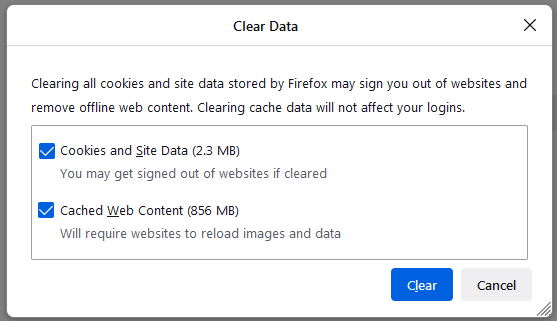
Mozilla Firefox
1. Click the menu button and select "Settings".
2. Select the Privacy & Security panel.
3. In the Cookies and Site Data section, click Clear Data….
4. Select the check box in front of 'Cookies' and 'Site Data'.
5. With Cached Web Content check marked, click the Clear button.
Microsoft Edge
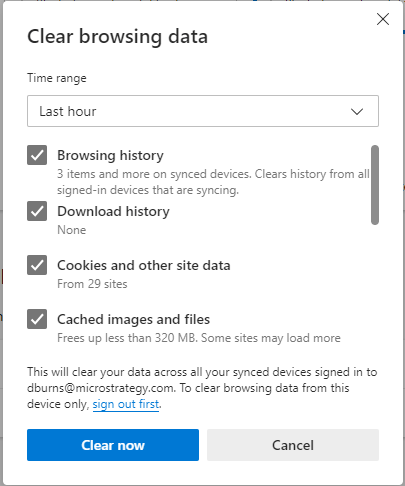
1. In Microsoft Edge, select Settings and more (the ellipses icon)
2. Select Settings.
3. In the Settings sidebar, select 'Privacy, Search, and Services.'
4. Under Clear browsing data, select 'Choose what to clear.'
5. In Clear browsing data, select the check box for each type of data to be purged (Cookies and Caches)
6. Click the Clear Now button
Google Chrome
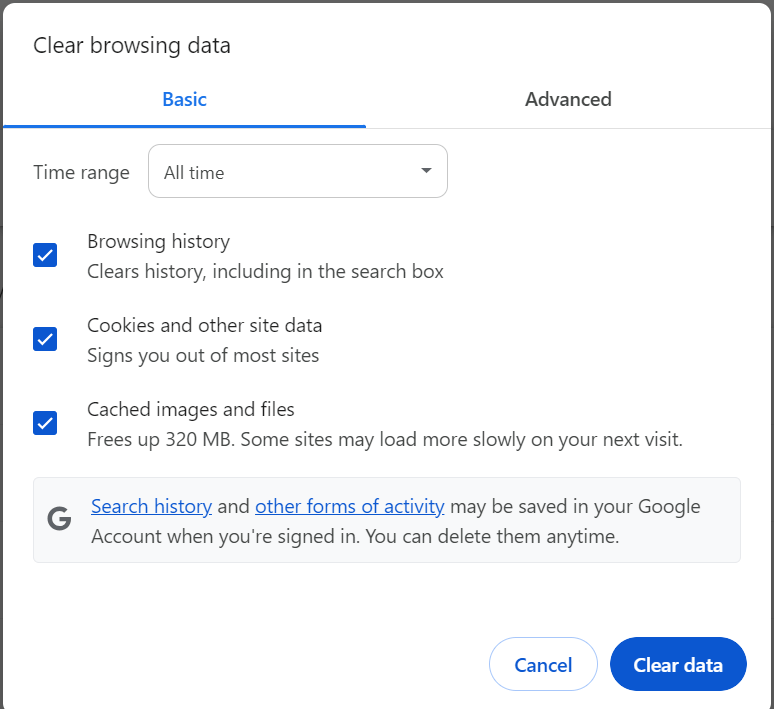
1. In Microsoft Edge, select Settings and more (the ellipses icon)
2. Select Settings.
3. In the Settings sidebar, select 'Privacy, Search, and Services.'
4. Under Clear browsing data, select 'Choose what to clear.'
5. In Clear browsing data, select the check box for each type of data to be purged (Cookies and Caches)
6. Click the Clear Now button
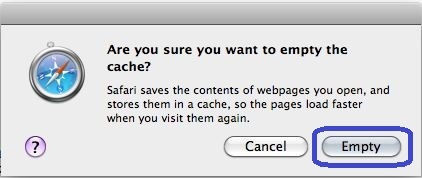
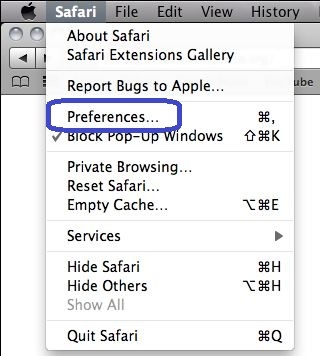
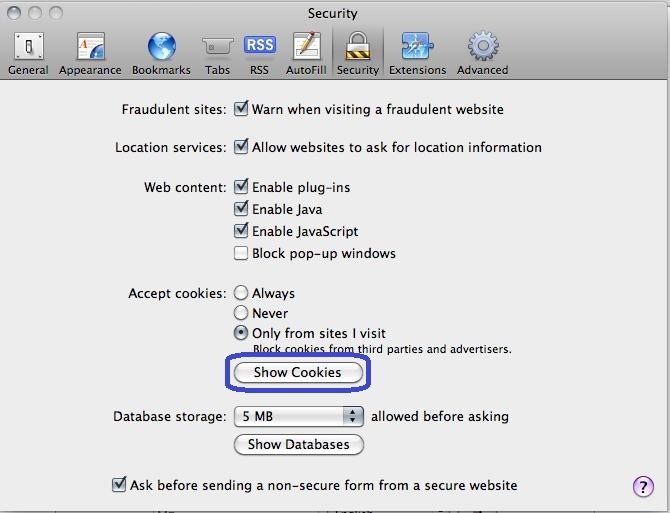
Apple Safari
Third Party Software Installation Warning:
The third-party product(s) discussed in this technical note are manufactured by vendors independent of Strategy. Strategy makes no warranty, express, implied or otherwise, regarding these products, including their performance or reliability.
