SYMPTOM:
By default, users that are part of the User Administrator group do not have the ability to add users to groups, delete user profiles or delete users that were not created by them. This article describes how to create a User Administrator that has the ability to manage all users within a project source without being able to see or interact with any of the projects. This User Administrator will be able to add users to all groups created within the project source.
STEPS TO REPRODUCE:
1.) Create a user in the User Administrators group.
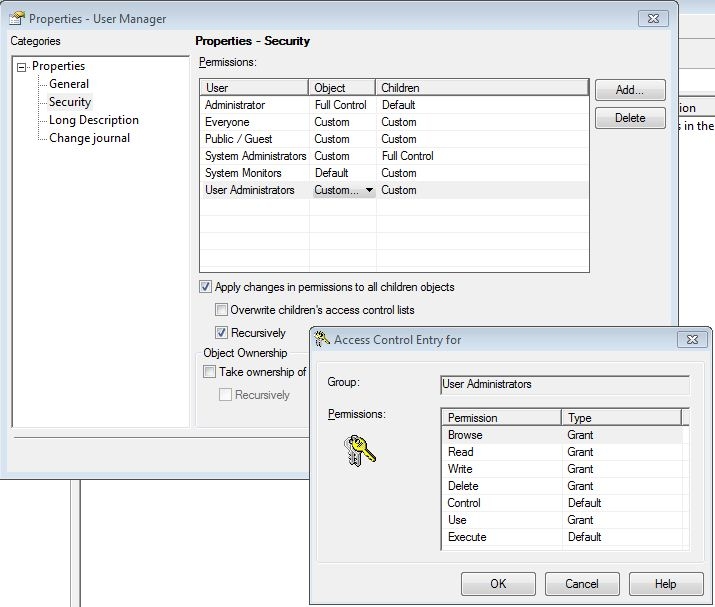
2.) Give the User Administrator the ability to add users to all groups available within the project source. (To only give access to specific groups, follow these steps after right clicking the specific group name instead of the "User Manager" title.)
* Under the Folder List on the right hand side in Desktop, right click the User Manager and choose Properties - Security.
* If User Administrators are not already visible in the Permissions pane, add them using the "Add" button on the right.
* From the drop down list to the right of User Administrators under Object and Children, choose the "Custom..." ACL setting and set them as in the image below.
* Click OK, then ensure the check boxes next to "Apply changes in permissions to all children objects" and "Recursively" are selected. Click OK.
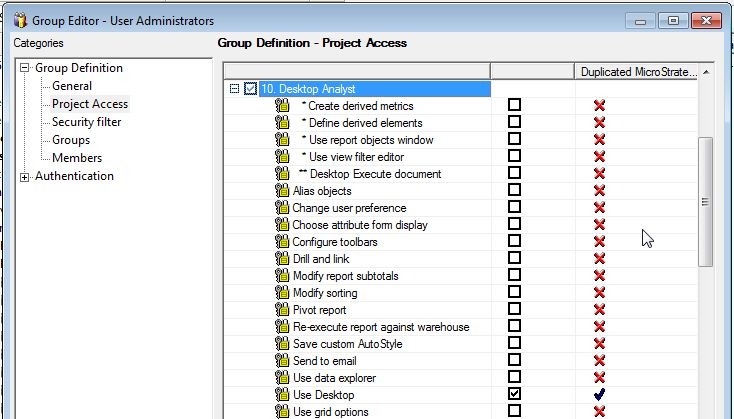
3.) Grant the User Administrators group the "Use Desktop" privilege.
**This step allows the User Administrators to delete the user's Profile folder within each project when deleting a user from the project source. If this is not necessary, this step my be skipped, but the User Administrator will need to choose "No" when asked if they would like to delete a user's User Profile.
Note: Granting the Use Desktop privilege will make projects visible to the User Administrators. Step 4 will describe how to hide them from the User Administrators while still allowing them to delete the User Profile folder.
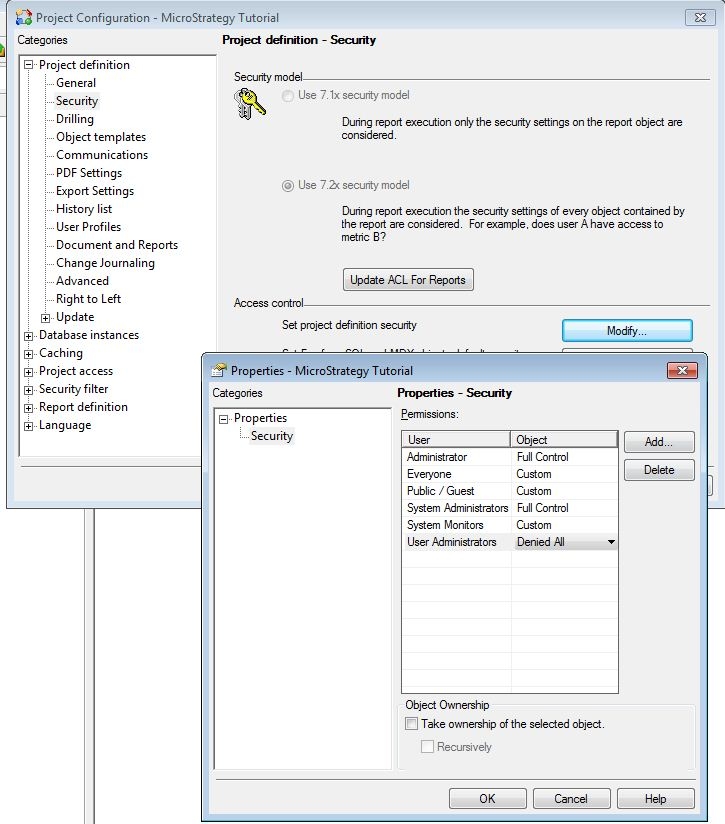
4.) To make a project invisible to the User Administrator, set the project definition ACLs to "Denied All" for the User Administrators.
* Open the Project Configuration and select Security.
* Click the Modify button next to "Set project definition security" under "Access control"
* If User Administrators are not already visible in the Permissions pane, add them using the "Add" button on the right.
* From the drop down list to the right of User Administrators under Object, choose the "Denied All" ACL setting as in the image below. Click OK.
The User Administrator should now be able to create, edit and delete users and their profile folders without being able to access projects.
Note: The User Administrator will be able to view folder structure of all available projects in the project source, however they will not have access to modify existing objects or create new objects. If desired, modifying the project root folder security in the same way the project definition security was modified can be accomplished, however this will prevent the User Administrator from granting users access into the specified project.
