SYMPTOM:
A project's name is changed to NewProject1 after the error message "The Name Cannot Be Empty" appears and the project name is set back to the original name in Strategy Developer.
STEPS TO REPRODUCE:
1. In Strategy Developer open the Strategy Tutorial Project Source
2. Open the project My First Project
3. Either right click on the project and select rename or left click so the project name can be edited
4. Clear the name with either the delete or back space button so the project name is blank

5. Press enter and the error below will appear

Sample Code/Error
The name cannot be empty
6. Click OK and notice the original project name of "My First Project" will be highlighted

7. Press enter and notice the original project name will be displayed.
8. Disconnect from the project source and reopen, the project name will be changed to NewProject1
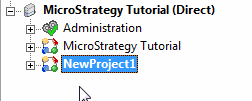
Note: If the project name is changed to something other than the original after the error message, the project name will be changed to the new name even after the project source has been disconnected and reopened. The issue only occurs when the original project name is used after the error message.
CAUSE:
This is a known issue in Strategy Developer
ACTION:
After disconnecting from the project source and reopening, change the project name back to the desired name.
