EducationSoftwareStrategy.com
StrategyCommunity

Knowledge Base

Product

Community

Knowledge Base

TopicsBrowse ArticlesDeveloper Zone

Product

Download SoftwareProduct DocumentationSecurity Hub

Education

Tutorial VideosSolution GalleryEducation courses

Community

GuidelinesGrandmastersEvents
x_social-icon_white.svglinkedin_social-icon_white.svg
Strategy logoCommunity

© Strategy Inc. All Rights Reserved.

LegalTerms of UsePrivacy Policy
  1. Home
  2. Topics

KB42606: How to create nested Workflow in the MicroStrategy System Manager 9.3.0


Community Admin

• Strategy


This technical note demonstrates how to create a nested workflow by reusing a workflow in definition of another workflow in the MicroStrategy System Manager 9.3.0. This property helps to structure the workflow creation and minimizing errors in very large workflows.

 INTRODUCTION:
This technical note demonstrates how to create a nested workflow by reusing a workflow in definition of another workflow in the Strategy System Manager 9.3.0. This property helps to structure the workflow creation and minimizing errors in very large workflows.
SAMPLE:
1. Create the first workflow that will be used into the second workflow. The image below shows a supposed workflow composed by two processes “Move Files” and “Copy Files”. This workflow was saved as “File Manipulation.smw”.
 

ka04W000000OhgWQAS_0EM4400000029dt.png

 
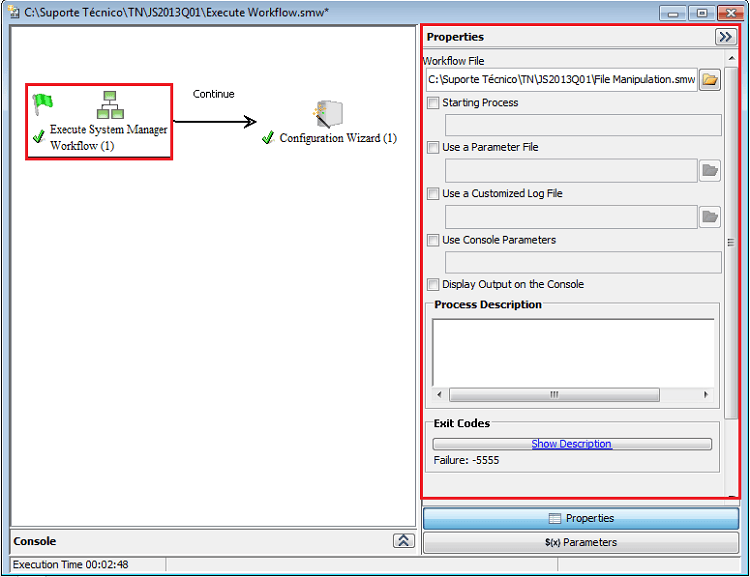
2. Create the second workflow that will use the processes added into the first workflow. The images below show a supposed workflow with two processes “Configuration Wizard” and “Execute System Manager Workflow”. To add an existing workflow, use the "Execute System Manager Workflow" menu option on the left side of the System Manager Console, and selected under “Workflow File” the file related to the respective workflow created previously that in this case was “Manipulation.smw”.
 

ka04W000000OhgWQAS_0EM4400000029dr.png


Comment

0 comments

Details

Knowledge Article

Published:

April 24, 2017

Last Updated:

April 24, 2017