SYMPTOM
When generating an Excel file or PDF by Strategy Intelligence Server export or Distribution Services subscription in Strategy 10.0 - 10.7, embedded images do not display and are instead replaced with a "red X" icon. No particular error is recorded in the DSSErrors.log. It may be noticed that restarting the Strategy Intelligence Server resolves the issue for some period of time, after which it begins happening again. The issue will only affect images whose path is defined in the report or document using a relative path (i.e .\images\image1.jpg).
CAUSE
This behavior is caused by a known defect that changes the Intelligence Server's working directory to the wrong path while the Intelligence Server is running. Typically the working directory will be changed from the Intelligence Server's installation folder to Strategy's JDBC driver folder (by default C:\Program Files (x86)\Common Files\MicroStrategy\JDBC or /opt/MicroStrategy/JDBC). In order to confirm that the working directory has been changed, certain utilities can be used to verify the current state.
Windows:
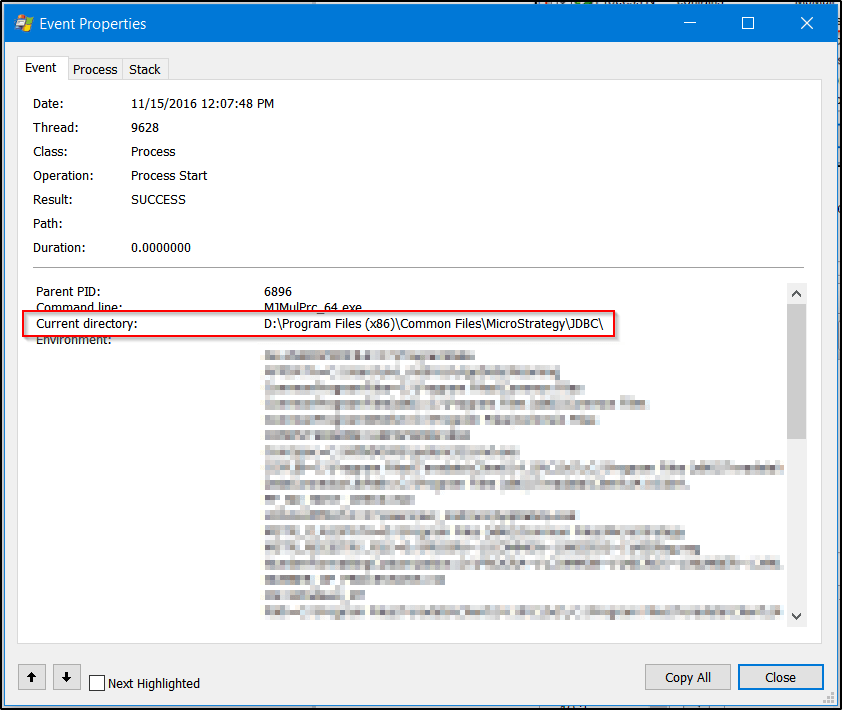
Microsoft Process Monitor can be used to check the working directory of newly created MJMulPrc processes when the subscription runs. To capture these events, add filters for Operation is Process Start and Process Name contains MJMulPrc:

Then, open one of the captured events and check the Current directory parameter. In a normally working scenario, it is expected that this will show C:\Program Files (x86)\MicroStrategy\Intelligence Server (or the particular location the Intelligence Server was installed to). When the known issue is occurring, this will show the Program Files (x86)\Common Files\MicroStrategy\JDBC directory instead as in the below screenshot:
Linux:
The pwdx command can be used to check the current working directory of the Intelligence Server process. To run this command, first find the process ID of the Intelligence Server process (on Linux, this process is called MSTRSvr) by running the command ps -ef | grep MSTRSvr:

Then, run pwdx <pid> (in this example, the command would be pwdx 63225). In a normally working scenario, it is expected that this will show /var/opt/MicroStrategy/IntelligenceServer (path may vary depending on the installation location). When the known issue is occurring, this will show the /opt/MicroStrategy/JDBC directory (again, path may vary depending on the installation location) instead as in the below screenshot:

ACTION
This issue is fixed in Strategy versions 10.4 HF4 and 10.8. Upgrade to the latest Platform Release or Feature Release version to take advantage of the fix.
WORKAROUND
As mentioned above, restarting the affected Strategy Intelligence Server will resolve the issue for some amount of time, until the working directory gets changed again. It is not known at this time what specific behavior triggers the change.
Creating a symbolic link to the /var/opt/MicroStrategy/IntelligenceServer/images directory from the /opt/MicroStrategy/JDBC directory (after adjusting for the appropriate installation locations) will also allow the exports to complete normally while the issue is happening, as the Intelligence Server will be able to correctly load the images from the incorrectly set working directory.
Assuming default locations, the link can be created with the command:
ln -s /var/opt/MicroStrategy/IntelligenceServer/images/ /opt/MicroStrategy/JDBC/images

Defining images using absolute paths or URL paths will also avoid the issue, as the incorrectly set working directory will only affect relative paths.
The Strategy internal reference number for this issue is DE53011. The Strategy internal reference number for this Knowledge Base article is KB426542.
