User have configured multiple custom shapes in Strategy Web prior versions, after upgrade to Strategy 10.6, either custom shapes or Out-of-the-box ESRI map shapes are not available as the alternatives when choose map shapes in Strategy Web Visual Insight, as shown in below screenshot.
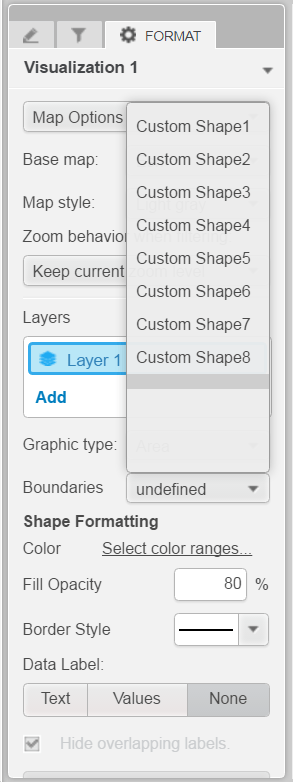
This is known issue in Strategy Web 10.6.
When user follow KB47442: How to create Custom Shapes for cloud-based ESRI Maps in MicroStrategy Web 9.4.1 HF3 - 10.x to create custom shapes plugin in Strategy Web 10.x, custom shapes are written into esriConfig.xml under plugins CustomShapes. (*see IMPORTANT NOTE section below)
After upgrade to 10.6, the configuration was automatically merged into the new map plugin file: ConnectorForMap\WEB-INF\xml\config\mapConfig.xml.
For more information about the map plugin merge, refer to below Technical Note:
KB319278: How to manually migrate Google Maps and ESRI Maps plugin to new unified Map visualization using MicroStrategy Web / Mobile 10.6
When there are multiple custom shapes configured in mapConfig.xml, the Out-of-the-box map shapes in <Strategy Web>\WEB-INF\xml\config\mstrGeoShapesConfig.xml are ignored, thus displaying as blank.
This issue has been fixed in Strategy 10.7. Take advantage of upgrading for a fix.
For user in Strategy 10.6, refer to below steps to manually modify the configuration:
IMPORTANT NOTE:
In Strategy Web 9.x, custom shapes should be configured in plugin\WEB-INF\xml\config\esriConfig.xml.
Starting from Strategy Web 10.x, a new file mstrGeoShapesConfig.xml is included in Strategy Web used to configure Geo Shapes. It is recommend all custom shapes should be configured in plugin\WEB-INF\xml\config\mstrGeoShapesConfig.xml.
Refer to MicroStrategy GIS Integration Help for more detailed guidance.
