EducationSoftwareStrategy.com
StrategyCommunity

Knowledge Base

Product

Community

Knowledge Base

TopicsBrowse ArticlesDeveloper Zone

Product

Download SoftwareProduct DocumentationSecurity Hub

Education

Tutorial VideosSolution GalleryEducation courses

Community

GuidelinesGrandmastersEvents
x_social-icon_white.svglinkedin_social-icon_white.svg
Strategy logoCommunity

© Strategy Inc. All Rights Reserved.

LegalTerms of UsePrivacy Policy
  1. Home
  2. Topics

KB426713: How to restrict user from saving reports or documents in the Shared Reports folder in MicroStrategy Developer 10.x


Stefan Zepeda

Salesforce Solutions Architect • Strategy


KB19115: How to restrict user from saving reports or documents in the Shared Reports folder in MicroStrategy Developer 10.x

Administrator users may want to restrict some users from saving to the Shared Reports folder in Strategy Developer 10.x. This can be done by applying a security role that does not have the 'Web save to Shared Reports' privilege. Follow the steps below:
 

  • Go to Strategy Developer 10.x
  • Select Administration in the menu bar.
  • Select Security Role.
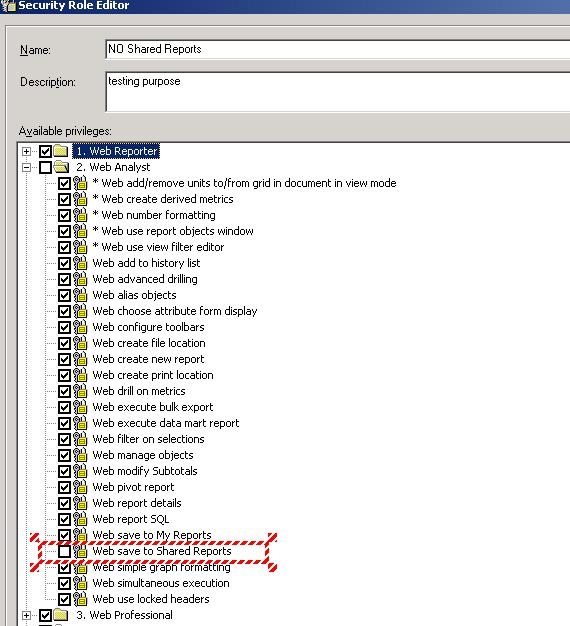
  • Select Web Report, Analyst, and Professional.
  • Uncheck 'Web save to Shared Reports' under Web Analyst, as shown below:
ka044000000kLnKAAU_0EM440000002UrJ.jpeg
  • Save this security role.
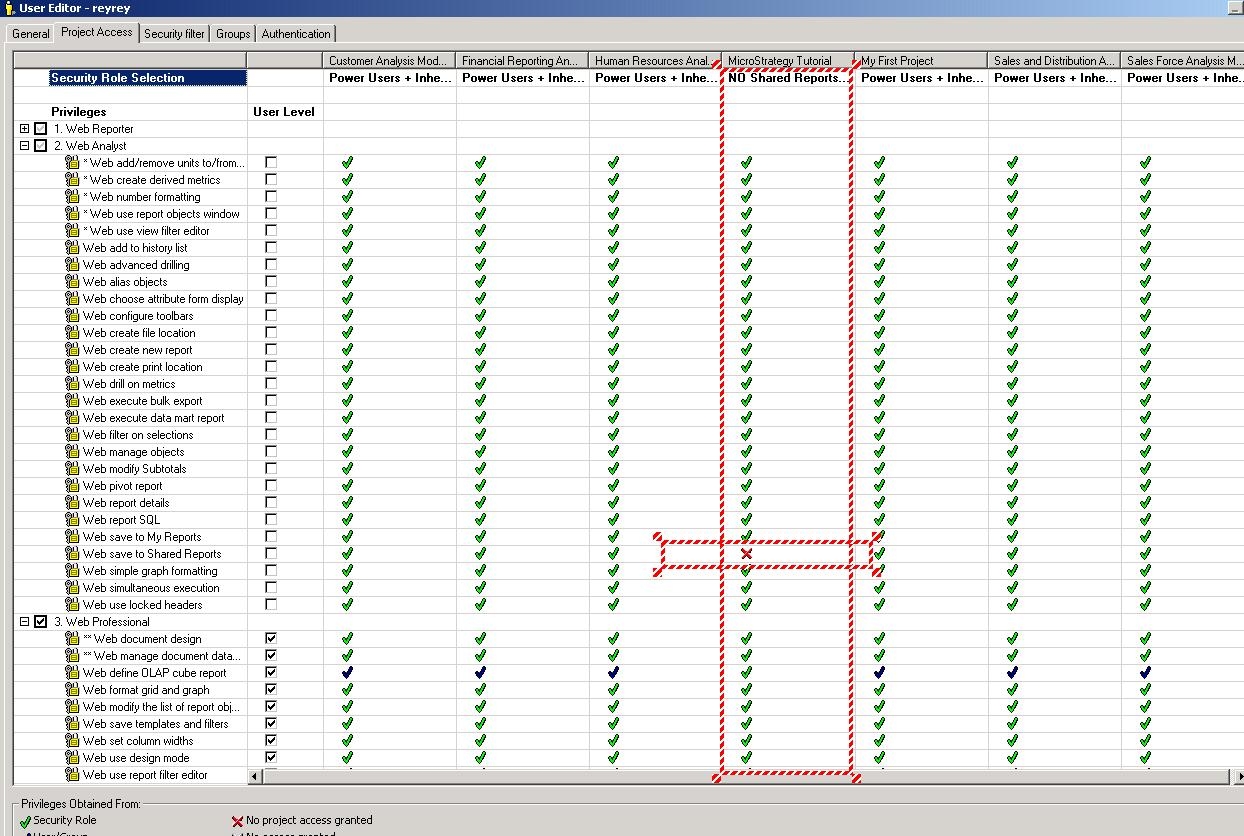
  • Right click on a Strategy user under Users and open the User Editor.
  • Select the newly created security role under the project the user belongs to, as shown below:
ka044000000kLnKAAU_0EM440000002UrL.jpeg
  • Save all the setting sand login to Strategy Web 10.x with the user modified in the previous steps.
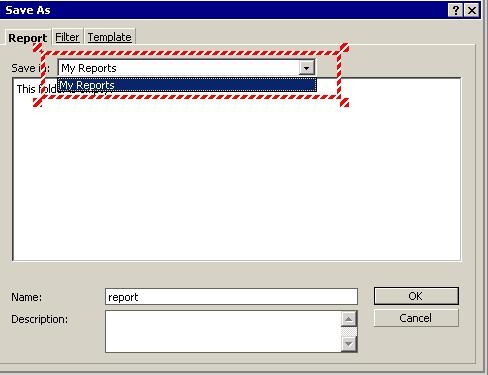
  • Notice that when the user tries to save any report, the Save As dialog box does not display Shared Reports in the drop down list, as shown below:
ka044000000kLnKAAU_0EM440000002Ur7.jpeg


KB426713


Comment

0 comments

Details

Knowledge Article

Published:

July 19, 2017

Last Updated:

January 9, 2019